Appearance
Library and Export
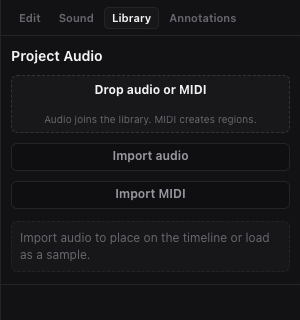
The Library tab manages imported audio files. The Project menu handles export.
Import Audio
- Click Library in the right inspector.
- Click Import audio.
- Choose an audio file.
Each imported audio file shows:
- File name.
- Duration.
- Channel label.
- Ready/saved status.
- Place action.
- Use as sample action.
Import MIDI
Click Import MIDI in the Library tab, the Project menu, the Piano Roll toolbar, or the command palette. Choose a .mid or .midi Standard MIDI File.
Miao creates one MIDI track and MIDI region for each playable source track at the playhead. The import keeps note channel, note-off velocity, controller changes such as sustain and attack, program changes, pitch bend, pressure, text metadata, key signature, tempo, and time signature for later MIDI export. Miao also maps General MIDI program changes and instrument-name metadata to the nearest built-in instrument when there is a clear match.
Place Audio on the Timeline
Use one of these:
- Click Place on the audio card.
- Drag the audio file onto the timeline.
- Right-click the timeline and choose Place audio here.
- Right-click the audio file and choose Place at playhead.
Miao places the file as an audio region.
Use Audio as a Custom Sample
Select or create a MIDI track, then click Use as sample on the audio card. The file becomes the sampler source.
If there is no MIDI track, the action is disabled or Miao asks you to select a MIDI track.
Saved Audio State
Imported audio can be:
- Ready in the current session.
- Saved to the project.
- Loaded into the audio graph for playback.
When reopening a project, unlock it so Miao can restore saved audio files.
Audio File Size Limit
The Worker rejects uploaded audio files larger than 100 MB.
Clean Unused Files
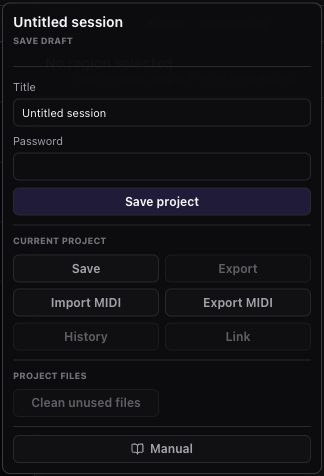
Open Project and click Clean unused files. Miao saves first, prunes unreferenced audio records, and deletes project audio files that are no longer referenced by regions or takes.
Use this after deleting imported or recorded material that should not remain saved with the project.
Export
Open Project and click Export. Miao:
- Saves the current project.
- Creates an export job.
- Collects referenced project audio files.
- Collects built-in instrument samples referenced by the project.
- Renders the project server-side.
- Writes a ZIP file.
- Shows Download ZIP when ready.
Export ZIP
The download link is named miao-export.zip in the browser. The server download filename includes the project ID and export ID.
The ZIP contains the rendered project export. The export renderer uses the same project document model as the realtime audio graph so timeline audio, MIDI clips, routing, Track Effects, master effects, and automation stay aligned.
Chord lane data is saved in the project, but chords are rendered as sound only after you convert them into MIDI regions with To MIDI, Arp, or Bass.
Export MIDI
Open Project and click Export MIDI, or click Export .mid in the Piano Roll toolbar. Miao writes a browser download link for a Standard MIDI File containing the current MIDI clips and preserved MIDI performance metadata.