Appearance
MIDI Editor
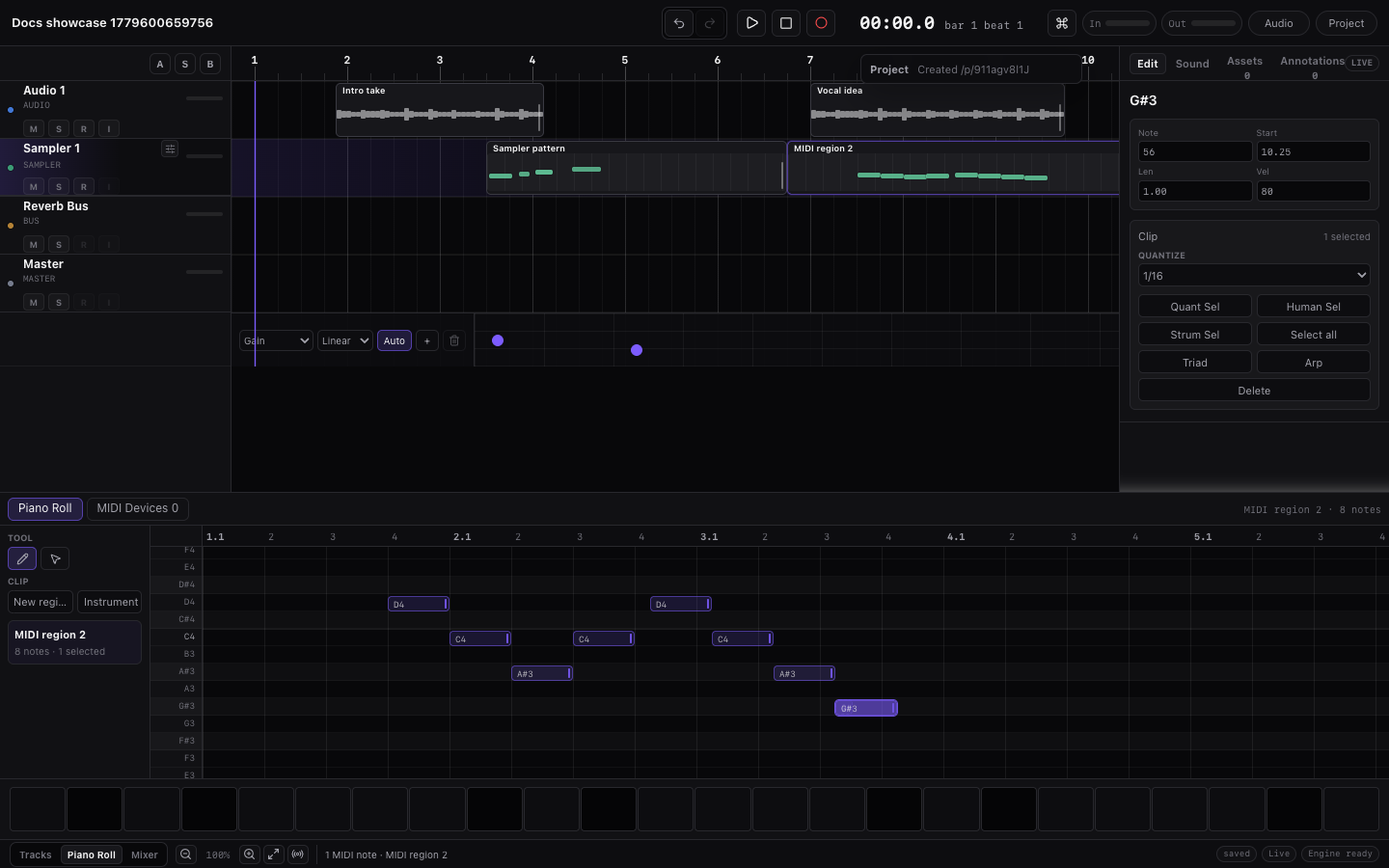
The MIDI editor opens from Piano Roll in the bottom bar. MIDI regions live on MIDI tracks and play the current built-in instrument or custom sample source. The bottom bar keeps related MIDI work in separate modes: Piano Roll edits notes, Keyboard plays with the computer keyboard, and MIDI Tools handles import/export, Web MIDI connection, and selected-note transforms.
MIDI Workflow Map
Use this map when you know the task but not the panel:
| I want to... | Start here |
|---|---|
| Draw notes or edit velocities | Select a MIDI region, then open Piano Roll. |
| Make a drum pattern | Load a drum kit from Instrument, then use drum lanes. |
| Play with the computer keyboard | Select a MIDI region or MIDI track, then open Keyboard. |
Import or export .mid files | Open bottom MIDI Tools. |
| Connect a MIDI controller | Open bottom MIDI Tools and use Connect MIDI. |
| Change the instrument | Select the MIDI track, then use Instrument. |
| Analyze notes into Chord Track blocks | Select a melodic MIDI region, then click Create chords. |
| Generate MIDI from chords | Use the Chord Track / Selection inspector, then edit the created region here. |
Target Checklist
Before drawing, previewing, recording, or importing, check three things:
| Target | What it controls |
|---|---|
| Selected MIDI track | Which instrument, drum kit, custom sample, Track Effects, and routing are used. |
| Selected MIDI region | Which clip the Piano Roll edits and which clip note shortcuts affect. |
| Active bottom mode | Whether you are editing notes, playing the keyboard, or handling MIDI files/devices. |
If preview uses the wrong sound, select the intended MIDI region or MIDI track again. If the Piano Roll looks empty, select the region that contains the clip you want to edit.
Create a MIDI Region
Use one of these:
- Click Piano Roll, then Create MIDI.
- Right-click the timeline and choose Create MIDI here.
- Click Create MIDI in the piano-roll toolbar.
If there are no MIDI tracks, add a MIDI track first.
If the chord lane already has chords, use Make MIDI, Arp, Bass, or Build arrangement from the Chord Track / Selection controls to create chord-generated MIDI instead of starting blank.
Write a Two-Bar MIDI Part
Use this when you want a small editable part without importing or generating first:
- Select a MIDI track and load an instrument from Instrument.
- Open Piano Roll and click Create MIDI.
- Set Grid to
1/8or1/16. - Choose the draw tool and add a few notes in the first bar.
- Press
Spaceto hear the part in context. - Select the notes or region and duplicate them into bar 2.
- Change one or two notes in bar 2 so it answers bar 1 instead of repeating exactly.
- Drag in-note velocity handles to add accents.
- Use Quantize lightly if the timing should tighten, or leave it loose if the feel works.
- Save a version when the part becomes part of the arrangement.
| If the part feels... | Try |
|---|---|
| Too stiff | Lower Quantize Amount, use Humanize, or vary velocities. |
| Too busy | Delete notes before adding effects. Empty space is often better than a denser pattern. |
| Out of key | Turn on Snap notes or use Fit notes. |
| Not matching chords | Use Chords to fit selected notes to the Chord Track at their note starts. |
| Too quiet or silent | Check the track instrument, mute/solo, routing, and note velocities. |
Import a MIDI File
Use one of these:
- Open bottom MIDI Tools and click Import MIDI.
- Drop a
.midor.midifile onto the timeline.
Choose a .mid or .midi Standard MIDI File. In the bottom MIDI Tools mode, set Import tempo before importing:
| Policy | Result |
|---|---|
| Keep project tempo | Uses the current project BPM and places the imported notes against that grid. |
| Use file tempo | Uses the file's tempo and time-signature map for the project and imported clip timing. |
| Original timing | Preserves the file's audible timing as closely as possible while keeping the project tempo. |
Miaou creates aligned MIDI regions at the playhead. Melodic source tracks stay as one track; General MIDI drum-kit tracks stay as one kit-backed MIDI track with named lanes for Kick, Snare, Closed Hat, Open Hat, Crash, Ride, Clap, Cowbell, Tom, and percussion. Imported note channel, note-off velocity, controller changes such as sustain and attack, program changes, pitch bend, pressure, text markers, key signature, tempo, and time-signature events are kept on the MIDI clip for export. When the file includes General MIDI program changes or instrument-name data, Miaou maps each imported track to the nearest built-in instrument when there is a clear match.
Create Chords from MIDI
Select a MIDI region with notes, then use one of these:
- Click Create chords in the Selection inspector's MIDI clip controls.
- Right-click the MIDI region and choose Create chords from MIDI.
Create chords is for melodic MIDI regions. Drum-kit regions use MIDI notes as named kit-piece triggers, so Miaou does not offer chord analysis for them.
Miaou analyzes the selected region by the chosen Analysis grid, infers the strongest chord from overlapping note pitch classes, and writes chord blocks into the chord lane at the region's timeline position. Use 1/2 bar for fast harmonic rhythm, 1 bar for normal chord-per-bar material, or 2 bars when the region holds chords longer. Existing chord blocks that overlap the analyzed range are replaced so repeated analysis updates the same section instead of stacking duplicates. Created chords keep confidence details and their top alternate candidates: low-confidence blocks show Review, medium-confidence blocks show Check, accepted blocks can be marked Reviewed, and candidate overrides show Corrected. Select an analyzed Chord Track block to choose a saved alternate candidate after creation. Use undo if you want the previous chord lane back.
For the full review, correction, generation, and regeneration workflow, see Analyze and Generate.
Export MIDI
Use one of these:
- Open bottom MIDI Tools and click Export MIDI.
Miaou exports the current MIDI clips as a Standard MIDI File. The exported file includes notes plus preserved MIDI data and performance events from imported or edited clips.
Select the MIDI Region
Click a MIDI region in the timeline. The piano roll edits the selected MIDI clip. If no MIDI region is selected, the editor shows an empty or unavailable clip state.
The selected MIDI region or selected MIDI track also controls note preview. When you click the piano keys, drum lanes, pads, or computer keyboard, Miaou previews through that track's loaded instrument or custom sample. If preview uses the wrong sound, select the intended MIDI region or MIDI track before playing.
Common target mistakes:
| Problem | Fix |
|---|---|
| Piano Roll is open but edits the wrong clip | Click the intended MIDI region in the timeline. |
| Keyboard plays the wrong instrument | Select the intended MIDI track or region before playing. |
| Drum lanes do not appear | Load a drum-kit instrument on the selected MIDI track. |
| Notes exist but no sound plays | Load an instrument, check mute/solo/routing, and confirm the track outputs to Master or a bus. |
| Shortcuts delete notes when you expected regions | Click the timeline or region first; shortcuts follow the active editor. |
Draw Tool
Click the pencil icon in the MIDI toolbar. Move over the grid to preview the note position, then click to add a note.
When the selected MIDI track uses a drum kit, the editor switches to named drum lanes. In Draw mode, click a lane to add one hit or drag across the lane to paint repeated drum hits at the current grid spacing. Dragging over existing hits does not create duplicates.
Notes snap according to the footer Grid value. Choose Off for free placement.
The footer snap mode also applies in the piano roll:
- Abs snaps note starts and note ends to the nearest grid line.
- Rel keeps an existing note's timing offset while moving or trimming by grid steps.
If Snap notes is enabled in the chord/key panel, newly drawn notes also snap to the current project scale.
Use Chords in the MIDI toolbar or context menu when you want notes to fit the chord lane as well as the project scale. Miaou moves pitches to the nearest chord tone at each beat, which is useful for fast bass lines, pads, and melody sketches over a progression.
Drawing, Painting, and Moving
The tool mode decides what a drag means:
| Mode | Gesture | Result |
|---|---|---|
| Draw tool | Click an empty melodic grid cell. | Adds a note. |
| Draw tool | Drag across a drum lane. | Paints repeated drum hits at the current Grid spacing. |
| Draw tool | Drag an existing note body. | Moves that note when the pointer starts on the note. |
| Select tool | Drag an existing note body. | Moves selected notes. |
| Select tool | Drag empty grid space. | Selects notes with a marquee. |
Use the draw tool for note entry and drum paint-drag. Use the select tool when you are mainly moving, trimming, copying, or selecting existing notes. Switch tools from the Piano Roll toolbar.
Use Cmd+A to select every note in the active MIDI region. Use Cmd+C, Cmd+X, and Cmd+V to copy, cut, and paste selected notes. Keyboard-pasted notes start at the playhead-relative beat and keep their internal spacing. Right-click the piano-roll grid or a note and choose Paste notes here to paste at that clicked beat. Hold Option / Alt while dragging selected notes to duplicate them without moving the originals; the duplicate notes appear as ghost copies while you drag.
Drum Lane View
Melodic instruments show a normal piano-roll pitch axis with note names. Drum kits show a drum-lane view because each MIDI note is a kit-piece trigger address rather than a musical pitch.
Named drum lanes show the loaded kit map, such as Kick, Snare, Closed Hat, Open Hat, Clap, Cowbell, Tom, Ride, Crash, and percussion. Drawing on a drum lane creates a short drum hit. Clicking a lane or hit previews that exact kit piece. Imported drum MIDI can still store normal MIDI note numbers; the lane names are the editor view for the selected kit.
When imported MIDI contains notes outside the loaded kit map, turn on Unmapped in the MIDI toolbar, or switch to a kit that includes the missing notes.
For the full beatmaking workflow, see Drum Kits and Beatmaking.
Scale Highlighting and Fit Notes
The piano roll highlights notes that belong to the current project scale. The tonic row is highlighted more strongly. When the selected MIDI region overlaps the chord lane, compact chord labels appear in the piano-roll ruler at the matching beats.
Use Fit notes in the chord/key panel to move notes to the nearest note in the current scale.
Use Chords in the piano-roll toolbar or right-click menu to move notes to the nearest tone in the chord lane at each note start.
- If notes are selected, only selected notes are fitted.
- If no notes are selected, the active MIDI clip is fitted.
See Chords and Scales for key, scale, and chord-to-MIDI workflows.
Chord-Generated MIDI
MIDI created from the chord lane opens like any other MIDI region, and the Selection inspector identifies it as chord-generated material when saved source details are available.
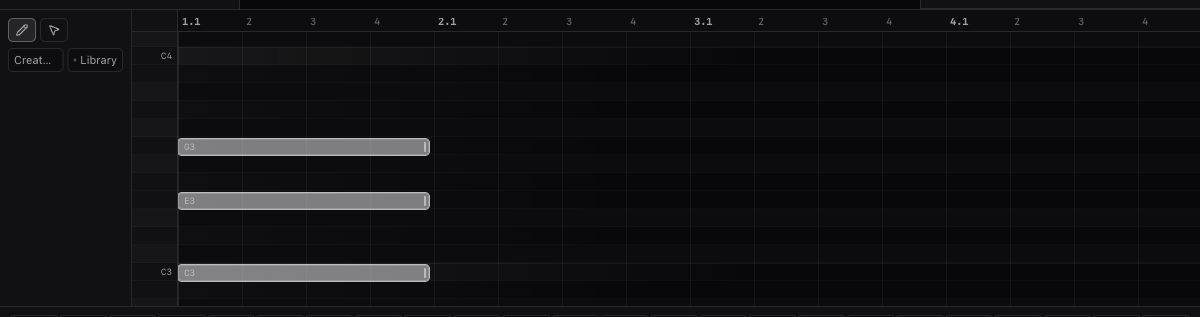
Use Regenerate when you have changed the source chords and want Miaou to rebuild the MIDI notes from the latest chord lane. Regeneration keeps the saved generation mode, voicing, and variation for that region, then replaces the notes in the generated region and focuses the rebuilt MIDI in the piano roll. Undo restores the previous notes if you regenerate by mistake. Regenerate and New variation stay disabled when the source is incomplete, so Miaou does not drop part of the original chord range silently.
Select Tool
Click the pointer icon in the MIDI toolbar. Use it to select existing notes. Selected notes are highlighted in the grid.
Move and Trim Notes
- Drag a note body to move it.
- Drag the right resize handle to change length. When several notes are selected, dragging one selected resize handle changes the selected note lengths together.
- Use
ArrowLeftandArrowRightto nudge selected notes. - Use
Shift+ArrowLeftandShift+ArrowRightto nudge selected notes by a larger grid step. - Use
ArrowUpandArrowDownto transpose selected notes by semitone. - Use
Cmd+ArrowUpandCmd+ArrowDownto transpose selected melodic notes by octave. Drum-kit notes do not octave-jump because their notes are kit-piece lanes. - Use
[and]to shorten or lengthen selected notes by the active grid. AddShiftfor a larger step.
When several notes are selected, drag, resize, nudge, transpose, and exact start/pitch edits preserve the group's internal spacing until the group reaches beat 0 or the visible pitch/lane boundary.
Edit Note Values
When a MIDI note is selected, the Selection inspector shows:
- Note
- Start
- Len
- Vel
Change values directly for precise edits. These numeric fields keep your typed text while focused, so select-all, Backspace, partial decimals, and normal replacement typing work. Press Enter or leave the field to commit the value; press Escape to discard the edit.
Note Velocity
Each note shows a horizontal velocity line inside the note itself. Drag the line up or down to change velocity; hold Shift while dragging for finer changes. When multiple notes are selected, dragging the velocity line on any selected note adjusts the selection while preserving relative velocity differences. This keeps velocity editing visible even when several notes start at the same time.
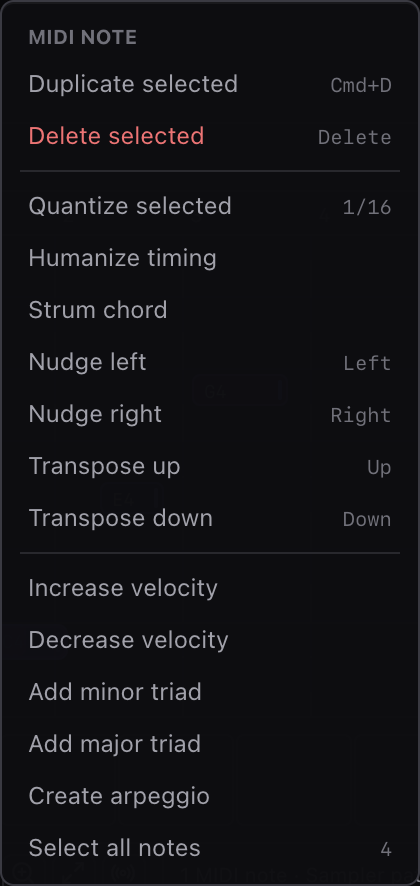
MIDI Actions
The MIDI toolbar, Selection inspector, and context menus expose:
| Action | Result |
|---|---|
| Quantize | Move notes toward the selected Grid value. |
| Humanize | Add subtle timing/velocity variation. |
| Strum | Offset selected notes to create a strummed feel. |
| Rhythm presets | Apply straight, offbeat, pulse, or held-note timing. |
| Musical | Fit notes to the scale/chords and add subtle performance. |
| Select all | Select all notes in the active MIDI clip. |
| Triad | Add minor or major triad tones to selected notes. |
| Seventh | Add seventh-chord tones to selected notes. |
| Arp | Create an arpeggio from selected notes. |
| Fit notes | Move notes to the nearest note in the scale. |
| Chords | Move notes to the nearest tone in the chord lane. |
| Follow Chord Track | Fit a selected MIDI region to Chord Track tones during playback and export without rewriting source notes. |
| Create chords | Infer chord-lane blocks from the selected MIDI region. |
| Regenerate | Rebuild chord-generated MIDI from source chords. |
| Duplicate selected | Copy selected notes. |
| Delete selected | Remove selected notes. |
| Transpose up/down | Move selected notes by semitone. |
| Velocity up/down | Adjust selected note velocity. |
Quantize Feel
The MIDI inspector keeps quantize controls compact:
- Grid sets the rhythmic target, such as Beat, 1/8, 1/8T, 1/16, or 1/16T.
- Snap chooses absolute or relative pointer snapping for note edits.
- Amount controls how far notes move toward the grid. 100% is fully snapped. Lower values preserve more of the original performance.
- Swing delays every second grid subdivision for a shuffled feel.
Quantize, Musical, and rhythm cleanup actions use Grid, Amount, and Swing. Pointer edits use Grid and Snap. This lets you tighten a part without making every note perfectly mechanical.
If you extracted a groove from an audio region, Apply audio groove appears in MIDI actions. It moves the current MIDI notes toward the extracted transient timing using the current Amount value. Select notes first to apply it to only those notes, or leave notes unselected to apply it to the whole active MIDI clip.
Web MIDI
Open the bottom MIDI Tools mode and click Connect MIDI.
Incoming notes can play the current instrument and can be recorded when a MIDI track is armed. The connection button shows whether inputs are connected, unavailable, or failed.
Web MIDI availability depends on browser and permission support. Desktop Chrome is the intended browser.
For browser permission and device setup, see Browser and Device Setup.
MIDI Recording Notes
For MIDI recording, select or arm a MIDI track before pressing Record. Miaou records MIDI notes into the selected MIDI region, or creates a normal editable MIDI region at the playhead when no region is selected on that armed track.
If Record captures audio when you expected MIDI, stop, undo if needed, then select or arm the intended MIDI track and check that the transport target says MIDI before recording again. See Recording for the full audio/MIDI recording flow.
Computer Keyboard
When focus is not inside a text field, these computer keys play the current instrument:
txt
Z S X D C V G B H N J M
Q 2 W 3 E R 5 T 6 Y 7 U
The lower row starts one octave below the upper row. Black-key positions use the letter/number keys between white keys.
The bottom Keyboard mode shows the active computer-key map with note names and pressed-key feedback. Use [ and ] or the octave buttons to move the map down or up when no MIDI notes are selected for length editing.
Pointer clicks on the on-screen keyboard audition notes with the same loaded instrument or sample as computer-key input. The visible range label updates as you change octaves so the playable notes are always clear.
For melodic instruments, choose Chromatic for the octave-based piano layout or Chord to map the same keys to the current Chord Track tones at the playhead. Chord mode changes only preview/input notes; it does not rewrite existing MIDI clips.
For drum kits, the keyboard switches to a pad-style layout that maps keys to kit pieces instead of pitch names. The labels come from the selected drum kit, so the same physical key can mean a named drum hit on a kit track and a pitched note on a melodic track.
Instrument Keyboard
The computer-keyboard panel and drum pads both trigger the current instrument or custom sample source. Use them for quick auditioning, note entry, and checking the loaded instrument.
Related Pages
- Instruments explains Instrument, the Starter palette, drum kits, custom samples, and instrument controls.
- Editing Basics explains the active editor, copy/paste, duplicate, nudge, trim, split, and undo.
- Analyze and Generate covers MIDI-to-chord analysis, review, generation, and regeneration.
- Drum Kits and Beatmaking covers kit choices, drum lanes, paint-drag, pads, imported drum MIDI, and transition FX.
- Commands and Shortcuts lists MIDI note shortcuts, context menus, and computer-keyboard behavior.
- Browser and Device Setup covers Web MIDI permissions, the computer-keyboard input option, and browser audio requirements.