Appearance
Troubleshooting
When Miaou does not behave as expected, start with the symptom map and make one reversible change at a time.
Start with the symptom map, then jump to the focused section. When the issue is about how a feature should work, the related workflow pages usually explain the mental model in more detail.

First 60 Seconds
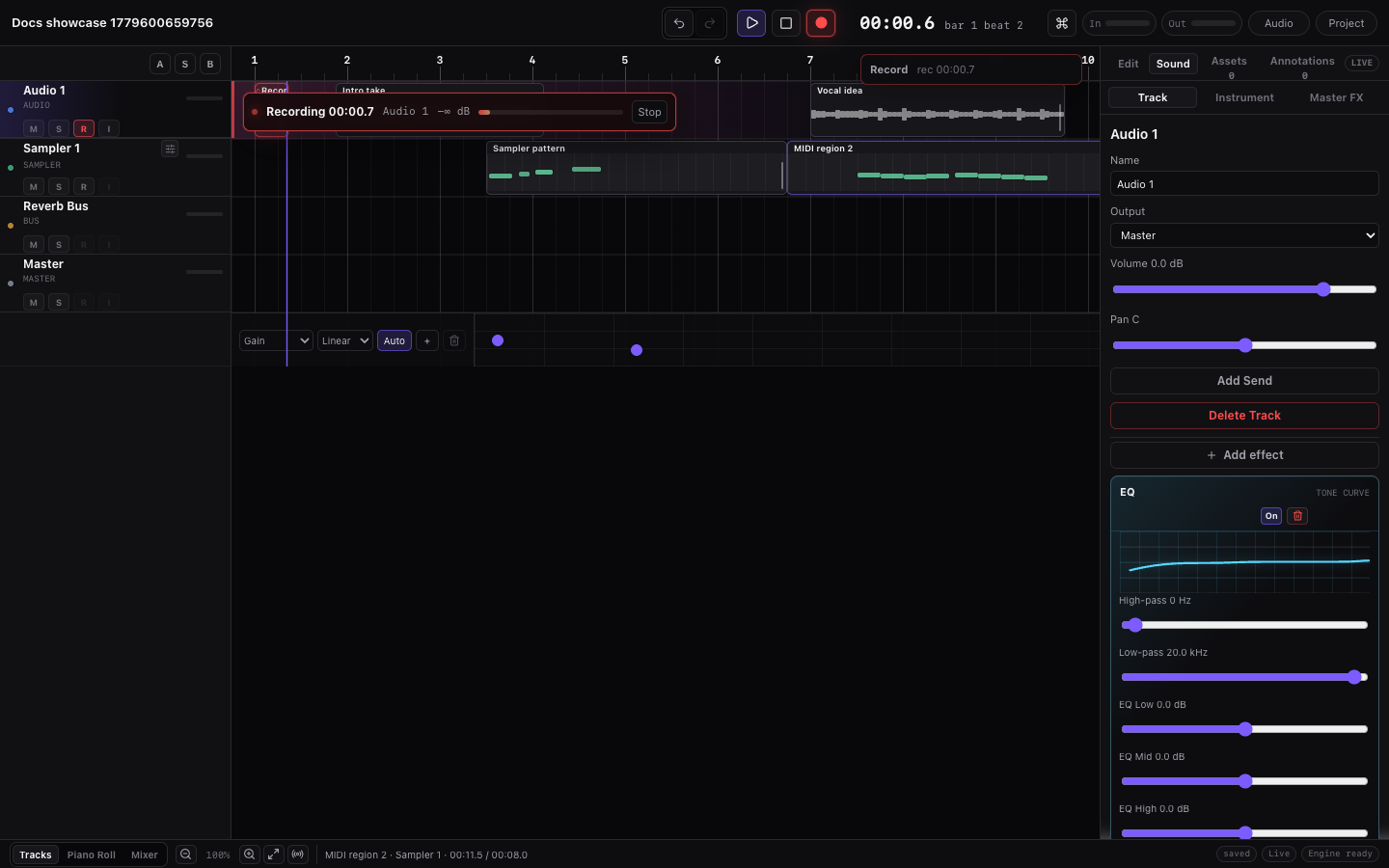
Before changing more settings, check the current project state and target:
| Check | What to do |
|---|---|
| Project state | If the work matters and you are in a draft, click Save. In a saved project, wait until save/sync status settles before reloading, sharing, or export. |
| Edit target | Confirm the selected track, selected region, right dock tab, and bottom editor match the thing you meant to edit. |
| Playback path | Press Play and watch the source track, bus, and Master meters before changing instruments or effects. |
| Status message | Read the footer/status area for save, export, audio, collaboration, missing-media, or browser-permission errors. |
| Undo safety | If the wrong object changed, use Cmd+Z / Ctrl+Z once before trying another fix. |
After that, use the symptom map below.
Fix Without Making It Worse
When a problem is unclear, use one small reversible test at a time. This keeps troubleshooting from causing accidental project damage.
| Step | Do this | Why it helps |
|---|---|---|
| Protect | Save the draft or create a Save version before broad repairs. | You can return to the current state if a fix changes too much. |
| Isolate | Pick one symptom: silence, wrong target, missing media, export mismatch, or browser permission. | Chasing several symptoms at once makes it hard to know which change helped. |
| Compare | Play the smallest section that shows the problem, then watch source, bus, and Master meters. | You can tell whether sound disappears at the region, track, routing, or output stage. |
| Change | Make one fix only: load an instrument, unmute a track, restore media, change routing, or correct tempo. | One change gives you a clear before/after result. |
| Undo | If the result is worse, use Cmd+Z / Ctrl+Z immediately. | Undo is safer than stacking more fixes on top of a wrong edit. |
| Verify | Play again, then save/version only when the result is correct. | The recovery point matches the fixed state, not the broken one. |
For export, sharing, and collaboration issues, verify from the outside too: reopen the project link, unlock it, play the section, or listen to the downloaded project-mix.wav before sending it.
Symptom Map
| If this happens... | Start here |
|---|---|
| Nothing plays | Project Is Silent |
| Playback reports a realtime-audio setup error | Realtime Audio Cannot Start |
| Audio file or recording is missing | Imported Audio Region Has No Sound |
| Reload opens a clean draft or older song state | Reload Opens a Clean Draft or Old Project State |
| Record captured audio instead of notes, or no MIDI notes | Recording Target Is Wrong |
| Preview uses the wrong instrument | Computer Keyboard Preview Uses the Wrong Instrument |
| Instrument feels detached from the selected track | Instrument Changes the Wrong Thing |
| You are not sure what the next action will affect | Selected Target Is Unclear |
| Drum lane or cowbell is missing | Drum Kit Note or Pad Not Found |
| Delete, paste, duplicate, or nudge affects the wrong thing | Shortcut or Edit Command Hits the Wrong Surface |
| Paste lands on the wrong track or time | Paste or Duplicate Lands in the Wrong Place |
| Effect is inserted but silent | Effect Inserted but Not Audible |
| Sidechain does not duck | Sidechain Is Not Ducking |
| Automation lane does not change the sound | Automation Does Not Affect Playback |
| Stems do not match the full mix | Signal Flow and Export Paths |
| BPM does not affect imported audio | Follow Project Tempo Sounds Wrong or BPM Does Not Affect Audio |
| Export, Share, or History feels unsafe | Save, Share, or Export Is Not Ready |
| Export sounds different from playback | Export Sounds Different from Realtime Playback |
| Downloaded ZIP is missing files or stems | Downloaded ZIP Is Missing Files |
| File picker or download does not appear | File Picker or Download Does Not Open |
| First play stutters or large panels feel slow | Large Projects and Performance |
| Browser, MIDI, input, or performance feels limited | Browser and Device Setup, then Practical Limits |
Project Is Silent
Check these in order:
- Press Play and confirm the playhead moves.
- Check the relevant track header and Master meters.
- Confirm the relevant track is not muted.
- Confirm no unrelated track is soloed.
- Confirm track volume is not at
-60 dB. - Confirm the track routes to Master or a bus that reaches Master.
- If it is a MIDI region, load a built-in instrument or custom sample.
- If it is an audio region, confirm the audio file is restored or reimported.
- Confirm the Master track is not muted and its output volume is above
-60 dB. - Check master gain and limiter/effects.
Timeline Regions Are Not Visible
Miaou works best in current desktop Chrome or Chromium. If the chord lane and minimap appear but region lanes look empty, update Chrome, reload the page, and try the project in a desktop-size window.
Playhead Does Not Move
Try:
- Click Play again.
- If playback is already running, click Stop and then Play.
- Reload the page.
- Confirm the browser allows audio playback after a user gesture.
- Check for visible audio errors in the bottom bar.
Realtime Audio Cannot Start
Miaou realtime playback needs a supported desktop browser and the Miaou app page at https://miaou.app/. Copied app files, embedded frames, preview pages, or older browsers can block playback even when the project data is valid. If an error mentions SharedArrayBuffer or cross-origin isolation, open the project from that app URL.
Try:
- Open the project from https://miaou.app/.
- Use current desktop Chrome or Chromium.
- Do not test realtime audio by opening copied app files directly.
- Avoid embedded previews or frames when checking playback.
- Reload after changing browser permissions.
Imported Audio Region Has No Sound
Try:
- Unlock the project so remote audio files can download.
- Confirm the audio region is on an unmuted track and has visible waveform content.
- If Miaou says reimport audio, import the source file again.
Instrument Preview Does Not Play
Try:
- Click the preview button again after a user gesture.
- Make sure browser audio is not muted.
- Load the instrument by clicking its name to verify the instrument sample is available.
Preview does not change the selected track instrument. It is only for auditioning.
Instrument Changes the Wrong Thing
Instrument always targets the selected MIDI track or MIDI region. Previewing an instrument does not change the project, but loading an instrument changes that selected MIDI track.
Try:
- Select the MIDI track or MIDI region you want to change before opening Instrument.
- Check the target track name in Instrument before clicking an instrument row.
- Use the preview button only for auditioning; click the row body when you actually want to load the instrument.
- Clear search when you want the compact Starter palette back. Search is global, so a query can show full-catalog instruments even when Starter is the default empty state.
- If the Piano Roll still shows melodic pitch rows, load a drum-kit instrument to switch the editor to named drum lanes.
For the full instrument workflow, see Instruments.
Selected Target Is Unclear
Miaou keeps the timeline, right dock, and bottom editor visible at the same time. Before using a command that changes an instrument, records, generates MIDI, analyzes chords, edits tempo, or deletes material, make the target explicit.
Check these in order:
- Select the track that should receive the change.
- Select the region, chord block, note, marker, or automation point you intend to edit.
- Read the first card in Inspector > Selection. It should name the active target.
- If you are changing an instrument, open Instrument and confirm the target MIDI track name before loading it.
- If you are editing a mix setting, open Inspector > Mix and confirm the selected track or bus.
- If you are recording, read the transport target chip before pressing Record.
- If you are using shortcuts, click the intended editor surface first: timeline, Piano Roll, Chord Track, markers, automation, or track header.
Use undo immediately if the wrong object changes. Most target mistakes are normal project edits and can be undone with Cmd+Z.
Computer Keyboard Preview Uses the Wrong Instrument
Computer-keyboard input, piano-key clicks, drum-lane clicks, and note preview follow the selected MIDI region or selected MIDI track.
Try:
- Select the MIDI region you want to edit.
- Select the intended MIDI track before playing the computer keyboard.
- Load the intended instrument from Instrument.
- Make sure focus is not inside a text input, BPM field, or other editable control.
- For drum kits, check that the track uses a kit instrument so the keyboard map switches to kit-piece labels.
Shortcut or Edit Command Hits the Wrong Surface
Miaou routes shortcuts through the active editor: timeline, Piano Roll, Chord Track, markers, automation, or track headers. Several selections can exist at once, so the last meaningful editor interaction matters.
Try:
- Click the timeline or a region before using
Cmd+A, Delete, copy, paste, duplicate, split, or region nudges. - Click or marquee notes in the Piano Roll before using note shortcuts.
- Click a chord block before using chord shortcuts.
- Click an automation lane or point before editing automation points.
- Click a track header only when you intend track-specific actions such as track duplicate, track reorder, or pasting copied regions onto that track.
- If you are typing in BPM, a chord symbol, clip gain, an effect value, a dialog, or a comment, finish the text edit first. Global shortcuts are intentionally ignored while typing.
For the full model, see Editing Basics.
Paste or Duplicate Lands in the Wrong Place
Paste and duplicate use the active editor, playhead, clicked lane, or context menu target.
Try:
- Move the playhead to the intended paste time before pressing
Cmd+V. - Right-click the intended lane or item and choose the paste-here action when exact placement matters.
- Select the destination track header before pasting copied regions onto a specific track.
- For MIDI notes, click inside the intended Piano Roll clip first.
- For chord blocks, click the Chord Track first.
- For markers or automation points, click the marker/automation surface first.
- Use undo immediately if the paste or duplicate landed in the wrong place.
For the shared clipboard and duplicate behavior, see Editing Basics.
Drum Kit Note or Pad Not Found
Try:
- Load a drum-kit instrument such as 808/909 Kit or Studio Drum Kit.
- Use the named drum lanes in the Piano Roll rather than looking for melodic pitch names.
- Check the pad labels for Kick, Snare, Closed Hat, Open Hat, Clap, Tom, Ride, Crash, and percussion.
- If the MIDI was imported, turn on Unmapped in the MIDI toolbar, or switch to a kit whose map contains the imported note.
- Remember that drum MIDI still stores note numbers internally; the labels come from the loaded kit map.
Effect Inserted but Not Audible
Check:
- The effect is enabled and not bypassed.
- The effect's Mix or wet/dry control is not at 0%.
- The track is not muted and is routed to Master or an audible bus.
- No solo state is hiding the track or bus.
- Automation is not forcing a neutral parameter value.
- The effect order is what you expect. For example, a compressor reacts differently before or after EQ or distortion.
- The effect is on the right surface: Track Effects affect one source track, while Master Effects affect the full mix.
Sidechain Is Not Ducking
Try:
- Put the Compressor on the track that should get quieter, not on the key track.
- Set Sidechain Source to the kick, vocal, or other key track.
- Lower Comp Thresh until gain reduction is audible.
- Increase Comp Ratio for stronger ducking.
- Set attack/release so the dip starts and recovers musically.
- If the key should be silent, route the key track output to None instead of muting it.
- Confirm the key source has audible or generated signal at the ducking moments.
Automation Does Not Affect Playback
Try:
- Confirm the lane is enabled and not muted.
- Confirm the automated parameter row says Automated.
- Check that the lane has at least two useful points if you expect a sweep or fade over time.
- Check that the playhead is moving through the time range containing the automation points.
- Confirm the lane targets the intended Track Effect or Master Effects parameter.
- If the effect is bypassed, automation can still move the parameter but the bypassed effect will not be audible.
- If you changed the static slider after drawing automation, remember that enabled automation overrides the static value during playback/export.
For the complete automation workflow, see Mix and Automate and Effects and Automation.
Recording Target Is Wrong
The transport target chip tells you what Record will capture before you press it.
Check these labels:
| Target or preflight text | What it means |
|---|---|
| Audio · {track} | Record will capture browser audio input into that audio track. |
| MIDI · {track} | Record will capture performed notes into the selected MIDI region or a new MIDI region. |
| Notes only · No mic | MIDI recording is selected. Miaou will not request microphone input or create an audio file. |
| Browser input | Audio recording is selected. Browser permission and the system input device matter. |
| No record target | Select or arm a compatible audio or MIDI track before recording. |
| Loop takes ready | Audio loop recording will create take passes when the recording spans more than one loop pass. |
If Record captured audio when you expected MIDI:
- Stop recording.
- Undo or delete the unintended audio region.
- Select or arm the intended MIDI track.
- Select the target MIDI region, or place the playhead where a new MIDI region should start.
- Confirm the target chip says MIDI · {track} and Notes only · No mic.
- Record again.
If no MIDI notes were recorded:
- Confirm the target chip says MIDI.
- Open Keyboard for computer-keyboard input or connect the MIDI device from MIDI Tools.
- Confirm focus is not inside a text field.
- Confirm the selected MIDI region or track is the one you expect.
- If a new MIDI region appeared, no existing MIDI region was selected on that target track; Miaou created one at the playhead.
For the full recording target model, see Recording.
Recording Does Not Start
Check:
- A compatible audio or MIDI track is selected or record-armed.
- The target chip says Audio · {track} or MIDI · {track}.
- Browser input permission is allowed.
- Input device is selected at the OS/browser level.
- The Record button is not in processing state.
- Count-in may be active before recording starts.
Input Meter Shows Nothing
Try:
- Click the ear icon on the selected audio track to monitor input.
- Arm an audio track.
- Select the audio track.
- Check the system input device and browser permission.
MIDI Device Not Listed
Try:
- Use desktop Chrome.
- Open Piano Roll and click the MIDI Tools button.
- Check browser MIDI permission.
- Reconnect the MIDI device and click Connect again.
Cannot Create MIDI Region
MIDI regions require a MIDI track. Add a MIDI track first.
Chord-to-MIDI Does Nothing
Chord-to-MIDI generation requires at least one chord and one MIDI track.
Try:
- Add a MIDI track.
- Add or select a chord in the chord lane.
- Use Make MIDI, Arp, or Bass in the Selection inspector.
- If no chord is selected, Miaou converts the full chord lane.
Drawn MIDI Notes Are Moving to Different Pitches
Check whether Snap notes is enabled in the chord/key panel. When enabled, newly drawn MIDI notes snap to the nearest note in the project scale.
Follow Project Tempo Sounds Wrong or BPM Does Not Affect Audio
Check:
- Follow project tempo is enabled on the selected audio region.
- Source BPM matches the original source tempo.
- The detected tempo is not half-time or double-time.
- Default, Beats, Tones, or Tape matches the material.
- Tape intentionally changes pitch when BPM changes.
- The project BPM changed in the top bar, not only the region start/duration fields.
For the full mental model, see Tempo and Follow Project Tempo.
MIDI Import Tempo Feels Wrong
The import tempo policy changes how Miaou maps the file to the project.
Try:
- Reimport with Use file tempo when the MIDI file's tempo map should define the project.
- Reimport with Keep project tempo when the notes should fit the current project grid.
- Reimport with Original timing when the file should keep its audible timing under the current BPM.
- Check whether the source file has tempo changes, pickup bars, or time-signature changes.
Export Sounds Different from Realtime Playback
Try:
- Save the project before export.
- Confirm the project is unlocked.
- Confirm all imported and recorded audio files are restored and available.
- Check whether you are comparing
project-mix.wavor a per-track stem. - Remember that
project-mix.wavincludes Master Effects and Master track-head mute/volume/balance. - Remember that stems are source-track based and do not include final Master Effects or final Master track-head controls.
- Check that sidechain key tracks are routed the same way you heard them in playback.
For the export checklist and ZIP contents, see Save, Share, and Export.
Downloaded ZIP Is Missing Files
Open the ZIP and check which part is missing:
| Missing item | What to check |
|---|---|
project-mix.wav | Export may not have finished. Return to Miaou, wait for Export ready, then click Download ZIP again. |
project.json | Download a fresh ZIP. The project file should always be present. |
| Imported or recorded media | Unlock the project, wait for audio restore to finish, confirm regions play, then export again. |
| Loop-recorded take media | Confirm the saved project is unlocked and the take region still references those takes before export. |
stems/ or some stem files | Large projects can omit stems when the ZIP would exceed the stem guard. Use project-mix.wav as final mix. |
| Expected Master processing | Master Effects and Master output controls are in project-mix.wav, not in per-track stems. |
After a new export, listen to project-mix.wav before sending the ZIP. If the mix plays correctly but stems are missing, the ZIP is still usable as a finished mix plus project/media package.
For the normal post-download checklist, see Check the Downloaded ZIP.
File Picker or Download Does Not Open
Miaou uses the browser's file picker and download system. If an import or export command seems to do nothing:
- Click inside Miaou once, then run the visible command again.
- For audio import, right-click the intended timeline lane and choose Import audio here.
- For MIDI import/export, open bottom MIDI Tools and use Import MIDI or Export MIDI there.
- For ZIP export, wait until export status says Export ready, then click Download ZIP.
- Check the browser Downloads list or Downloads folder.
- Open site settings for Miaou and allow downloads/popups if the browser blocked them.
- Save the project, reload, and try again only after save/export status has settled.
If a file was downloaded but the ZIP contents look wrong, use Downloaded ZIP Is Missing Files.
For browser permission details, see Browser and Device Setup.
Save, Share, or Export Is Not Ready
Try:
- Save the draft first. Draft-only work cannot be reopened from a share link.
- Unlock a shared project before recording, exporting, or expecting remote media to restore.
- Wait for save/sync/export status to settle before copying a link as final.
- If save is blocked while a numeric field is focused, fix the value, press
Enter, or pressEscapeto discard the field draft. - Use Save version before destructive edits, regeneration, comping, or sharing.
- Confirm all imported or recorded audio is restored before exporting.
- If Share copies a link but collaborators see an older state, create a version, reload, and confirm the project opens with the expected edits.
For the complete safety checklist, see Save, Share, and Export.
Reload Opens a Clean Draft or Old Project State
This usually means you reloaded a draft, opened the wrong link, opened a locked project without restoring media, or left before the latest save/sync completed.
Check these in order:
- Look at the address bar. Saved projects open at a
/p/...link. A clean draft does not have a saved project link in the URL. - If you are in a draft, click Save, enter a title/password, and wait for the saved project URL before sharing or closing the tab.
- If you are on a
/p/...project link, unlock the project with the password. - Wait for save/collaboration status to settle before reloading, exporting, or copying the link as final.
- Open History and check whether the expected edit exists as a version.
- If the page opened a read-only version, use Open project, Restore this version, or Fork version instead of editing the snapshot.
- If collaborators see older material, create a version, reload the saved project link, unlock it, and confirm the arrangement before sharing again.
Drafts are useful for quick sketches, but they are not durable project links. For the full model, see Projects and Storage and Save, Share, and Export.
Export Fails
Try:
- Save or unlock the project first.
- Confirm the project is unlocked.
- Confirm remote audio files are available.
- Try exporting again after the project has finished syncing/saving.
Unlock Fails
Check:
- Project link is exact.
- Password is correct.
- Temporary lockout may apply after too many failed unlock attempts.
- Unlocked browser sessions expire after about 12 hours; unlock again if needed.
Collaboration Does Not Connect
Check:
- Both users unlocked the same project.
- Both users have unlocked the project in their browsers.
- Live project connections are not blocked by the browser or network.
- Save and reload if the project appears stale.
Related Pages
- Quick Start is the shortest path when you want to restart from a clean project.
- Practical Limits lists browser, audio, recording, export, collaboration, and editing boundaries.
- Browser and Device Setup centralizes Chrome/Chromium, realtime audio, recording input, Web MIDI, and file download checks.
- Signal Flow and Export Paths centralizes routing, bus, Master, sidechain, stem, and full-mix explanations.
- Save, Share, and Export is the safety checklist for project links, versions, sharing, and ZIP export.