Appearance
Audio Regions
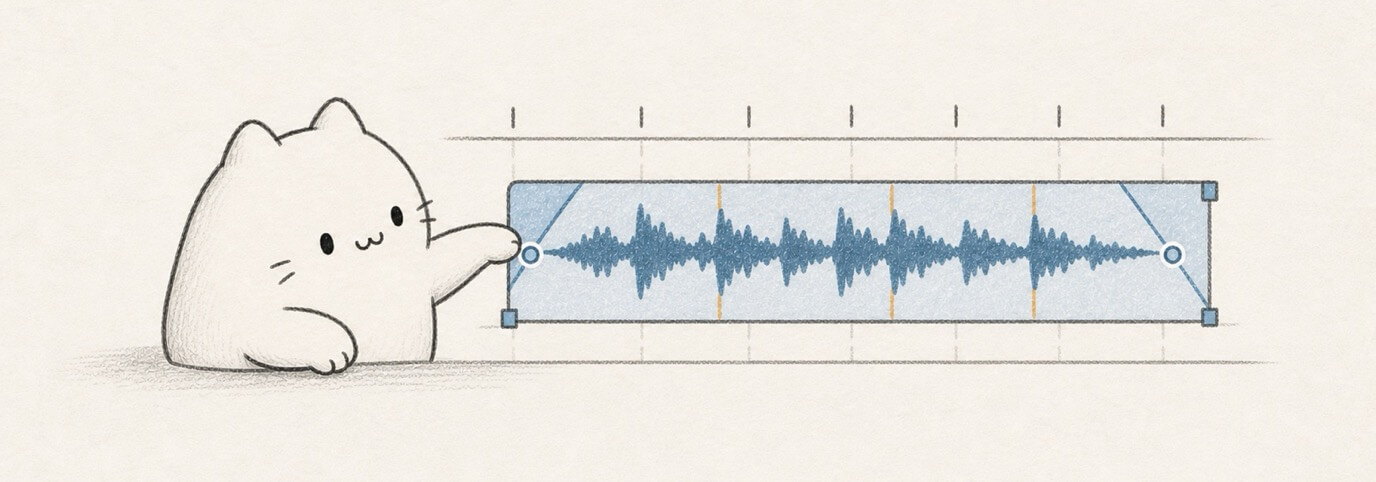
Imported and recorded sounds appear as audio regions: timeline blocks that point to saved audio media. Select an audio region before trimming, fading, changing gain, or setting tempo-follow behavior.
Audio-region editing is non-destructive where the source model supports it. Trims, fades, clip gain, Source BPM, Follow project tempo, tempo markers, loop length, and custom sample actions are saved as region settings while the source audio stays available.
Audio Region Checklist
When an audio region does not behave as expected, check these first:
| Check | Why it matters |
|---|---|
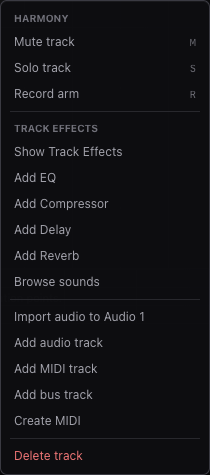
| Selected track | The audio track owns routing, mute/solo, volume, pan, sends, and Track Effects. |
| Selected region | The Selection inspector and bottom Audio mode edit the selected region. |
| Project saved/unlocked | Saved projects can restore imported or recorded media after reload. |
| Source BPM | Needed when the region should follow project tempo. |
| Follow project tempo | Only enabled regions react to project BPM changes. |
| Region vs source | Region edits change placement/playback; they do not overwrite the source file. |
Choose the Right Audio Edit
Use this table when you know the problem but not the tool:
| Need | Use | Why |
|---|---|---|
| Put a file on an exact lane and beat | Right-click the timeline lane and choose Import audio here. | The lane/time under the pointer becomes the import target. |
| Remove silence or pickup before the hit | Left-edge Trim Start or Set downbeat. | These hide or reveal source audio without overwriting the original file. |
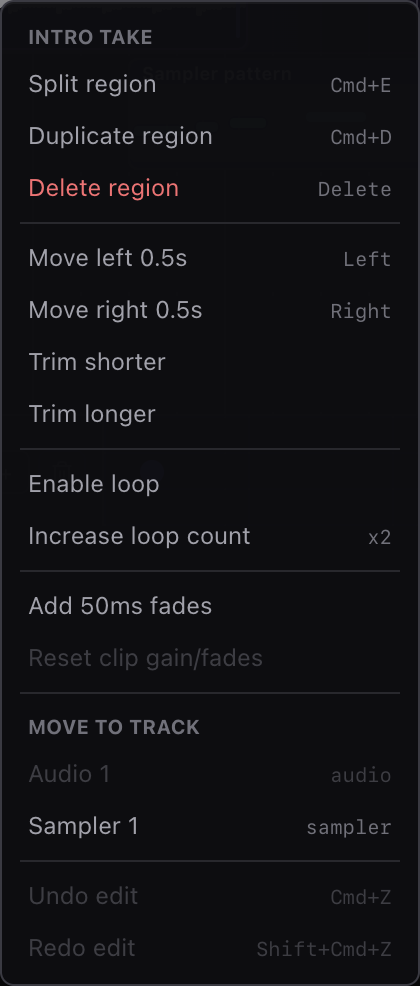
| Clean a click at the beginning or ending | Fade handles, exact fade fields, or 50ms fades. | Fades are per-region edits and do not change the source media. |
| Fix one region that is too loud or quiet | Clip gain on the selected region. | Clip gain changes that region before the track fader and mix path. |
| Repeat a loop for longer | Region loop handle. | Region looping repeats the source content without copying more regions. |
| Rearrange individual drum or sample hits | Slice transients. | Slicing creates separate regions that can move, fade, duplicate, or route normally. |
| Tighten loose hits without cutting audio | Tempo markers, Detect, Quantize, or Extract groove. | Markers anchor timing inside one region while keeping the source file intact. |
| Make audio follow project BPM | Source BPM + Follow project tempo + stretch mode. | BPM changes only stretch regions that opt into tempo following. |
| Turn a one-shot or phrase into a playable sound | Create instrument from region after selecting a MIDI track. | The region becomes a custom sample source while the original audio region remains. |
| Share/export confidently | Save/unlock, confirm media restores, then export ZIP and listen to project-mix.wav. | Export needs the saved project and referenced media, not only a local browser draft. |
Import or Record Audio
Create audio regions with one of these paths:
- Drag an audio file onto a timeline lane.
- Right-click a timeline lane and choose Import audio here.
- Open bottom Audio and click Import audio when you do not need a clicked lane target.
- Select and arm an audio track, then record.
Miaou places the new audio on an audio track. If you import without a specific lane target, Miaou uses the selected audio track at the playhead, or creates/chooses a usable audio track.
Save or unlock the project before relying on media restore, recording, export, collaboration, or project sharing.
After Import, Decide the Region's Job
Before editing a new audio region, choose what you want the region to do:
| Region job | First controls to check | Good first edit |
|---|---|---|
| Play exactly like the original file | Follow project tempo off, source starts at the right moment. | Move the region to the intended bar, then add short fades if needed. |
| Lock a loop to the project BPM | Source BPM, Follow project tempo, and stretch mode. | Play with the metronome, then try Half or Double if timing feels off. |
| Remove silence or pickup before beat 1 | Left-edge Trim Start or Set downbeat. | Hide the extra lead-in first, then set Source BPM or markers if needed. |
| Rearrange separate drum/sample hits | Detected transient ticks and Slice transients. | Slice only when you want separate regions; use tempo markers for timing fixes. |
| Turn the sound into a playable sample | Selected audio region plus the target MIDI track. | Use Create instrument from region, then refine the sample in Instrument. |
Listen after the first edit. If the track, timing, or tempo choice is wrong, undo immediately and repeat the import or edit from the intended lane.
Move, Copy, Split, and Loop
Audio regions use the normal timeline editing model:
| Edit | Result |
|---|---|
| Drag | Move the selected region in time or to another compatible audio track. |
Cmd+C, Cmd+X, Cmd+V | Copy, cut, and paste selected audio regions. |
Cmd+D | Duplicate the selected region to the next useful position. |
Option / Alt drag | Preview a ghost copy while leaving the original in place. |
Cmd+E | Split selected regions at the playhead. |
| Region loop handle | Repeat the source content until the visible region duration ends. |
| Right-click region or lane | Paste, split, duplicate, fades, loop, and delete at a clicked target. |
Audio duplicates reuse the same media reference non-destructively. Editing the duplicate region's timing, fades, gain, loop length, or tempo-follow settings does not overwrite the original source audio.
Trim Start and Right Trim
Use edge trims when the region starts or ends at the wrong place.
| Gesture | What it does |
|---|---|
| Left-edge Trim Start | Hides or reveals the beginning of the source without deleting audio. |
| Right-edge trim | Shortens or lengthens the visible region end. |
| Set downbeat | Uses the playhead as the musical first beat and adjusts source offset/markers. |
Trim Start is useful for samples with silence before the first hit, loops with a pickup, or a song file whose first musical beat is not at file time zero.
Trim Start is audio-specific because the source media remains intact and can be hidden or revealed by source offset. For MIDI regions, use split, right trim, region loop length, or Piano Roll note edits to change the visible part.
Fades and Clip Gain
Select an audio region to edit:
- Clip gain for per-region level before track mixing.
- Fade in and Fade out for soft starts, endings, and click cleanup.
- Timeline fade handles for quick direct edits.
- Exact value fields in the Selection inspector for precise numbers.
- 50ms fades for a quick anti-click cleanup.
Use clip gain to fix one region before reaching for track volume. Use the track fader when the whole track is too loud or quiet.
Follow Project Tempo
Use Follow project tempo when an imported loop or song excerpt should speed up or slow down with the project BPM:
- Select the audio region.
- Set Source BPM to the original tempo.
- Enable Follow project tempo.
- Choose a stretch mode.
| Mode | Use it for |
|---|---|
| Default | Mixed material and most first passes. |
| Beats | Drums, percussion, and transient-heavy loops. |
| Tones | Vocals, bass notes, pads, strings, and sustained tonal material. |
| Tape | Resampled speed changes where pitch should move with tempo. |
If Miaou detects the wrong tempo level, try the Detected, Half, or Double Source BPM choices before changing the project BPM.
Tempo following is per region, not per track. Two regions from the same source file can use different Source BPM, stretch mode, fade, clip gain, loop, and Follow project tempo settings.
Tempo Markers and Groove
Tempo markers are non-destructive anchors inside one audio region. Use them when one Source BPM is not enough.
| Action | Use it for |
|---|---|
| Add at playhead | Pin one source moment to one output beat. |
| Detect | Build markers from detected transients. |
| Quantize | Move detected transient anchors toward the current Grid, Amount, and Swing. |
| Extract groove | Store detected transient timing so MIDI notes can borrow the feel. |
| Clear | Return to straight Source BPM timing. |
Detected transient ticks are visual guides until you choose an action. If a dense marker list makes audio sound worse, clear markers, correct Source BPM first, then add only the anchors you actually need.
Slice at Transients
Use Slice transients when you want separate editable regions at detected hits.
Miaou analyzes the waveform, finds strong onset points, and replaces the selected region with adjacent slices. Each slice references the same source audio with adjusted source offsets.
Use slicing when you want to:
- rearrange drum hits;
- remove or duplicate one sound;
- make separate fades or clip gain edits per hit;
- move slices onto different audio tracks.
Use tempo markers instead when you want to tighten timing without cutting the region into separate pieces.
Audio Analysis Shortcuts
Selected audio regions can expose analysis helpers when Miaou finds confident hints:
| Helper | Result |
|---|---|
| Use BPM | Sets project tempo from a steady transient estimate. |
| Use key | Sets project key/scale from a tonal estimate. |
| Create chord | Adds one editable Chord Track block over a short tonal region. |
| Apply BPM + key + chord | Applies confident tempo, key, and one chord estimate in one undoable edit. |
Treat analysis as a sketch helper. It is best for short, clear loops or tonal phrases. Dense mixes, vocals, distortion, drums, and long files may need manual correction.
Use Audio as a Custom Instrument
You can turn a selected audio region into a simple MIDI-playable custom sample:
- Import or record the audio first.
- Select the region.
- Select or create a MIDI track.
- Click Use in {track name} or Create instrument from region.
Miaou loads the selected audio slice as the MIDI track's custom sample source. Use Instrument to edit root note, gain, tuning, envelope, loop, reverse, start, and end.
For normal audio reuse, duplicating or looping the region is usually simpler than making a custom instrument.
Save, Restore, and Export
Saved projects store audio media references and restore them after unlock. Export ZIP includes referenced source audio files in media/, the rendered full mix, and stems when the project fits the stem guard.
Before sharing or exporting:
- Save or unlock the project.
- Confirm the audio regions play after reload if the media is important.
- Play the loudest section.
- Check mute/solo/routing and Master output.
- Export ZIP and listen to
project-mix.wav.
If audio is missing after reload, unlock the project first. If the file was never saved to the project, reimport it.
Common Mistakes
| Problem | Fix |
|---|---|
| BPM changes do not affect the audio | Select the region, enable Follow project tempo, and set Source BPM. |
| Audio is twice as fast or half as fast | Try the Half or Double Source BPM choice. |
| The loop starts late | Drag Trim Start or move the playhead to the real first beat and use Set downbeat. |
| Stretching sounds bad | Try another stretch mode, reduce extreme tempo changes, or turn Follow project tempo off. |
| Slicing made too many regions | Undo, then use tempo markers or a simpler transient threshold path instead. |
| The wrong audio track received import | Undo, then right-click the intended lane and choose Import audio here. |
| Export has silent audio | Unlock the project, confirm media restored, then check mute/solo/routing before exporting. |
Related Pages
- Import and Export explains file import, MIDI import, export ZIP contents, and media restore.
- Timeline Editing covers region selection, move, split, trim, loop, fades, markers, and takes.
- Tempo and Follow Project Tempo gives the full Source BPM, stretch mode, and tempo-marker model.
- Recording explains audio recording targets, count-in, monitoring, and input state.
- Takes and Comping covers loop-recorded takes and split-region comp choices.
- Troubleshooting covers missing audio and restore problems.