Appearance
Browser and Device Setup
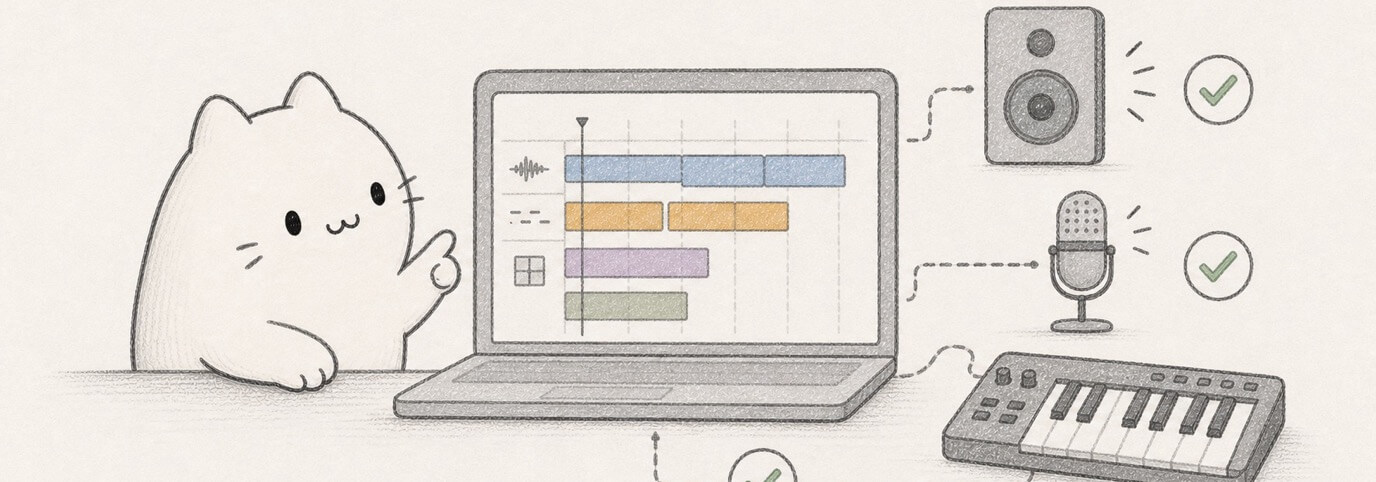
Before recording, connecting a MIDI controller, fixing silent playback, or working on a large project, check the browser and device setup. Miaou runs in the browser, so device permissions, audio output, and MIDI permission state matter.

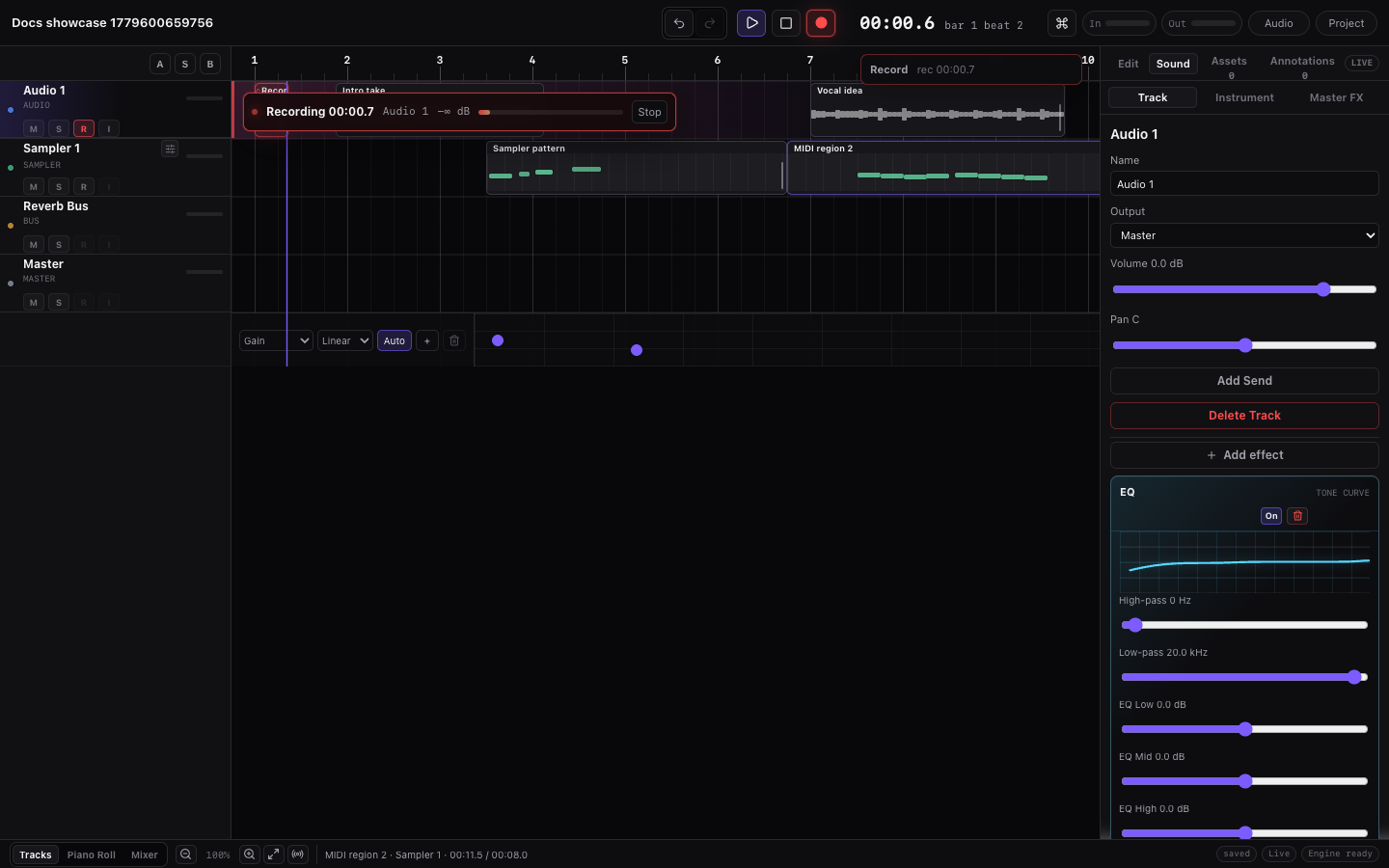
Recommended Setup
| Part | Recommended choice |
|---|---|
| Browser | Current desktop Chrome or Chromium. |
| Window | Desktop-sized window when using timeline, right dock, and bottom editor together. |
| Audio output | Normal system speakers or headphones; use headphones when monitoring live input. |
| Audio input | The microphone, interface, or line input selected at the OS/browser level. |
| MIDI input | A Web MIDI-compatible controller, or Miaou's computer-keyboard input when no controller is present. |
| Project state | Save or unlock the project before recording, sharing, exporting, or relying on audio restore. |
Miaou is designed for a dense desktop DAW layout. It can open in smaller windows, but editing is more reliable when the timeline, inspector, and bottom editor have room.
Browser State vs Project State
Some things follow the saved project. Other things belong to the browser, device, or current session. Use this distinction when a project works on one computer but feels different on another.
| Item | Where it lives | What to check |
|---|---|---|
| Project tracks, regions, MIDI notes | Saved project after Save / unlock. | Open the /p/... link, unlock with the password, and wait for save/media state to settle. |
| Imported and recorded audio media | Saved project media after unlock/upload. | Unlock the project before playback/export so referenced audio can restore. |
| Built-in instruments and effects | Miaou app catalog and saved project settings. | Select the track and check Instrument or Inspector > Mix. |
| Microphone permission | Browser site permission on the current computer. | Allow microphone/input permission for Miaou when recording audio. |
| MIDI permission and connected ports | Browser/device session on the current computer. | Open MIDI Tools, click Connect MIDI, and allow browser MIDI permission. |
| Audio output device and tab volume | Operating system, browser, and current tab. | Check system output, tab mute, headphones, and browser volume before changing the mix. |
| Download location | Browser download settings on the current computer. | Check the browser Downloads list/folder after Export ZIP or Export MIDI. |
| Input monitoring | Current audio-track/session state; disabled after reopen. | Turn monitoring on only when you need live input, and use headphones to avoid feedback. |
| Unlock session | Current browser after entering the project password. | Unlock again when the session expires or when opening the project on another browser/computer. |
If the music data is wrong after reload, start with Projects and Storage. If the project data is right but audio, MIDI input, recording, or downloads behave differently, start with this page.
First-Run Checklist
Use this checklist before you trust a recording, imported file, export, or shared link:
| Check | What good looks like |
|---|---|
| Browser | Current desktop Chrome or Chromium opened from https://miaou.app/. |
| Project state | The project is saved or unlocked before recording, sharing, exporting, or expecting imported media restore. |
| Playback | Click Play once; the playhead moves and the Master meter responds when material exists. |
| Recording target | The transport target chip says the exact track and capture type you expect: Audio, MIDI, or notes. |
| Permissions | Microphone and MIDI prompts are accepted only when you intend to use those devices. |
| Output and monitoring | System output is audible; headphones are used when live input monitoring is enabled. |
| File dialogs and downloads | Browser popup/download settings allow file pickers and exported downloads. |
| Large-project browser health | Unrelated heavy tabs are closed before long recordings, dense editing, or export. |
If one check fails, fix it before continuing. Most browser/device problems are easier to solve before a take, import, or export starts.
Permission Prompts
Browser prompts are normal, but they should match the action you just asked Miaou to perform. Use this table before allowing access:
| Prompt or browser behavior | Expected when... | Stop and check when... |
|---|---|---|
| Microphone / audio input permission | You armed an audio track and Record will capture Audio · {track}. | You expected MIDI notes, computer-keyboard input, or a sound preview. |
| MIDI device permission | You clicked Connect MIDI in MIDI Tools. | You were only trying to load an instrument, export audio, or edit notes with the mouse. |
| Multiple downloads / popup permission | You are exporting ZIP, exporting MIDI, or downloading repeated files. | You are only editing the project and did not request a download. |
| File picker opens | You clicked an import command or chose Import audio here. | It opens from the wrong lane or before you selected the target track/time. |
| No prompt appears after a device action | The permission was already allowed, blocked, or dismissed. | The device still does not appear after reload; reset site permissions and reconnect it. |
If a prompt appears for the wrong task, cancel it, select the intended track or editor, and try again. For recording, the transport target chip is the main safety check: Audio means microphone/browser input, while MIDI or Notes only means note recording without microphone input.
Realtime Audio
Realtime playback needs two things:
- A user gesture such as clicking Play.
- A supported desktop browser opened from https://miaou.app/.
The normal Miaou app provides the browser setup it needs. You do not need to change Chrome flags or browser security settings for normal use.
| If you are using... | Expect this |
|---|---|
| https://miaou.app/ | Realtime playback, recording, meters, and export can use the browser audio engine Miaou needs. |
A saved /p/... project link on the same app URL | The same realtime setup works after you unlock the project. |
| A copied app file, embedded preview, or another wrapper frame | Realtime audio may fail even if the project data is valid. |
| An error that names SharedArrayBuffer or cross-origin | Reopen the project from https://miaou.app/. |
Avoid these when testing playback:
- opening a copied or downloaded app file directly;
- embedding Miaou inside another page or frame;
- using a preview page instead of https://miaou.app/;
- testing in a browser without the required realtime audio support.
If playback does not start, use Troubleshooting.
Audio Output
Miaou plays through the browser's current audio output. If the project is silent:
- Confirm the browser tab and system output are not muted.
- Press Play and check whether the playhead moves.
- Check track and Master meters.
- Check mute, solo, routing, track volume, and Master output.
- If the project uses imported or recorded audio, unlock the project so Miaou can restore media.
For the full silent-project checklist, see Troubleshooting.
Audio Input and Recording Permission
Miaou records from the audio input stream provided by the browser.
Before recording audio:
- Save or unlock the project.
- Select and arm an audio track.
- Confirm the transport target chip says Audio · {track}.
- Allow microphone/input permission when the browser asks.
- Watch the transport input meter.
- Turn monitoring on only if you need to hear the live input through Miaou.
Use headphones when monitoring to avoid feedback.
Miaou records one browser audio input at a time. Choose the exact input device from the OS/browser device picker when your browser exposes it.
If you expected MIDI notes but Record is about to capture audio, stop and select or arm a MIDI track first. The target chip should say MIDI · {track} or Notes only · No mic.
For the full recording workflow, see Recording.
Reset Browser Permissions
If a device worked earlier and then stopped appearing, reset the site permission instead of repeatedly clicking the same app control:
- Open the browser site settings for Miaou.
- Check Microphone, MIDI devices, Sound, automatic downloads, and popups.
- Set the needed permission back to Ask or Allow.
- Reload the project.
- Reconnect MIDI or try the recording preflight again.
If the browser still does not list the device, check the operating-system input/MIDI settings and reconnect the device before reopening Miaou.
Web MIDI
Web MIDI depends on browser support and permission. Desktop Chrome is the intended path.
To connect a MIDI controller:
- Plug in or pair the MIDI controller before opening Miaou when possible.
- Open bottom MIDI Tools.
- Click Connect MIDI.
- Allow the browser MIDI permission prompt.
- Select a MIDI track or MIDI region.
- Load the intended instrument from Instrument.
Incoming MIDI notes preview through the selected MIDI track or selected MIDI region. If notes trigger the wrong instrument, select the intended MIDI region or MIDI track again.
If Web MIDI is unavailable, use the bottom Keyboard mode. Computer-keyboard input can play melodic instruments, chord-aware layouts, and drum-kit pad banks.
File Import and Downloads
Miaou uses browser file dialogs, drag/drop, and downloads.
| Task | Browser behavior |
|---|---|
| Import audio | Drag/drop an audio file, right-click a timeline lane, or open bottom Audio and click Import audio. |
| Import MIDI | Drop a .mid / .midi file, or open bottom MIDI Tools and click Import MIDI. |
| Export ZIP | The browser downloads the finished ZIP after Miaou prepares the mix, stems, and project files. |
| Export MIDI | The browser downloads a Standard MIDI File directly. |
| Restore audio | Unlocking a saved project lets Miaou download referenced project media into the current session. |
If a file chooser does not appear, click the timeline or app surface once and try the command again. Browser popup/download settings can also block visible downloads.
If File Pickers or Downloads Do Not Appear
File import and export are browser actions. If the app command runs but nothing visible happens, check the browser state before changing the project:
| Symptom | What to try |
|---|---|
| File picker does not open | Click once inside Miaou, then use the visible import button or context menu again. Some browsers require a fresh user gesture. |
| Import MIDI opens the wrong target | Select the intended MIDI track or place the playhead first, then use bottom MIDI Tools > Import MIDI. |
| Import audio lands in the wrong place | Undo, then right-click the intended timeline lane and choose Import audio here so the track and time are explicit. |
| Download ZIP does not start | Wait for Export ready, then click Download ZIP. Check the browser download shelf, Downloads folder, and site download permission. |
| Export MIDI does not download | Keep the bottom MIDI Tools panel open, click Export MIDI again, then check browser download permission. |
| Browser blocks repeated downloads | Open Miaou site settings and allow downloads/popups for the site, then reload the project after saving. |
If the browser downloaded a file but you cannot find it, check the browser's Downloads list before exporting again. If the downloaded ZIP is incomplete, use Downloaded ZIP Is Missing Files.
Large Project Habits
Browser DAW work is most reliable when you keep the session state clear:
- Save or unlock before recording, exporting, or sharing.
- Create a version before risky edits, generation, comping, or collaboration.
- Close unrelated heavy browser tabs before recording or exporting large projects.
- Keep analyzer-heavy effects visible only when you need to inspect them.
- Wait for save/export/status messages to settle after large edits.
- Use export as the final audio check when realtime playback is under load.
For more detail, see Large Projects and Performance.
Quick Diagnostic Map
| Symptom | Start here |
|---|---|
| Play does nothing | Realtime Audio Cannot Start |
| Error mentions SharedArrayBuffer | Open the project from https://miaou.app/, then see Realtime Audio Cannot Start. |
| Project is silent | Project Is Silent |
| Browser asks for microphone permission | Recording |
| Record captures the wrong thing | Recording Target Is Wrong |
| MIDI keyboard does not connect | MIDI Device Not Listed |
| Computer keyboard plays the wrong sound | Computer Keyboard Preview Uses the Wrong Instrument |
| Audio is missing after reload | Imported Audio Region Has No Sound |
| Large project feels slow | Large Projects and Performance |
Related Pages
- Quick Start is the shortest path from clean draft to saved project.
- Recording explains audio and MIDI recording targets.
- MIDI Editor explains Web MIDI and computer-keyboard input.
- Save, Share, and Export explains project safety before sharing or exporting.
- Practical Limits lists browser, recording, export, and performance boundaries.