Appearance
Large Projects and Performance
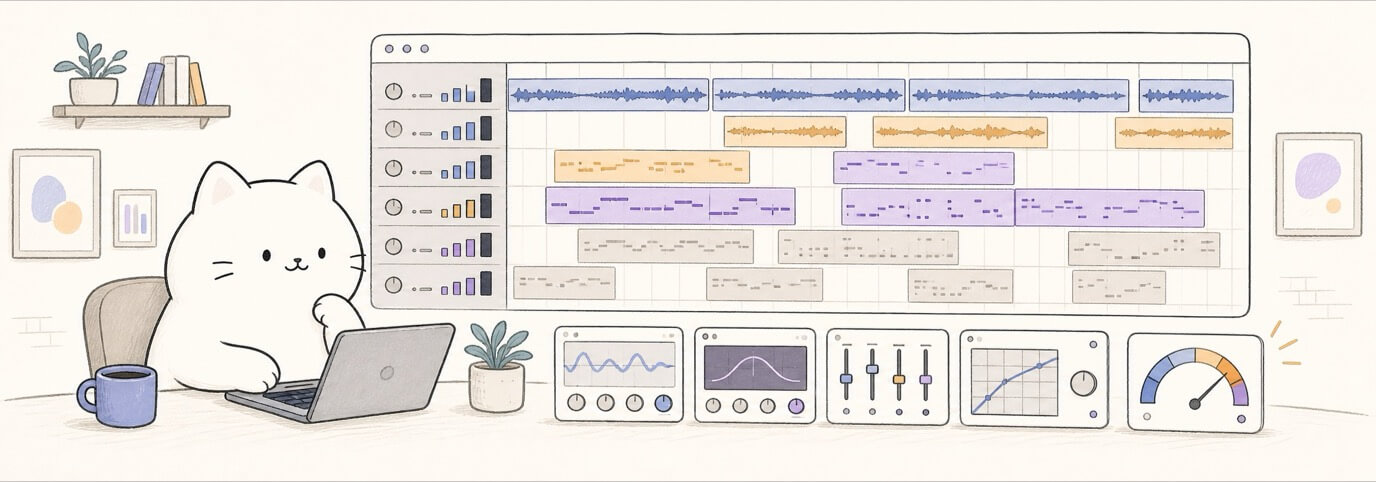
When a project starts to feel heavy, first playback may stutter, panels may open slowly, export may take longer, or the browser may become less responsive. Keep the editing path predictable as the project grows.

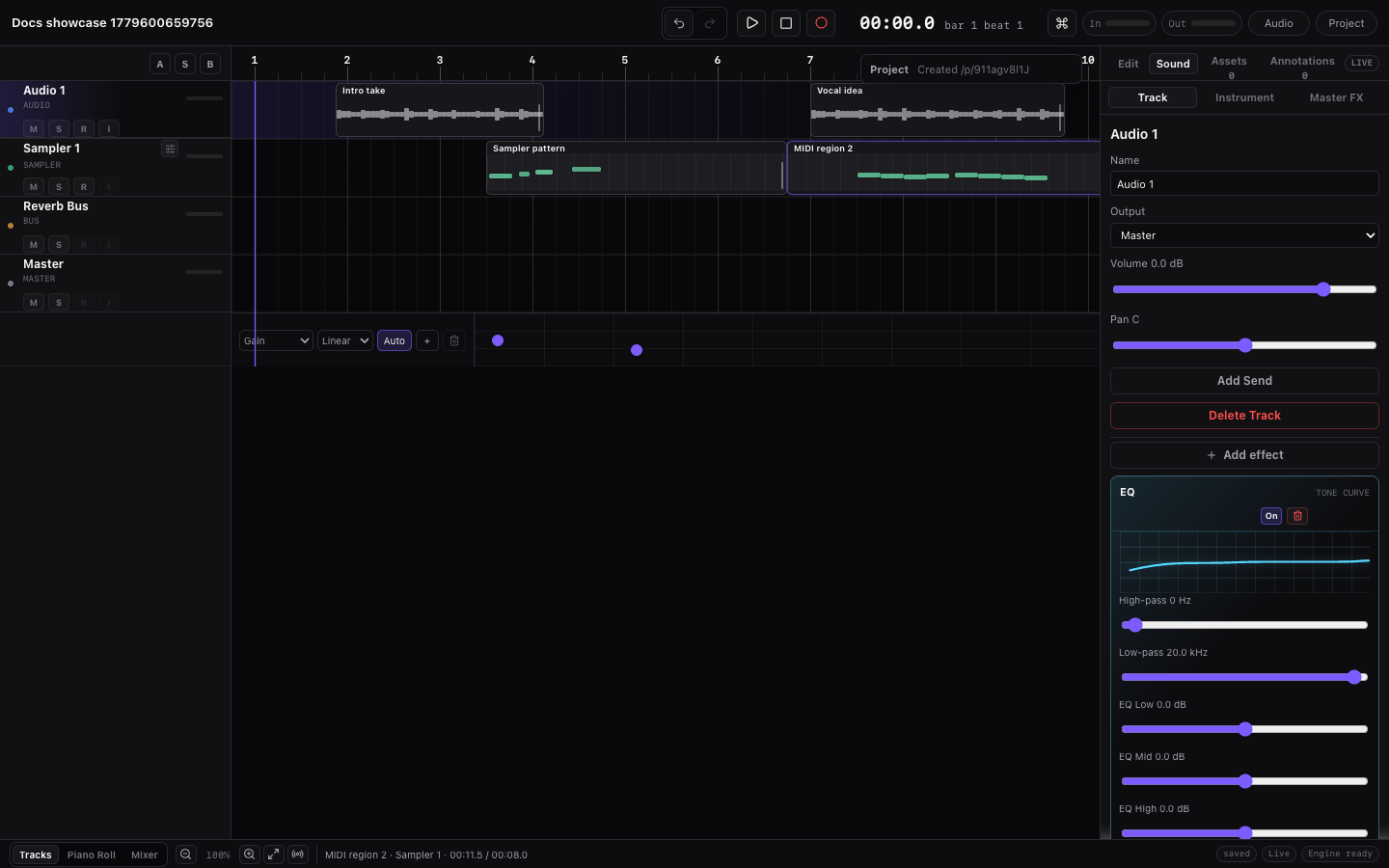
First Triage
When a project suddenly feels slow, check these in order:
- Save the project or create a version.
- Stop playback and wait for pending import, export, recording, or collaboration status to settle.
- Collapse or switch away from panels you are not actively editing, especially large effect chains and analyzer-heavy views.
- Play once from a simple section to warm up instruments, effects, and audio buffers.
- Mute tracks you are not editing.
- Export a ZIP when you need a reliable offline render instead of judging only by realtime browser playback.
First-play stutter
The first playback after loading a large project can do more work than later playback. If the first bar stutters but the second pass is stable, let Miaou finish loading and then play the section again before changing the mix.
Large Project Working Loop
Use the same loop each time a project feels close to the browser limit:
| Step | Do this | Why it helps |
|---|---|---|
| Stabilize | Save or make a version, stop playback, and wait for save/export/collaboration status to settle. | You have a recovery point before changing many objects. |
| Narrow | Select one section, track, region, MIDI clip, or effect chain instead of the whole song. | The UI, shortcuts, and inspectors stay focused on the object you mean to edit. |
| Edit | Keep only the needed bottom editor and right-dock surface open while making the change. | Dense panels, analyzers, and large selections do less unnecessary work. |
| Check | Play the edited section once, then play it again if the first pass stutters after load. | Realtime playback can warm up instruments, buffers, and effect state. |
| Commit | Save again or create a version when the section sounds right. | Larger edits become recoverable before you continue to the next section. |
| Render | Export when you need the final truth for timing, routing, Master effects, stems, or delivery. | Export is the reliable offline check when realtime browser playback is stressed. |
Do not treat a single slow first action as proof that the project is broken. Treat repeated lag after the project is saved, settled, narrowed, and replayed as the signal to reduce realtime load.
What Usually Gets Heavy
| Area | Why it can slow down | What to try first |
|---|---|---|
| Many Track Effects | Every enabled effect has realtime DSP and UI state. | Bypass effects you are not judging, keep effects compact, and keep analyzers closed. |
| Master analyzers and meters | Spectrum and loudness displays refresh while audio runs. | Use meters while checking levels, then close or ignore analyzer-heavy panels. |
| Dense MIDI | Thousands of notes need drawing, preview, instrument playback, and export. | Work by section, fit the visible range, and avoid selecting the whole song unless needed. |
| Drum kits and percussion | Large patterns can create many short notes and previews. | Use named drum lanes, copy patterns by section, and mute unused kit tracks. |
| Tempo-following audio | Stretching reads source BPM, markers, and stretch mode per region. | Correct Source BPM first, use only needed tempo markers, and verify by export. |
| Collaboration | Two clients can edit, save, upload media, and sync at the same time. | Wait for save/collaboration status before sharing or making a version. |
| Export ZIP | Full mix, stems, source media, and project data are packaged together. | Save or unlock first, let export finish, and avoid starting another export while one runs. |
Keep the Arrange View Fast
Use the timeline like a DAW arrangement, not a spreadsheet of every detail:
- Use markers for sections such as Intro, Verse, Chorus, Bridge, and Outro.
- Use Markers and Sections when you need section-scoped duplicate, regeneration, or fills instead of selecting an entire long song.
- Use Fit timeline when you need orientation, then zoom back into the section you are editing.
- Keep the bottom panel on the editor you actually need: Piano Roll, Audio, Automation, Keyboard, or MIDI Tools.
- Avoid leaving a huge MIDI note selection active while editing regions or effects.
- Use copy, duplicate, and marker-section workflows instead of manually selecting every region across a long song.
- If the browser feels stuck after a large edit, wait for the footer status to settle before pressing more shortcuts.
Effects and Mix Load
For large mixes, use effects deliberately:
- Start with level and pan before adding processors.
- Put shared ambience on a bus send instead of duplicating the same reverb on many tracks.
- Use one or two important analyzers while mixing, not every meter view at once.
- Bypass effects you are not evaluating.
- Keep Master processing for final balance checks after the track mix is roughly stable.
Track Effects process in serial order. Duplicate effects of the same type are supported, but each effect adds work. For signal-flow details, see Mix and Automate and the Effect Reference.
MIDI and Instruments
Large MIDI projects stay easier to edit when each track has a clear job:
- Use full drum kits for percussion instead of separate one-shot instrument tracks.
- Keep drum patterns in sections and duplicate them deliberately.
- For dense chord-generated parts, regenerate one selected region or marker section instead of rebuilding the whole arrangement repeatedly.
- If a region was generated from chords, check the source disclosure before regenerating so you do not replace manual edits accidentally.
- For imported General MIDI files, confirm the mapped instruments before editing all tracks at once.
For note editing, open only the target MIDI region in the Piano Roll, then use Cmd+A inside the Piano Roll if you really want every note in that clip.
Audio, Tempo, and Stretching
Tempo-following audio is non-destructive, but it is still more work than normal source playback.
Use this order:
- Import the audio.
- Set or correct Source BPM.
- Enable Follow project tempo only for regions that should follow the song BPM.
- Choose Default, Beats, Tones, or Tape by source material.
- Add tempo markers only where straight Source BPM timing is not enough.
- Export and listen when the stretch is important.
Extreme tempo changes can sound artifacted and can cost more CPU during realtime playback. If a full song is only a reference, consider leaving it at original timing instead of stretching it with the arrangement.
Recording and Takes
Loop recording can create several takes in one region. That is useful, but long recording sessions with many takes are heavier than one simple region.
Before recording:
- Save the project.
- Confirm the transport target says Audio · {track} or MIDI · {track}.
- Enable the transport loop only when you really want take passes.
- Stop and save after a long recording before doing large edits.
For comping, split the recorded region into useful phrases and choose the active take per slice. Remove obvious unusable takes when you no longer need them.
Export Confidence
Realtime playback depends on browser timing. Export is the safer final check.
Before export:
- Save or unlock the project.
- Confirm imported and recorded media has restored.
- Play the loudest section once.
- Check the Master meter for clipping.
- Export ZIP.
- Download and listen to the rendered full mix.
Stems are per-track renders and do not include final Master Effects or final Master output controls. The full mix does. See Save, Share, and Export and Import and Export for ZIP contents.
Browser Setup
Miaou works best in current desktop Chrome or Chromium with a desktop-sized window. For first-time browser, audio, recording input, and MIDI setup, see Browser and Device Setup.
Realtime playback also needs the browser setup provided by https://miaou.app/. Copied app files, embedded frames, preview pages, or older browsers can make playback fail before project size is the problem.
Practical browser habits:
- Keep the project in one active tab when possible.
- Close unrelated heavy browser tabs during recording or large exports.
- Avoid browser zoom levels that make controls too small to hit accurately.
- If Web MIDI, audio input, or graphics behavior looks wrong, reload the page after saving.
- If a project becomes unresponsive, wait before reloading so pending saves or media uploads can finish.
- Use https://miaou.app/ for testing playback; do not judge realtime audio from copied app files or embedded previews.
You do not need to change Chrome flags or browser security settings for normal use. If a browser feature is unavailable, Miaou should show a clear status or error instead of silently losing work.
When to Use History
Make a version before:
- deleting or replacing many regions;
- regenerating chord-based MIDI across a section;
- slicing many audio transients;
- comping takes;
- changing routing or Master effects in a finished mix;
- sharing the project with collaborators.
History is the recovery system. If a large edit goes wrong, opening an older version is safer than trying to manually reconstruct a complex arrangement.
Common Symptoms
| Symptom | Try |
|---|---|
| First playback stutters after load | Let the project finish loading, play once, then play again from the section you are checking. |
| Opening Mix or Master feels slow | Keep unused effects compact, close analyzer-heavy views, and select only the track you are editing. |
| Piano Roll feels heavy | Work on one MIDI region, clear large note selections, and avoid full-song note operations. |
| Tempo-following audio sounds unstable | Correct Source BPM first, reduce dense tempo markers, and choose a stretch mode by source material. |
| Export takes a long time | Wait for one export to finish, keep the tab open, then download the completed ZIP. |
| Collaborator hears an older arrangement | Wait for save/collaboration status to settle, make a version, reload, then confirm the link opens correctly. |
| Browser feels stuck after many edits | Stop playback, wait for status messages, then save or reload only after the project is settled. |
Related Pages
- Workspace Tour explains which panel should hold each kind of work.
- Editing Basics explains the active editor, shortcut routing, and undo.
- Mix and Automate covers effect signal flow and mix checks.
- Tempo and Follow Project Tempo covers Source BPM, stretch modes, and tempo markers.
- Practical Limits lists browser, export, audio, and editing boundaries.