Appearance
Editing Basics
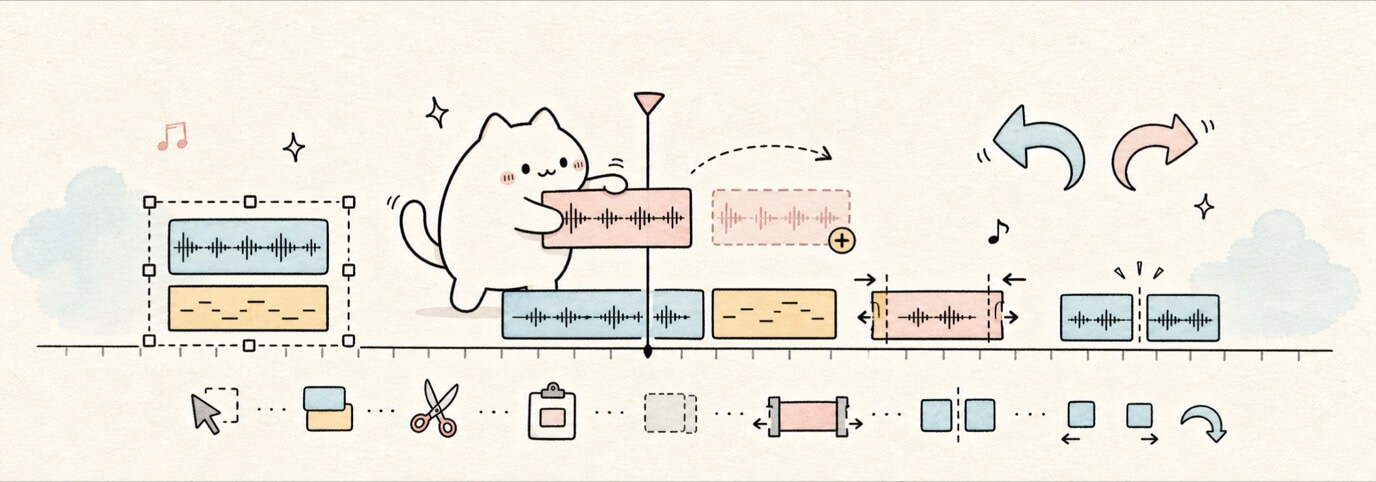
Edit faster by confirming what Miaou will affect before you press a shortcut or drag an item. The same editing model applies to timeline regions, MIDI notes, chord blocks, markers, automation points, and tracks where those objects support the action.
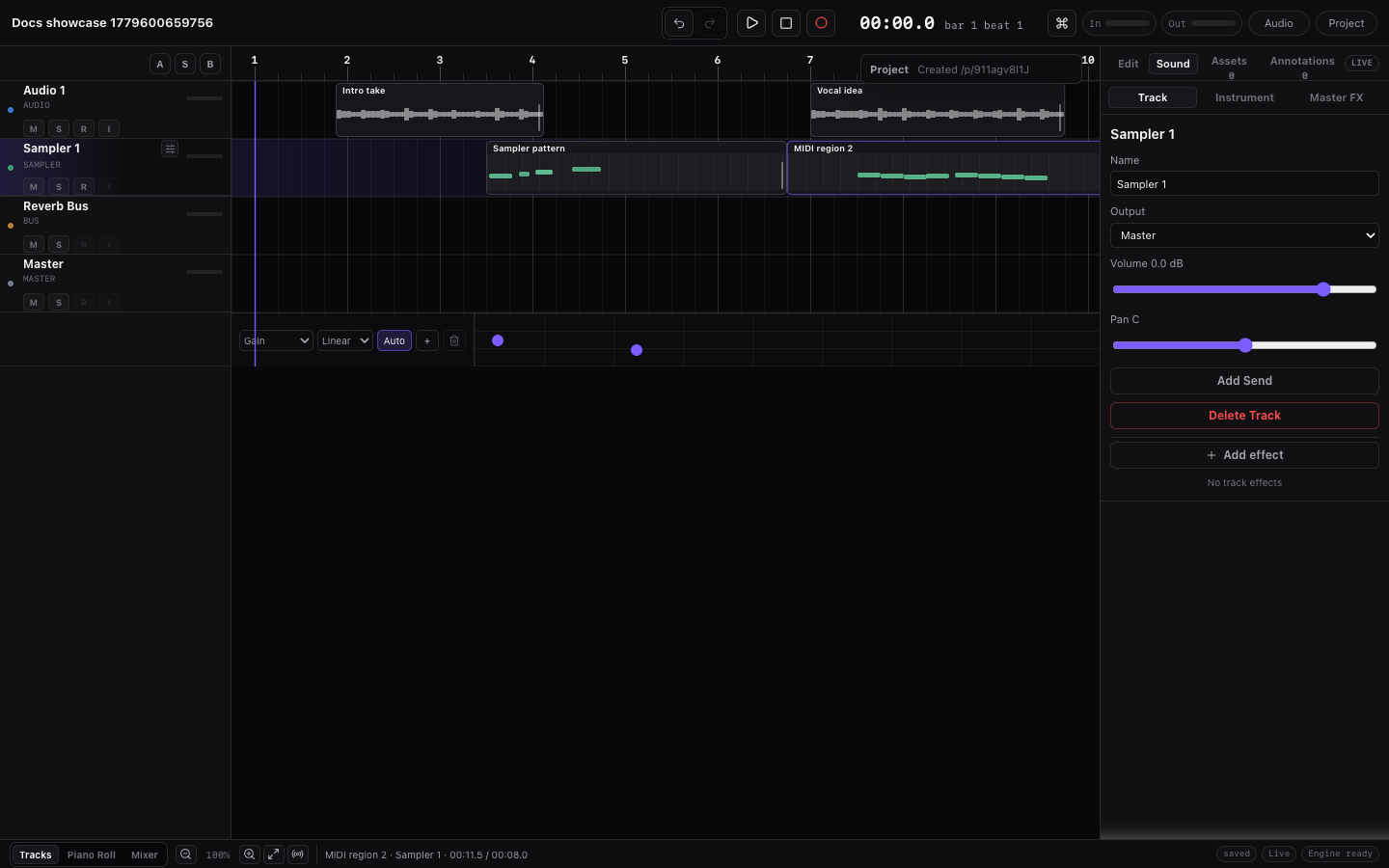
Know the Active Editor
Miaou can keep several selections at once. For example, a MIDI region can stay selected while notes are selected in the Piano Roll. Shortcuts use the active editor, not stale browser focus.
| Last thing you worked on | Cmd+A, copy, paste, duplicate, Delete, nudge affect |
|---|---|
| Timeline region or empty lane | Timeline regions. |
| MIDI note or Piano Roll grid | MIDI notes in the selected clip. |
| Chord block or chord lane | Chord Track blocks. |
| Marker pin or Markers panel | Markers. |
| Automation lane or point | Automation points. |
| Track header | Track-specific actions and regions on that track. |
Typing fields, dialogs, menus, and text inputs always win. If you are typing BPM, clip gain, a chord symbol, an effect value, a save name, or a comment, global edit shortcuts stay out of the way.
Select Things
| Surface | Fast selection model |
|---|---|
| Regions | Click a region, marquee across lanes, Cmd+A in the timeline to select all regions. |
| MIDI notes | Click notes, marquee in the Piano Roll, Cmd+A in the Piano Roll to select notes. |
| Chords | Click chord blocks, Cmd/Ctrl-click to add/remove, Shift-click for a range. |
| Markers | Click marker pins, Cmd/Ctrl-click to add/remove, Shift-click for a range. |
| Automation | Click points or select a lane, then use edit commands in that automation context. |
| Tracks | Click a track header when you want track duplicate, reorder, or track-target paste. |
The footer/status area reports the useful editing state, such as selected item counts, duplicate previews, and playhead movement.
Copy, Cut, Paste, Duplicate
Use the standard shortcuts:
| Shortcut | Action |
|---|---|
Cmd+C / Ctrl+C | Copy the active selection. |
Cmd+X / Ctrl+X | Cut the active selection in one undoable edit. |
Cmd+V / Ctrl+V | Paste at the playhead or clicked/context target. |
Cmd+D / Ctrl+D | Duplicate to the next sensible position. |
Option / Alt drag | Leave the original in place and preview a ghost copy while you drag. |
| Context menu | Paste or duplicate at the item, lane, track, marker, or grid position. |
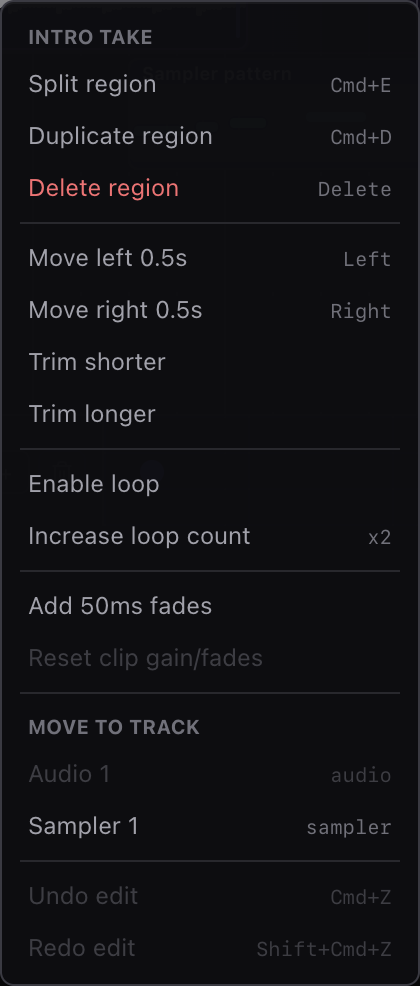
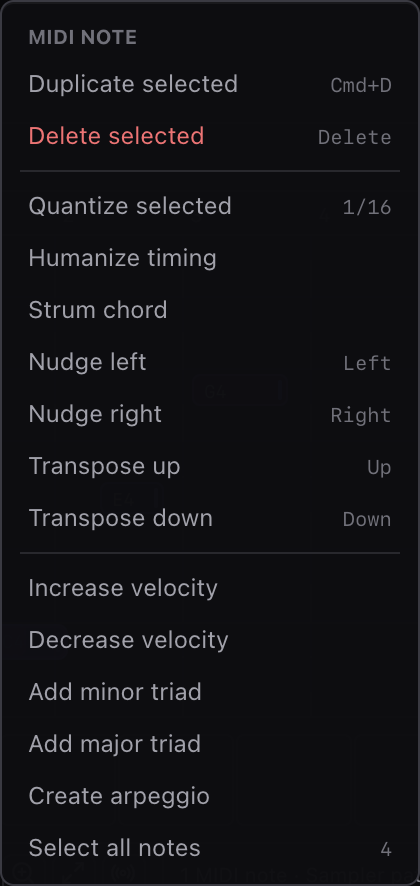
Duplicated MIDI regions get independent clip IDs, so editing notes in the duplicate does not change the original. Audio duplicates reference the same media file non-destructively.
Where Paste Lands
Paste uses the active editor unless you choose a more exact context-menu target.
| Active target | Paste result |
|---|---|
| Timeline region context | Pastes copied regions at the playhead on the selected compatible track or clicked timeline lane. |
| Track header | Pastes copied regions onto that track when the copied region type is compatible with the track type. |
| Piano Roll | Pastes copied MIDI notes into the selected MIDI clip at the playhead or clicked grid position. |
| Chord Track | Pastes copied chord blocks at the playhead or clicked chord-lane beat. |
| Marker context | Pastes copied markers at the playhead or clicked marker position. |
| Automation lane | Pastes copied automation points into the active lane at the playhead or clicked lane position. |
| Text field, dialog, menu | Uses normal browser text editing, not Miaou project paste. |
If timing or track placement matters, right-click where the material should land and choose paste from that context menu.
Move and Nudge
Drag one selected item to move the whole selected group. Dragging an unselected item selects only that item and moves it.
| Action | Result |
|---|---|
| Drag selected group | Moves selected regions, notes, chords, markers, or points. |
ArrowLeft / ArrowRight | Nudges by the active grid. |
Shift+ArrowLeft/Right | Nudges by a larger grid step. |
ArrowUp / ArrowDown | Moves regions between compatible tracks or transposes notes. |
Cmd+ArrowUp/Down | Transposes melodic notes by octave or changes chord inversion. |
Option+ArrowUp/Down | Moves the selected non-master track up or down. |
Shift+Option+ArrowUp/Down | Moves the selected non-master track to top or bottom. |
The footer Grid and Snap controls decide how far nudges and dragged edits move. Use Abs when you want edges on grid lines. Use Rel when the item is intentionally ahead of or behind the beat and should keep that offset.
Trim, Resize, and Split
| Object | Supported edits |
|---|---|
| Audio regions | Right trim, non-destructive Trim Start, fades, clip gain, region loop length. |
| MIDI regions | Right trim and split. To hide earlier MIDI notes, split the region or edit notes in the Piano Roll. |
| MIDI notes | Drag note edges, use [ and ], or use inspector fields for exact values. |
| Chord blocks | Drag either edge, type exact start/length, or nudge by the grid. |
| Markers | Move or duplicate markers; marker duration is section-to-next-marker. |
| Automation | Move points in time/value and edit interpolation where supported. |
Split selected regions at the playhead with Cmd+E, the Selection inspector, or the region context menu. If several selected regions cross the split point, Miaou splits them together in one undo step.
Playback Loop vs Region Loop
Miaou has two separate loop concepts:
| Feature | What it does |
|---|---|
| Transport loop range | Playback wraps between two timeline positions while enabled. It is transport state. |
| Region loop duration | One region repeats its own source or clip content until the visible region ends. |
| Loop recording take capture | Recording through the transport range can create separate takes for each pass. |
Click or drag the empty ruler to move the playhead. Hold Option / Alt while dragging the ruler to draw a transport loop range. Drag the visible loop brace to move the range, or drag its handles to resize it.
Undo, Redo, Save
Each normal editing gesture should be one useful undo step:
- moving a group;
- trimming a region edge;
- splitting selected regions;
- duplicating or pasting a selection;
- changing MIDI velocity or note length;
- choosing a take for a comp slice;
- reordering or duplicating a track.
Use Cmd+Z and Shift+Cmd+Z to undo/redo. After undo or redo, Miaou keeps the nearest useful selection and active editor so follow-up shortcuts still act on the surface you were editing.
Save when you want the project link to reopen with the current edits. Save/load preserves region edits, MIDI clips, chord blocks, markers, automation, track order, duplicate clips, loop ranges, takes, effects, routing, and media references.
Common Mistakes
| Problem | Fix |
|---|---|
| Delete removed notes when you expected a region | Click the target region or empty timeline first, then press Delete. |
| Delete removed a region when you expected notes | Click or marquee notes in the Piano Roll first, then press Delete. |
| Paste went to the wrong track | Click the destination track/lane or right-click and choose a paste-here action. |
| Duplicate made a new MIDI clip that sounds wrong | Select the duplicated region and confirm the loaded instrument in the right panel. |
| Audio left trim is available but MIDI left trim is not | Audio Trim Start is non-destructive. For MIDI, split the region or edit notes directly. |
| Ruler drag moved the playhead instead of the loop | Hold Option / Alt while dragging empty ruler space to draw the transport range. |
Related Pages
- Timeline Editing is the full region, ruler, loop, trim, fade, marker, and automation reference.
- MIDI Editor covers note drawing, velocity, drum lanes, computer keyboard input, and MIDI import/export.
- Chords and Scales covers Chord Track editing, analysis, and generation.
- Automation Lanes covers automation point selection, copy/paste, nudge, interpolation, and lane mute.
- Commands and Shortcuts lists every major shortcut and command-search path.