Appearance
Workflow Recipes
Use these recipes when you know what you want to do and need the shortest path through the app.

How to Use Recipes
Use the same loop for every task, whether you are making a beat, recording, importing audio, generating MIDI, or exporting:
| Step | Do this | Check before continuing |
|---|---|---|
| Save | Click Save if the session is still a draft, or Cmd+S before a risky edit. | The project link, password, and History recovery path are available. |
| Target | Select the track, region, chord, marker, note, or automation lane the recipe should affect. | The right dock and bottom editor name the same target you intend. |
| Surface | Open the correct surface: Instrument, Inspector > Selection, Inspector > Mix, Inspector > Master, Piano Roll, etc. | You are not editing a stale selection or the wrong track. |
| Edit | Make the smallest useful edit: draw notes, load an instrument, trim audio, add one effect, or record. | The edit is visible as normal project material. |
| Listen | Press Space and listen in context. | Meters move, routing is audible, and the playhead crosses the right part. |
| Commit | Save/version when it sounds right; export only after the saved project reopens correctly. | Export or Share uses the state you just verified. |
If a step changes the wrong object, undo immediately, click the intended target, and repeat from Target.
Recipe Map
Before You Follow a Recipe
Most mistakes in a DAW happen because the wrong target is selected. Before a recipe changes an instrument, records, generates MIDI, or exports, check these:
| Check | What to confirm |
|---|---|
| Project state | Save the draft before recording, sharing, collaborating, or expecting media restore after reload. |
| Selected track | The highlighted track is the one that should receive instrument changes, recording, effects, or MIDI. |
| Selected region | The region named in the right dock or bottom editor is the clip you intend to edit or analyze. |
| Right dock | Instrument is for loading instruments; Inspector > Selection edits regions/chords/notes; Inspector > Mix edits routing/effects; Inspector > Master edits final output. |
| Bottom editor | Piano Roll edits notes, Keyboard performs notes, MIDI Tools imports/exports MIDI, Audio handles audio-region tools, and Automation exposes lanes. |
| Grid and snap | Set Grid and Abs/Rel before drawing, trimming, duplicating, nudging, or painting notes. |
| Playback check | Press Space before export or sharing to confirm the current project sounds like the recipe result you want. |
Select first, then act
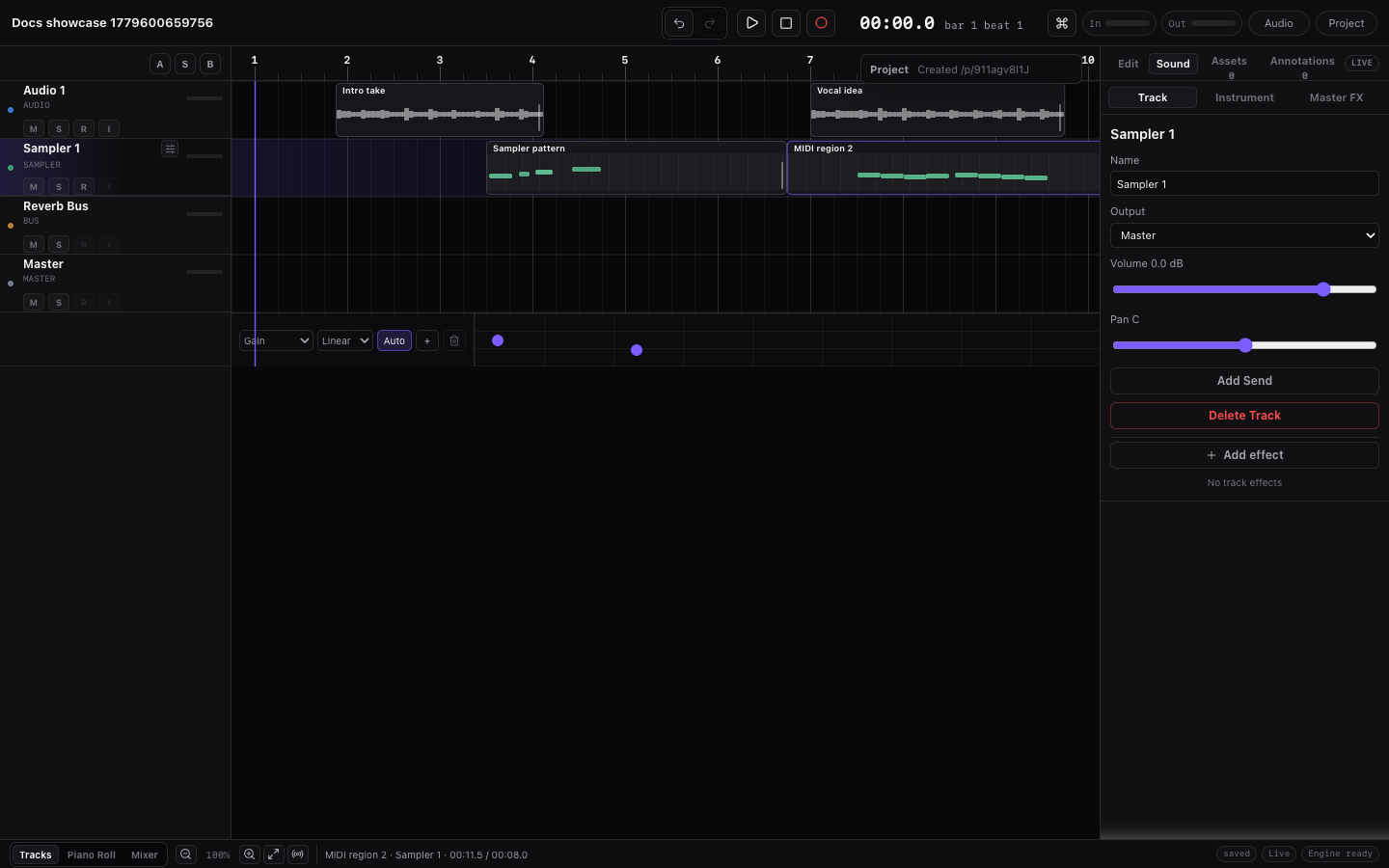
When a recipe says “open Instrument,” “open Inspector > Mix,” or “open Piano Roll,” select the intended track or region first. Miaou keeps the interface dense on purpose, so the active target label is the safety check.
If a Recipe Goes Wrong
Use this table before repeating the same action. Most recovery steps are normal undo, target, and status checks.
| What happened | Do this first | Then read |
|---|---|---|
| The wrong track, region, note, chord, marker, or point moved | Press Cmd+Z, click the intended editor surface, then repeat the edit from that target. | Editing Basics, Workspace Tour |
| An instrument changed on the wrong MIDI track | Undo, select the intended MIDI track or region, confirm the Instrument target label, then load the instrument again. | Load an Instrument on the Right MIDI Track |
| A MIDI region plays no sound | Select the MIDI track, load an instrument or drum kit, check mute/solo/routing, then press Space. | Instruments, MIDI Editor |
| A drum part shows pitch rows instead of kit lanes | Load a full drum-kit instrument such as 808/909 Kit or Studio Drum Kit on that track. | Drum Kits and Beatmaking |
| Audio import landed on the wrong lane or beat | Undo, right-click the intended timeline lane/time, then choose Import audio here. | Import and Export, Audio Regions |
| BPM changes do not affect imported audio | Select the audio region, set Source BPM, enable Follow project tempo, and choose a stretch mode. | Tempo and Follow Project Tempo |
| Record captured audio when you expected MIDI | Undo or delete the unwanted audio region, select/arm the MIDI track, and confirm the transport says MIDI. | Recording, Takes and Comping |
| A generated MIDI part replaced notes you wanted to keep | Undo, save a version, expand the From chords disclosure, then regenerate only when the source status is usable. | Analyze and Generate, Build Chords into MIDI |
| Share, History, or Export feels unsafe | Stop editing, read the project/status labels, wait for saving/sync/export to settle, then save a version and retry. | Save, Share, and Export, Troubleshooting |
| The app feels slow during a recipe | Stop playback, save/version, narrow the selection to one section or track, close heavy panels, then try again. | Large Projects and Performance |
If the same symptom repeats after the first recovery step, switch to Troubleshooting and follow the symptom map instead of trying unrelated controls.
Make a First Complete Loop
Use this when you are starting from a clean draft and want a playable 4- or 8-bar sketch with chords, bass, drums, and editable MIDI regions.
- Click Save so the sketch has a project link and password before you create material.
- Set the top-bar BPM to a comfortable writing tempo, such as
100,120, or128. - Click the Chord Track lane under the ruler, or use a progression preset in Inspector > Selection, to create a short chord progression.
- Select the chord range you want to use. Leave the chord lane unselected if the whole progression should be used.
- In Inspector > Selection, choose generation controls such as Voicing, Density, Energy, Rhythm, and Register.
- Click Build arrangement.
- Press
Spaceand listen once. Miaou creates normal MIDI tracks and regions that you can select, mute, solo, move, duplicate, trim, or edit in the Piano Roll. - Select a generated MIDI track and open Instrument if you want to swap its instrument.
- Select a generated MIDI region and open Piano Roll to edit notes, velocities, or drum hits.
- Select a track, open Inspector > Mix, and add one effect such as Parametric EQ, Delay, or Reverb.
- Press
Cmd+Sto save a recovery version. - Use Export a Full Mix and Stems when the loop plays back correctly.
If the generated loop is close but not right, edit the MIDI notes directly. Use Regenerate only when you want Miaou to replace the generated notes from the current chord source.
Analyze MIDI and Generate Editable Parts
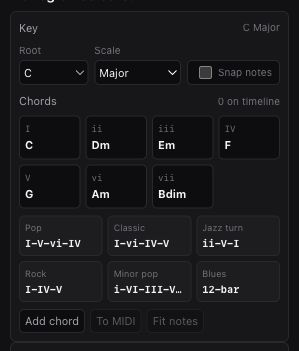
Use this when you already have a melodic MIDI idea and want Miaou to turn it into Chord Track blocks, then generate editable parts from those chords.
- Create or import a melodic MIDI region.
- Select that MIDI region. Drum-kit regions are skipped because their notes trigger kit pieces, not pitches.
- Open Inspector > Selection and choose an Analysis grid:
- 1/2 bar for fast chord changes.
- 1 bar for normal chord-per-bar material.
- 2 bars for slower harmony.
- Click Create chords.
- Select the created chord blocks and review their badges:
- Review means low confidence.
- Check means medium confidence.
- Reviewed, Corrected, or Manual means the chord has been checked or edited.
- Use Next review, Mark reviewed, Reviewed + next, candidate buttons, or direct symbol editing to correct the Chord Track.
- Select the chord range, a marker section, or the timeline range you want to turn into MIDI.
- Choose Make MIDI, Pad, Arp, Bass, Drums, Lead, or Build arrangement.
- Select the generated MIDI region and open Piano Roll. Edit the notes like normal MIDI.
- If you later change the source chords, use Regenerate, Regenerate changed, or Regenerate section only when the generated region source status is Chords, Changed, or Saved.
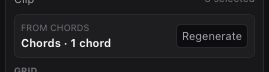
Analysis and generation write normal project material. Analyzed chords are Chord Track blocks, generated parts are MIDI regions, and regeneration replaces only the MIDI material that shows a usable chord source. For the full workflow and source-status reference, see Analyze and Generate.
Make Your First Beat
- Click Save if you are still in an unsaved draft.
- Add or select a MIDI track.
- Open Instrument, choose Drum Kits, then load 808/909 Kit or another kit.
- Open Piano Roll.
- Click Create MIDI if the track does not already have a MIDI region.
- Set Grid to
1/16for a simple drum pattern. - Place kicks on beats 1 and 3, snares or claps on beats 2 and 4, and closed hats on eighth or sixteenth notes.
- Drag the velocity line inside individual hits to make accents.
- Loop or duplicate the region to hear the pattern repeat.
- Press
Spaceto play and stop.
Drum kits use lanes
For drums, choose a full kit instrument. The editor shows named lanes such as Kick, Snare, Closed Hat, Open Hat, Clap, Cowbell, Ride, and Crash. Those lanes are still standard MIDI notes under the hood.
Import a Song or Loop and Speed It Up
- Set the top-bar BPM to the target tempo you want to hear.
- Drag the audio file onto the timeline, or right-click the timeline and choose Import audio here.
- Choose Follow project tempo during import when the tempo policy is visible.
- If the region does not follow correctly, select it and enter the original Source BPM in the Selection inspector.
- Keep Follow project tempo enabled on that region.
- Choose Default for a first pass, Beats for drums and loops, Tones for sustained tonal material, or Tape when pitch should move with speed.
- Press Play and adjust project BPM, Source BPM, or Stretch mode by ear.
- Export from the top-bar Export control when the timing sounds right.
The original sample is not overwritten. Miaou stores the source file and the region timing choices separately. For the full mental model, see Tempo and Follow Project Tempo.
Turn an Audio Region into a Playable Instrument
Use this when you imported or recorded a short sound and want to play it from MIDI.
- Click Save first if the project is still unsaved.
- Import or record the sound onto an audio track.
- Trim or fade the audio region so the useful part starts cleanly.
- Select the audio region.
- Select the MIDI track that should play the sample.
- In Inspector > Selection, click Use in {track name}. If there is no MIDI target, click Create instrument from region and Miaou creates one.
- Open Instrument.
- Adjust Root, gain, tuning, start, end, envelope, loop, or reverse until the sample plays naturally.
- Open Piano Roll or Keyboard and play notes through the custom sample.
- Keep the original audio region when you still need the waveform in the arrangement; mute or delete it only when the MIDI instrument is enough.
The source audio remains project media. MIDI notes trigger the custom sample, and the original audio region stays editable like any other region. For the deeper controls, see Instruments and Audio Regions.
Make an 808/909 Beat with Drum Lanes and Pads
- Add or select a MIDI track.
- Open Instrument, choose Drum Kits, then load 808/909 Kit.
- Open Piano Roll and create or select a MIDI region on that track.
- The editor switches from pitch rows to named drum lanes for the kit.
- Use the draw tool to place kicks, snares, hats, claps, toms, rides, crashes, and percussion hits.
- Drag in a drum lane with the draw tool to paint repeated hits at the current Grid spacing.
- Drag the velocity line inside a hit to change its accent. Select several hits first when you want relative velocity changes across a pattern.
- Use the computer-keyboard pad layout or on-screen pads to audition exact kit pieces.
If a kit piece is not visible, check the named lanes first, then turn on Unmapped in the MIDI toolbar when working with imported MIDI that uses notes outside the kit map.
For the complete drum workflow, including kit choices, pads, imported drum MIDI, transition FX, and current kit-routing limits, see Drum Kits and Beatmaking.
Add a Riser, Impact, or Tape Stop
Use this when you want a one-shot transition instrument without importing a separate audio file.
- Add or select a MIDI track.
- Open Instrument and search for a transition instrument such as Reverse Cymbal, Riser, Impact, Downlifter, Tape Stop, Sub Drop, Snare Roll, or Noise Sweep.
- Click the preview button to audition it without changing the project.
- Click the instrument row body to load it onto the selected MIDI track.
- Place the playhead at the transition.
- Open Piano Roll and click Create MIDI if there is no region at that spot.
- Draw one note where the instrument should start, then move or trim the note until the hit lands in time.
- Lower note velocity when the FX instrument is too loud, or use track volume/clip gain after listening in context.
Transition FX in Instrument are playable MIDI instruments. The note start decides when the one-shot triggers. Use an audio region instead when you need visible waveform trimming, fades, Source BPM, or Follow project tempo.
Load an Instrument on the Right MIDI Track
Use this when you want to change one MIDI track's instrument without accidentally changing another track.
- Click the MIDI track header or a MIDI region on the track you want to change.
- Open Instrument in the right dock.
- Read the Load into / target track label in Instrument. It should name the intended MIDI track.
- Use Starter, All, a family chip, or search to find an instrument.
- Click the preview button to audition the instrument. Preview does not change the project.
- Click the instrument row body to load the instrument onto the selected MIDI track.
- Open Piano Roll or Keyboard and play the selected region/track to confirm the new instrument.
- If the wrong track changed, use undo, select the intended MIDI track or region, and load again.
Search is global even when Instrument starts on Starter, so typing piano, bass, kit, marimba, trumpet, or riser can find full-catalog instruments without switching to All first.
Import a MIDI File and Assign Instruments
Use this when you already have a .mid or .midi file and want it to become editable Miaou tracks.
- Click Save first if the imported file matters.
- Move the playhead to the beat where the imported MIDI should start.
- Open bottom MIDI Tools.
- Choose the Import tempo policy:
- Keep project tempo when the MIDI should fit the current Miaou grid.
- Use file tempo when the MIDI file's tempo and time-signature map should define the project.
- Original timing when the file should keep its audible timing under the current project BPM.
- Click Import MIDI and choose the file.
- Press
Spaceonce and watch the imported track meters. - If an imported track is silent, select it, open Instrument, and load a built-in instrument or kit.
- For drum MIDI, select the imported drum track and confirm the Piano Roll shows named drum lanes such as Kick, Snare, Hats, Cowbell, Ride, and Crash.
- Select a melodic imported region if you want to run Create chords or generate new parts from it.
- Save a recovery version after the imported timing and instruments are correct.
MIDI import creates normal MIDI tracks, regions, and notes. MIDI files do not contain Miaou audio or effects, so instrument choice, Track Effects, routing, and export mixing happen after import. For the full reference, see Import and Export and MIDI Editor.
Write a MIDI Part
- Add or select a MIDI track.
- Open Instrument and load an instrument, such as piano, bass, guitar, synth, strings, or mallet.
- Open Piano Roll.
- Click Create MIDI if there is no region on the track yet.
- Choose the draw tool and click the grid to add notes.
- Drag a note to move it in time or pitch.
- Drag the right edge of a note to change length.
- Drag the velocity line inside the note to change how hard it plays.
- Select several notes before using quantize, humanize, transpose, duplicate, or velocity edits.
- Press
Spaceto hear the part in context.
Common mistake: MIDI is not sound by itself. If you see notes but hear nothing, make sure the MIDI track has an instrument loaded, is not muted, and routes to the Master.
Add Effects to a Track
- Select the track you want to shape.
- Open Inspector > Mix in the right dock.
- In Track Effects, click Add Effect.
- Start with one of these:
- Parametric EQ to brighten, clean, or remove unwanted frequencies.
- Compressor to control level movement or duck from a sidechain.
- Delay for echoes.
- Reverb for space.
- Utility for gain, mono, balance, and stereo width.
- Drag, reorder, bypass, keep compact, or remove effects from the Track Effects rack.
- Add automation with the A button beside a parameter when you want movement over time.
Track Effects process from top to bottom. If an effect is not audible, check the selected track, bypass state, routing, mute/solo, and whether a later effect or Master setting is changing the result.
Try an Effect Preset Safely
Use this when you want a fast starting point without losing the original sound.
- Select the audio or MIDI track you want to change.
- Open Inspector > Mix.
- Confirm the Mix header names the intended track.
- Add or expand one Track Effect.
- Click a preset chip such as Clean, Bright, Glue, Ducking, 1/4 Sync, Plate, Warm, Drum, Mono, or Wider.
- Press
Spaceand listen in context. - Use the effect bypass control to compare before and after at a similar volume.
- Adjust output, gain, or mix if the preset is only louder, not better.
- Keep the effect compact if the rack gets tall, or remove it if it is not helping.
- Save a version before applying several presets or changing the Master.
Preset chips are starting points, not separate modes. Preview buttons audition preset choices when available; clicking the preset chip applies it to the selected effect on the selected track.
Automate an Effect Move
Use this when you want an effect to change during playback, such as a filter opening, a delay throw getting louder, or reverb widening into a transition.
- Select the track whose effect should move. For a final-output move, select the Master controls instead.
- Open Inspector > Mix.
- Add or expand the effect you want to automate, such as Auto-filter, Delay, Reverb, Utility, or Compressor.
- Click the A button beside the parameter you want to move.
- Confirm the automation lane title names the intended track and parameter.
- Add one point before the change and another point where the change should arrive.
- Drag the second point to the target value, then play through the section.
- Mute the automation lane to compare against the static effect setting.
- Leave the lane enabled before export when the movement sounds right.
Enabled automation overrides the static knob or slider during playback and export. For selecting, copying, pasting, nudging, and deleting automation points, see Automation Lanes.
Route Tracks Through a Bus
Use this when several tracks should feed one routing path, grouped level control, or sidechain organization point.
- Add or select a bus track, such as Reverb Bus.
- Select the first audio or MIDI source track.
- Open Inspector > Mix.
- In Sends, add a send to the bus.
- Raise the send amount while playing the project.
- Repeat for other source tracks that should feed the same bus.
- Select the bus track and open Inspector > Mix.
- Read Receives to confirm which tracks are feeding the bus and whether any send is off, muted, hidden by solo, or routed away.
- Route the bus to Master unless you intentionally want it silent.
- Use the bus fader, pan/balance, mute, and solo to check the grouped return.
Track Effects belong to audio and MIDI source tracks. If you need Reverb, Delay, EQ, Compressor, or another effect, add it on the source track before the send or use the Master path for final-output processing. The bus still helps you verify receives, group level, route signal, and organize sidechain paths.
Sidechain Bass, Pad, or Reverb to a Kick
- Put the kick on its own audio or MIDI track.
- Put a Compressor Track Effect on the track you want to duck, such as bass, pad, or a printed reverb track.
- Set the Compressor Sidechain Source to the kick track.
- Lower Comp Thresh until the target track dips when the kick hits.
- Increase Comp Ratio for stronger ducking.
- Use Comp Attack for how fast the dip starts and Comp Release for how fast it recovers.
- Route the kick track to None if you want it to trigger ducking silently without being heard in the mix.
Sidechain routing is a Track Effect setting. The full mix and export should match realtime playback.
Export a Full Mix and Stems
Use this when you want a finished audio mix, a portable project package, or track files for another mix.
- Save the project and make sure it is unlocked.
- Press
Spaceand listen to the part you are about to send. - Confirm imported or recorded audio has restored and no region is unexpectedly silent.
- Use Save version if this export marks a moment you may need to recover later.
- Click Export in the top bar.
- Click Export ZIP.
- Keep the tab open while the export status says rendering, queued, or exporting.
- Click Download ZIP when export status says the ZIP is ready.
The ZIP includes:
| File or folder | What it is |
|---|---|
project-mix.wav | The finished full mix. |
project.json | The Miaou project data used for the export. |
media/ | Referenced imported, recorded, and take audio files. |
stems/ | Per-track WAV stems when the project fits the stem-size guard. |
| Loop-take audio files | Take media needed to reopen the exported project and keep choosing comp slices where saved. |
The full mix includes routing, Track Effects, Master Effects, automation, and Master track-head mute/volume/balance. Stems are source-track based: they include source-track processing, but they do not include final Master Effects or final Master output controls.
If the full mix sounds right but a stem sounds different, check whether the sound depends on bus returns, sidechains, Master Effects, or the final limiter. For a full signal-path explanation, see Signal Flow and Export Paths. For project-state checks before sending work, see Save, Share, and Export.
Build Chords into MIDI and Edit the Notes
- Add chords with the + button in the Chords header, by clicking the chord lane, or by using progression presets.
- Select a chord block to edit root, type, extension, optional slash Bass, inversion, start, or duration. Leave the chord lane unselected to use the full progression.
- Choose Voicing, Variation, Density, Energy, Rhythm, and Register, then click Make MIDI, Arp, Bass, Drums, Lead, or Build arrangement from the Selection inspector.
- Select the created MIDI region and open Piano Roll.
- Edit the generated notes like normal MIDI: move, trim, transpose, quantize, humanize, change velocity, or add/remove notes.
- Use Regenerate only when you want to replace the edited notes from the latest chord source, or use New variation from the MIDI inspector when you want another editable take next to the current region.
Chord blocks are planning data until converted. After conversion, the MIDI region is editable musical material.
Choose the Generated Part
| Action | Use it for |
|---|---|
| Make MIDI | Stable block chords from the selected chord source. |
| Pad | Sustained harmony with smoother voice-leading. |
| Arp | Repeating chord-tone motion. |
| Bass | Root, slash-bass, octave, and lead-in movement. |
| Drums | Kit-backed editable drum hits on an 808/909-style drum track. |
| Lead | Short melodic phrases from scale and chord tones. |
| Build arrangement | Several coordinated MIDI layers from the selected chord range or section. |
Tune the Result
| Control | What it changes |
|---|---|
| Main | Stable reusable generation pass. |
| Variation | Alternate rhythm or motion from the same source. |
| Fill | Denser transition material near an ending. |
| Density | How many rhythmic groups are generated. |
| Energy | Note intensity and accents. |
| Rhythm | Straight, syncopated, or offbeat timing. |
| Register | Low, middle, or high generated pitch range; drum-kit lanes keep their mapping. |
Held chord parts use compact voice-leading across chord changes when possible. Generated bass parts add lead-in movement before chord changes when the next chord has a clear bass target.
Build Sections
For section work, add markers such as Intro, Verse, Pre-Chorus, Chorus, and Bridge.
| Task | Use |
|---|---|
| Draft a marker outline from chords | Create markers, then rename or move the suggested markers. |
| Generate one section | Select a marker, then generate. Miaou uses chords from that marker to the next marker. |
| Generate all marker sections | Build song. Miaou reuses shared layer tracks across the song. |
| Add a transition into the next section | Build fill. The generated source is labeled like Fill to Chorus when another marker follows. |
Build arrangement infers the section role from the marker name: intros/outros are sparser, choruses are fuller, and bridges/pre-choruses use more alternate motion unless you manually choose Density, Energy, Rhythm, or Variation. Chords crossing a marker boundary are clipped so the generated MIDI starts and ends inside the selected section.
Regenerate or Duplicate
| Need | Use |
|---|---|
| Rebuild generated MIDI after editing chords | Regenerate for one region, or Regenerate section for the selected marker section. |
| Keep another generated take for the same part | New variation, New section take, or Create section takes. |
| Copy a verse, chorus, or bridge forward | Duplicate section. It copies the marker, section chords, overlapping regions, and MIDI clips. |
| Copy the section but refresh generated material | Duplicate variation. Manual MIDI and audio regions copy as-is; chord-generated material gets new takes. |
Regeneration only runs when Miaou can resolve a complete source. If the marker row shows unresolved generated MIDI, current chords cover only part of the saved source range or there is not enough current/saved chord material to rebuild safely.
Mark Sections and Leave Timeline Reminders
Use this when you want section labels, navigation points, or short production reminders without changing the music.
- Move the playhead to the section start or musical moment you want to label.
- Open Markers in the right dock.
- Type a short marker label in Marker at playhead.
- Click + to add it.
- Use structure names such as Intro, Verse 1, Chorus 2, Bridge, and Outro when the marker should define a section.
- Use short action reminders such as shorter fill, vocal enters, check bass, or export check when the marker is just a note to yourself or a collaborator.
- Click a marker row to jump to it and confirm the selected section span.
- Drag the marker on the timeline when it should move, or delete it from the marker row when the note is no longer useful.
Markers are timeline objects. A marker label can be a section name or a reminder, but it is not a chat thread and it does not change audio or MIDI by itself. For section generation, duplication, and regeneration, use Markers and Sections.
Record Audio into a Saved Project
- Click Save first if you are still in an unsaved draft.
- Select or add an audio track.
- Arm the track with the record-dot icon.
- Enable monitoring with the ear icon if you need to hear the input before recording.
- Choose metronome and count-in settings in the transport.
- Click Record.
- Watch the live region drawing and input meter.
- Click Record again to stop.
Recording creates an audio region on the armed track. Saved projects upload and restore the recorded file automatically.
Record a MIDI Performance
Use this when you want to perform notes into a MIDI region from the computer keyboard or a connected MIDI controller.
- Click Save first if you are still in an unsaved draft.
- Select or add a MIDI track.
- Open Instrument and load the instrument or drum kit you want to play.
- Open Keyboard for computer-key input, or open MIDI Tools and connect a Web MIDI controller.
- Select an existing MIDI region when you want to record into it, or place the playhead where a new MIDI region should start.
- Arm the MIDI track if it is not already the active recording target.
- Confirm the transport target says MIDI · {track} or Notes only · No mic.
- Choose metronome and count-in settings.
- Click Record, perform notes, then click Record again to stop.
- Open Piano Roll to quantize, move notes, resize lengths, edit velocity, transpose, or change the instrument.
If Record creates an audio region or asks for microphone input, stop and undo if needed. Select or arm the intended MIDI track, check the transport target, then record again. For the full audio/MIDI target model, see Recording.
Record Loop Takes and Build a Simple Comp
Use this when you want several audio passes over the same phrase, such as a vocal line, guitar riff, or percussion overdub.
- Save or unlock the project first.
- Select and arm the audio track you want to record into.
- Set the transport loop brace to the phrase you want to repeat. Use
Option/Altdrag in the ruler to draw a loop range, or useCmd+Lafter selecting a range. - Move the playhead to the loop start.
- Choose metronome and count-in settings.
- Click Record and perform several passes while playback wraps through the loop range.
- Click Record again to stop.
- Select the new loop-recorded region. The Selection inspector shows the recorded takes.
- Click a take to audition it. This changes the active Comp take without deleting the other passes.
- For a simple comp, split the loop-recorded region at phrase, word, or note boundaries.
- Select each split slice and choose the best take for that slice.
- Rename useful takes, mute unused passes, remove mistakes if needed, then save or export.
The comp is non-destructive. Each take remains a saved audio file reference, each split slice keeps its source offset, and exported project ZIPs include the take media needed to reopen or continue editing the comp. Take names, muted state, removals, and active Comp choices are undoable and persist after reload. For the full mental model, see Takes and Comping.
Share a Project
- Click Save first if the project is still a draft.
- Press
Spaceand confirm the project plays the current arrangement. - Wait for save, audio, and collaboration status to settle.
- Open History and click Save version before the shared session starts.
- Click Share in the top bar and copy the project link.
- Send the link and the project password to the collaborator.
- Ask them to open the link, unlock the project, and press
Spaceonce. - Agree who is editing which track, MIDI region, chord range, marker section, recording, or mix area.
- Make one small edit each, then wait for the status area and presence indicators to settle.
- Use Save version again before recording, importing audio, regenerating MIDI from chords, restoring history, or exporting.
Common mistake: the link is not enough. Collaborators also need the project password. If the collaborator sees an empty draft, a locked page, missing audio, or stale edits, stop and use Collaboration before continuing.
Make and Restore a Recovery Version
Use this before broad edits, regeneration, comping, collaboration, or export work that would be annoying to rebuild by hand.
- Save or unlock the project first. Draft-only sessions do not have History versions yet.
- Press
Spaceand confirm the project sounds like the point you want to preserve. - Press
Cmd+S, or open History and click Save version. - Make the risky edit, such as deleting sections, regenerating MIDI, changing take choices, or replacing effects.
- If you want to inspect an older point, open History and click Open beside the version.
- In the read-only version tab, press
Spaceand check whether that is the version you want. - Click Open project if you only wanted to inspect it.
- Click Restore this version when the live project should become that older state.
- Click Fork version when you want a separate editable project without changing the current live project.
History versions are recovery points, not separate collaboration branches. Restoring changes the live project; forking creates a new project link and password. For the full model, see Projects and Storage.
Use Only the Computer Keyboard to Sketch Notes
- Select a MIDI track and load an instrument from Instrument.
- Open Keyboard in the bottom bar so the computer-keyboard panel is visible.
- Use the lower row
Z S X D C V G B H N J Mand upper rowQ 2 W 3 E R 5 T 6 Y 7 Uto play notes. - Choose Chromatic for normal pitch rows, or Chord to constrain the keys to the Chord Track chord at the playhead.
- Use
[and]or the octave buttons to move the playable range. - Record-arm the MIDI track when you want to capture the performance.
- For a drum kit, use the pad layout shown by the selected kit instead of melodic pitch rows.
- Edit the recorded notes with the draw/select tools, in-note velocity handles, quantize, and humanize.
Preview and computer-keyboard playback follow the selected MIDI region or selected MIDI track. If preview uses the wrong instrument, select the intended MIDI region or track again.
Related Pages
- Quick Start is the shortest first project path before choosing a specific recipe.
- DAW Basics explains the terms used across the recipes.
- Editing Basics explains the shared selection, clipboard, duplicate, trim, split, loop, and undo model.
- Troubleshooting maps symptoms to focused fixes when a recipe does not behave as expected.