Appearance
Import and Export
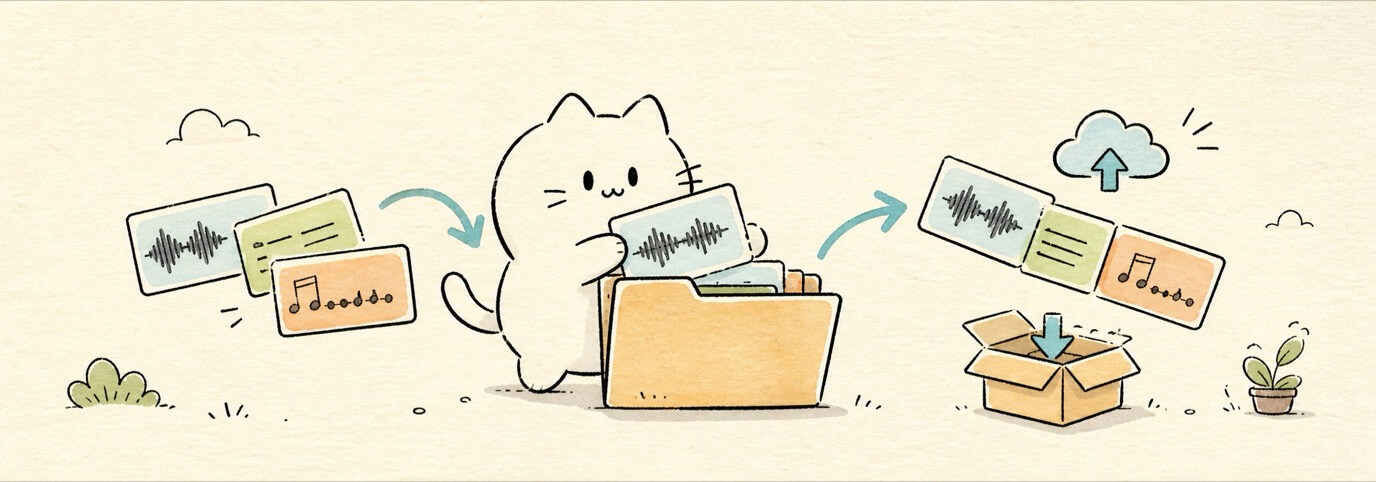
Miaou is region-first: imported and recorded audio appears as timeline regions. Reuse audio by copying, pasting, duplicating, looping, or turning regions into custom instruments. Miaou handles project audio storage automatically. The top-bar Export control handles project export.
For the focused editing workflow after audio is on the timeline, see Audio Regions.
Before export
Before sending or downloading a project, start with the Save, Share, and Export checklist. Then use the import/export details below.
Pick the Right File Workflow
Start with the file or output you have:
| You want to... | Use | Check afterward |
|---|---|---|
| Place an audio file on the timeline | Drag/drop or right-click Import audio here. | The region landed on the intended audio track and shows waveform content. |
| Make imported audio follow project BPM | Set Source BPM, enable Follow project tempo, then choose a stretch mode. | BPM changes affect that region during playback and export. |
| Turn an audio slice into a playable sound | Import audio first, select the region, then use Create instrument from region. | The selected MIDI track plays the sample through the Piano Roll or Keyboard. |
Bring in a .mid / .midi file | Drop the file or use bottom MIDI Tools > Import MIDI, then choose policy. | MIDI tracks have instruments or drum kits, and the grid timing matches intent. |
| Export the project for listening/sharing | Save/unlock the project, click top-bar Export, then Export ZIP. | project-mix.wav plays correctly and source media is included. |
| Export note data for another MIDI tool | Use bottom MIDI Tools > Export MIDI. | The download is a Standard MIDI File; it does not include rendered audio. |
If the wrong track, time, or tempo policy is chosen, undo immediately and repeat the import from the intended lane or playhead.
Import Without Guessing
Choose the target before the file picker opens. This makes the import result easier to predict and undo.
| Before you import... | Check this first |
|---|---|
| Audio should land at one exact beat | Right-click that timeline lane and choose Import audio here. |
| Audio should land at the playhead | Select the intended audio track and move the playhead there. |
| Audio should follow project tempo | Choose the tempo import policy when visible, then verify Source BPM after the region appears. |
| MIDI should start at a specific beat | Move the playhead before using MIDI Tools > Import MIDI. |
| Imported MIDI should use file tempo | Choose Use file tempo before importing the MIDI file. |
| Import should be recoverable | Save the draft or make a Save version before a large import or tempo change. |
After import, press Space once and confirm the sound, timing, and target track before continuing. If the result is wrong, use Cmd+Z before making follow-up edits.
What Import and Export Change
Use this table when you are not sure whether a file operation changes the project, the source file, or only a download.
| Action | What changes in Miaou | What does not change |
|---|---|---|
| Import audio | Adds an audio region and saves a project media reference after the project is unlocked. | The original file on your computer is not overwritten. |
| Enable Follow project tempo | Stores Source BPM, stretch mode, and timing choices on that audio region. | The source audio file stays intact; another region from the same file can use different tempo choices. |
| Import MIDI | Adds editable MIDI tracks, MIDI clips, notes, and preserved MIDI events where available. | MIDI import does not create rendered audio until tracks have sounds and the project is played/exported. |
| Create instrument from audio | Loads the selected audio region as the sample source for a MIDI track. | The audio region remains editable on the timeline. |
| Export ZIP | Creates a download with project data, media, rendered mix, and stems when included. | Exporting does not replace the live project or create a new saved version by itself. |
| Export MIDI | Downloads note/control data as a Standard MIDI File. | Built-in sounds, audio regions, effects, routing, and the rendered mix are not inside the MIDI file. |
If the project must be recoverable before a risky import, tempo change, sample conversion, or export handoff, make a Save version first.
Import Audio
Use one of these:
- Drag an audio file onto the timeline.
- Right-click the timeline and choose Import audio here.
- Drop onto an empty or existing timeline lane.
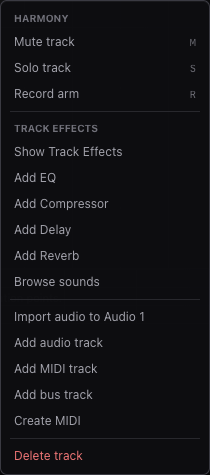
Miaou creates an audio region on the target lane. Dropping or right-clicking a lane is the clearest path because it names both track and time before the file picker opens.
Choose the Import Target
| If you want... | Best path |
|---|---|
| The file at a specific bar/time and lane | Right-click that lane and choose Import audio here, or drag the file. |
| The file at the playhead on the selected audio track | Select the track, move the playhead, then use the bottom Audio import tools. |
| Miaou to choose or create a usable audio track | Drag the file into the timeline empty area. |
| To turn the sound into a playable MIDI instrument | Import it as an audio region first, then use Create instrument from region. |
Before importing, choose the audio import tempo policy when the control is visible:
| Policy | Result |
|---|---|
| Keep original | Places the audio at its original length and timing. |
| Follow project tempo | Uses detected source BPM to make the new region follow the current project BPM. |
| Set project tempo from sample | Uses detected source BPM to update the project tempo, then places the audio. |
Choose the audio import start policy separately:
| Policy | Result |
|---|---|
| Keep file start | Places the file from its original start. |
| Trim to first hit | Uses detected transients to hide leading silence and place the first detected hit at the import position. |
Tempo-aware import is non-destructive. Miaou keeps the original source file in the project and stores the region's timing choices separately. If detection cannot find a reliable BPM, the import keeps the original timing; you can select the region later and enter Source BPM manually.
For the complete tempo model and common mistakes, see Tempo and Follow Project Tempo. For a task-first path, see Import a Song or Loop and Speed It Up.
Import MIDI
Drop a .mid or .midi Standard MIDI File onto the timeline, or open bottom MIDI Tools and click Import MIDI.
MIDI imports create editable MIDI tracks and regions. They do not render audio until each imported track has a built-in instrument, custom sample, or kit assignment.
Before importing from the bottom MIDI Tools mode, choose the MIDI import tempo policy:
| Policy | Result |
|---|---|
| Keep project tempo | Places the imported MIDI against the current project BPM. |
| Use file tempo | Applies the file's tempo and time-signature map to the project before placing the MIDI. |
| Original timing | Converts the MIDI clip so its audible timing stays close to the original file under project BPM. |
Miaou creates MIDI tracks and MIDI regions at the playhead. Melodic source tracks stay as one track. General MIDI drum-kit tracks stay as one kit-backed MIDI track, so Kick, Snare, Hats, Cowbell, Ride, Crash, and other pieces appear as named drum lanes inside the selected kit. The import keeps note channel, note-off velocity, controller changes such as sustain and attack, program changes, pitch bend, pressure, text events, key signature, tempo, and time signature for later MIDI export. Imported tempo changes can drive clip playback and export-render timing according to the chosen import policy. Miaou maps General MIDI program changes and instrument-name data to the nearest built-in instrument when there is a clear match.
After importing MIDI, check:
| Check | Why it matters |
|---|---|
| Track instruments | MIDI is silent without an instrument or drum kit. |
| Drum-kit lanes | General MIDI drum parts should appear as named kit lanes, not pitch melodies. |
| Project BPM | Use file tempo can update the project tempo map; other policies preserve the current project tempo. |
| Chord analysis target | Select a melodic MIDI region before running Create chords from MIDI. |
Make Imported MIDI Audible
MIDI files contain note and controller data. They do not contain Miaou audio, Track Effects, or rendered instrument audio. After import, do a quick instrument pass before editing the notes heavily.
| Imported track looks like... | Do this first |
|---|---|
| Piano, keys, bass, guitar, string, or lead | Select the MIDI track, open Instrument, preview an instrument, then load the closest built-in instrument. |
| General MIDI drum track | Confirm the created track uses a drum kit and the Piano Roll shows named lanes such as Kick, Snare, and Hats. |
| Silent imported track | Select the track, load a built-in instrument in Instrument, then press Space again. |
| Wrong family or wrong octave | Load a closer instrument, then use Piano Roll transpose tools only if the notes themselves are pitched wrong. |
| Timing feels shifted | Undo and reimport with a different MIDI tempo policy, or compare the project BPM with the source file tempo. |
Use this pass in order:
- Select the first imported MIDI track.
- Open Instrument and read the Load into target. It should name that track.
- Preview an instrument before loading it.
- Click the instrument row to load it.
- Press
Spaceand confirm the track is audible. - Repeat for the next imported MIDI track.
For drum MIDI, start by checking lanes rather than searching for separate Kick or Snare instruments. Miaou stores drum hits as normal MIDI notes, but the loaded kit gives those notes names and samples. If expected hits are missing, turn on Unmapped in the MIDI editor and choose a kit whose map covers the source notes.
After Audio Import
An imported audio file is now a normal audio region. Before editing, confirm:
| Check | Why it matters |
|---|---|
| Track and time | Import target controls where the region lands. Undo and reimport if it missed. |
| Waveform appears | The file decoded and the region has visible source content. |
| Project is saved | Saved projects can restore imported media after reload. |
| Tempo intent | Decide whether this region should keep original timing or follow project BPM. |
| Editing target | Select the region before trimming, fading, looping, slicing, or sampling it. |
There is no separate file-management step for normal work. Reuse the audio by copying, pasting, duplicating, looping, slicing, or turning the region into a custom instrument.
Follow Project Tempo
Select an audio region and use the Selection inspector when you want the audio to follow the project BPM:
| Control | Result |
|---|---|
| Follow project tempo | Enables or disables beat-based timing for the selected audio region. |
| Source BPM | The tempo of the source audio. Enter it manually if detection is wrong or unavailable. |
| Stretch mode | Chooses the time-stretch strategy: Default, Beats, Tones, or Tape. |
| Tempo markers | Optional per-region timing anchors for loose loops, pickups, or drifting transients. |
Use Default for general material, Beats for drums and transient-heavy loops, Tones for sustained tonal material, and Tape when you want speed changes to also change pitch. Changing the project BPM updates enabled regions in realtime preview and export.
If a detected Source BPM is half-time or double-time, use the Detected, Half, or Double choices in the Selection inspector before changing project BPM. If the file has leading silence before the first hit, drag the left-edge Trim Start handle. If you want to choose the first beat yourself, move the playhead to that hit and use Set downbeat. If the overall Source BPM is right but a few hits drift, add tempo markers at the playhead or rebuild markers from detected transients.
The original sample is not overwritten. Turning Follow project tempo off restores normal region timing from the saved source file.
Tempo following is per region, not per track. Two regions from the same file can use different Source BPM, stretch mode, loop length, fades, and Follow project tempo state.
Use Audio as a Custom Instrument
Select or create a MIDI track, then use one of these:
- Select an audio region and click Use in {track name} or Create instrument from region in the Region inspector.
- Select an audio region, right-click it, then use available region actions to duplicate, loop, or copy it before sampling.
The audio becomes the custom instrument source for the selected MIDI track. For normal reuse, copying, duplicating, looping, or pasting the region is usually simpler than managing a separate audio library.
If there is no MIDI track, Miaou creates one and loads the selected audio region into it.
Audio Restore
When reopening a project, unlock it so Miaou can restore the project audio files. There is no project media folder to manage during normal work.
Audio File Size Limit
Miaou rejects uploaded audio files larger than 100 MB.
Export
Click Export in the top bar, then click Export ZIP. Miaou:
- Saves the current project.
- Creates an export job.
- Collects referenced project audio files.
- Collects built-in instrument samples referenced by the project.
- Prepares the full mix and stems.
- Writes a ZIP file.
- Shows Download ZIP when ready.
Before starting export, check:
| Check | Why it matters |
|---|---|
| Project is saved/unlocked | Export needs access to the saved project and referenced media. |
| Audio files are restored | Missing project media can make regions silent or block export. |
| Latest version exists | A version gives you a recovery point before sending the ZIP. |
| Full mix plays as expected | Export should match the saved project model, but listening first catches routing mistakes. |
| Stems are really needed | Large projects may omit stems when the ZIP would exceed the current guard. |

Export ZIP
The download filename includes project/export identifiers so separate exports do not overwrite each other accidentally.
The ZIP contains project.json, referenced source audio files in media/, the finished full mix as project-mix.wav, and per-track WAV files in stems/. Loop-recorded take media is included even when a take is not the active comp choice, so the exported project remains portable for later take selection. Export uses the same saved project structure as realtime playback, so timeline audio, MIDI clips, routing, Track Effects, master effects, and automation stay aligned.
The finished project-mix.wav includes Master Effects and the Master track-head mute, volume, and balance controls. Stems are created per non-master track and stay source-track based, so they do not include final Master output controls.
Track Effects on source tracks are included in those source-track stems. Final Master Effects and final Master track-head controls are only part of project-mix.wav.
For a full explanation of the realtime/export signal path and why stems can differ from the finished full mix, see Signal Flow and Export Paths.
If a project is large enough that every stem would make the ZIP too large, Miaou still exports the full project mix and source media but may omit stems.
Audio export supports projects up to 2 hours. Longer projects show an export error instead of downloading a clipped mix.
Chord lane data is saved in the project, but chords become sound only after you convert them into MIDI regions with Make MIDI, Arp, or Bass.
Export MIDI
Open bottom MIDI Tools and click Export MIDI. Miaou starts a browser download for a Standard MIDI File containing the current MIDI clips plus preserved performance, tempo, key, controller, and text events.
Check an Exported MIDI File
Use this checklist before sending MIDI to another DAW, notation app, or MIDI player:
| Check | What to expect |
|---|---|
Open the .mid file | The receiving app should show MIDI tracks, notes, and timing data. |
| Assign instruments there | MIDI export does not include Miaou built-in instruments, custom samples, Track Effects, or routing. |
| Check drum mapping | Drum notes stay as MIDI note numbers; the receiving app may need a General MIDI drum kit. |
| Check tempo and bars | Tempo, key, and time-signature events are preserved where available. |
| Keep the Miaou ZIP too | Use the project ZIP when the receiver also needs audio, media, effects, or the finished mix. |
| Listen after import | The other app's instruments may sound different even when the MIDI notes are correct. |
If the receiving app opens the file silently, load instruments in that app first. If the timing feels wrong, compare its tempo map against the Miaou project BPM and imported MIDI tempo policy.
Common Import and Export Problems
| Problem | Try |
|---|---|
| Imported audio landed on the wrong track | Undo, then right-click the target lane and choose Import audio here. |
| BPM changes do not affect imported audio | Select the region, enable Follow project tempo, and set Source BPM if needed. |
| Imported MIDI is silent | Select the imported MIDI track and load an instrument from Instrument or check that the imported mapping chose one. |
| Drum MIDI appears as pitches | Load a drum-kit instrument and turn on unmapped notes only if the file uses notes outside the kit map. |
| Audio is missing after reload | Unlock the project so Miaou can restore saved media. |
| Export is missing stems | The project may have exceeded the stem ZIP guard; use the full mix and source media, or simplify and export again. |
| Export sounds different from realtime | Save/unlock the project, confirm media is restored, play once, then export again. |
Related Pages
- Save, Share, and Export is the safest checklist before sharing or downloading.
- Signal Flow and Export Paths explains full mix vs stems, buses, Master Effects, sidechains, and automation in the render path.
- Audio Regions explains audio-region trim, fade, clip gain, tempo tools, slicing, custom samples, and restore checks.
- Tempo and Follow Project Tempo explains Source BPM, stretch modes, and imported tempo maps.
- MIDI Editor covers imported MIDI, drum lanes, note editing, and MIDI export.
- Troubleshooting has focused fixes for missing audio, tempo, MIDI import, and export failures.