Appearance
Tracks, Routing, and Mixer
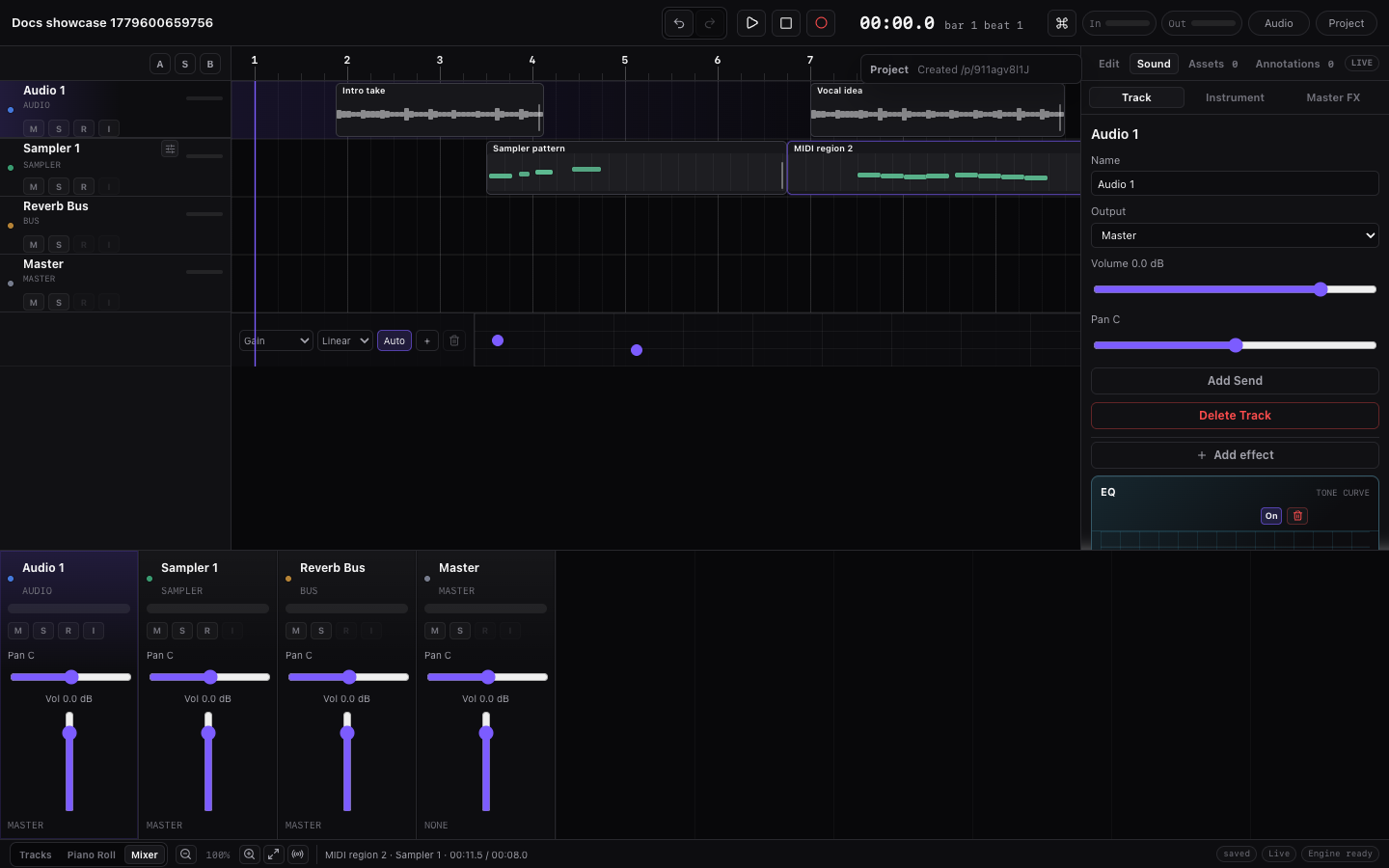
Miao projects start from a GarageBand-like default template:
- Audio 1: audio track.
- MIDI 1: MIDI track for built-in instruments and custom samples.
- Reverb Bus: bus track.
- Master: final output.
Track Types
| Track Type | Can Hold Audio Regions | Can Hold MIDI Regions | Can Record | Can Have Track Effects | Main Use |
|---|---|---|---|---|---|
| Audio | Yes | No | Yes | Yes | Imported clips and live audio. |
| MIDI | No | Yes | Yes, for MIDI notes | Yes | Per-track instruments and custom samples. |
| Bus | No | No | No | No in the current UI | Shared routing and group processing path. |
| Master | No | No | No | Master FX only | Final output. |
Track Header Controls
Each track header and mixer strip can show:
- M: mute.
- S: solo.
- Record-dot icon: record arm.
- Ear icon: input monitoring.
Record arm is disabled for bus and master tracks. Input monitoring is only available for audio tracks.
Add Tracks
Use any of these:
- Top-left timeline add buttons: audio waveform, keyboard, and route icons.
- Command palette: Add audio track, Add MIDI track, Add bus track.
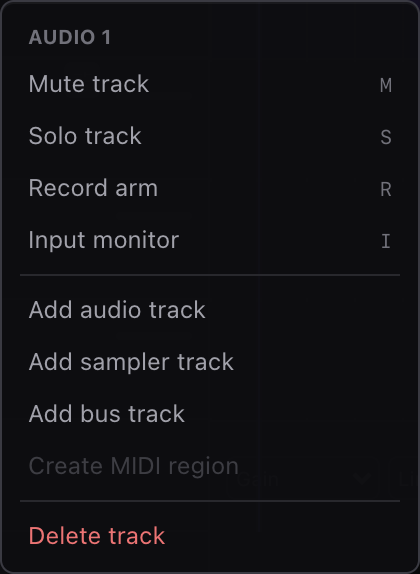
- Right-click a track or empty timeline and choose add actions.
Select and Rename Tracks
Click a track header or mixer strip to select it. The Track inspector updates to the selected track.
Rename a track from the Track Mix section in the Track inspector. Remote collaborators may temporarily lock track renaming while they are editing the same track.
Volume and Pan
Track volume ranges from -60 dB to +12 dB. Pan ranges from full left to full right and displays C when centered.
Adjust these in:
- The Track sound inspector.
- The Mixer view.
Routing
Tracks can output to:
- Master.
- A bus track.
- None.
Bus tracks output to the master. The master outputs to the browser audio output.
Sends
Audio and MIDI tracks can send signal to bus tracks. A selected track can have up to 4 sends. Sends are useful for shared effects or parallel processing, such as sending multiple tracks to a reverb bus.
If no send target is available, the Add Send control is disabled.
Track Effects
Audio and MIDI tracks support Track Effects in the Track sound inspector. Track Effects process that track before routing/sends reach the output.
Available Track Effects:
- EQ
- Gate
- Transient
- Compressor
- Saturation
- Bitcrusher
- Chorus
- Flanger
- Phaser
- Tremolo
- Auto-pan
- Auto-filter
- Delay
- Reverb
- Room
- Pitch
- Limiter
Each Track Effect has a compact module UI, enable/delete controls, preset chips, preview buttons, and parameter sliders. Use presets for quick starting points, then adjust sliders for the exact sound.
Mixer View
Click Mixer in the bottom bar. The mixer console shows one strip per project track.
Each strip contains:
- Track color and name.
- Track kind.
- Realtime meter.
- Volume.
- Pan.
- Mute, solo, record arm, and input monitor toggles.
- Output label.
Mixer strip selection also changes the right inspector, so you can select a track in the mixer and then edit its routing, sends, Track Effects, or instrument.
Solo and Mute Behavior
Solo takes priority over regular playback routing. If one or more audio/MIDI tracks are soloed, non-soloed tracks are silenced. Mute silences the muted track. Bus and master behavior follows routing from the active tracks.