Appearance
Recording
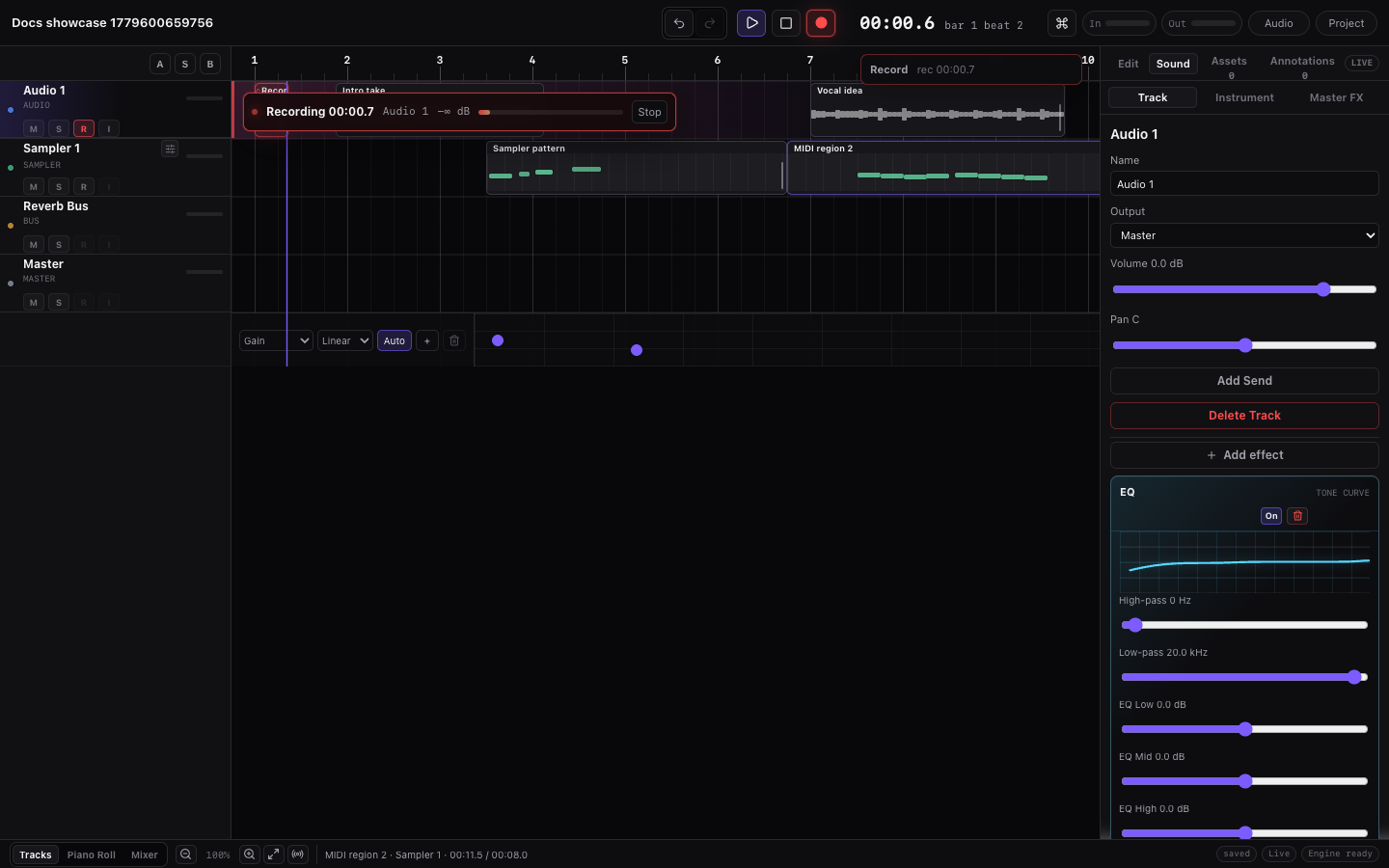
Miaou records live audio from one browser input at a time and can record MIDI-style note performances into the selected MIDI region. The transport shows the current recording target before capture, so you can tell whether Record will capture Audio or MIDI.
Takes and comping
For loop recording several passes and choosing the best slices, start with Takes and Comping. For recording setup, targets, and monitoring, continue below.
Choose the Recording Path
Start by deciding what kind of material should appear on the timeline:
| You want to capture... | Select / arm this first | Good target label | Result after stop |
|---|---|---|---|
| Microphone, guitar, synth, or line | An audio track. | Audio · {track} | A waveform audio region on that track. |
| Computer-keyboard notes | A MIDI track and a MIDI region, or a MIDI track/playhead. | MIDI · {track}, Notes only | Editable MIDI notes in the selected or new MIDI clip. |
| Hardware MIDI controller notes | A MIDI track, then connect the controller in MIDI Tools. | MIDI · {track}, Notes only | Editable MIDI notes using the selected track instrument. |
| Several audio takes over one range | An audio track plus an enabled transport loop brace. | Audio · {track}, Loop takes | One loop-recorded region with take choices. |
If the label does not match the row you intend, do not press Record yet. Select or arm the right track, set the playhead or loop range, and read the target chip again.
Before You Press Record
Check the recording preflight in the transport. It answers the three important questions:
| Question | Where to check |
|---|---|
| What will be recorded? | The target chip says Audio · {track} or MIDI · {track}. |
| Where will it land? | The highlighted track/region and target track name. |
| What will happen first? | Count-in, loop-take readiness, browser input, and monitor state. |
Use this quick rule:
| You want to record... | Required target state |
|---|---|
| Microphone, guitar, or line input | Select and arm an audio track. The target chip should say Audio. |
| Computer-keyboard notes or MIDI-style performance | Select or arm a MIDI track. The target chip should say MIDI. |
| Several audio passes for comping | Select and arm an audio track, enable the transport loop brace, and seek to the loop start. |
If the target says the wrong kind, stop and select or arm the intended track before pressing Record. Miaou does not treat audio and MIDI recording as interchangeable.
Safe Recording Checklist
Use this short checklist before a take you care about:
| Check | Audio recording | MIDI recording |
|---|---|---|
| Project state | Save or unlock the project first when the take should survive reload/share. | Save or unlock first when you want the performance in a shareable project. |
| Target | Select or arm the audio track that should receive the waveform. | Select or arm the MIDI track that should receive notes. |
| Target chip | Confirm Audio · {track}. | Confirm MIDI · {track} and Notes only · No mic. |
| Input | Check browser permission, system input, and transport input meter. | Open Keyboard or connect Web MIDI; no microphone input is needed. |
| Monitoring | Use the ear icon only when you need to hear live input through the browser. | Preview follows the selected MIDI region or MIDI track instrument. |
| Count-in/metronome | Set count-in/metronome before pressing Record. | Set count-in/metronome before pressing Record. |
| Loop recording | Enable the transport loop and seek to loop start when you want separate takes. | Current loop-take comping is for audio; MIDI recording creates normal editable MIDI notes. |
| After stop | Wait for processing, then play the new region once before saving/exporting. | Open Piano Roll, confirm notes landed in the intended clip, then quantize/edit if needed. |
Audio and MIDI targets are deliberate
If you expected notes but the chip says Audio, do not press Record. If you expected microphone audio but the chip says MIDI or Notes only, select or arm the audio track first.
Do a 10-Second Test Take
Before a take that matters, record a short test and delete it if it is only setup material. This catches most recording problems while they are still cheap to fix.
| Test step | What to verify |
|---|---|
| Save or unlock | The project is not a throwaway draft if the recording should survive reload. |
| Select/arm the target | The highlighted track and target chip name the track you intend to record into. |
| Record a few seconds | Audio draws a waveform, or MIDI notes appear in the intended region/new clip. |
| Play it back | The take plays through the expected track instrument, routing, monitor state, and level. |
| Check the wrong version | If you expected MIDI, confirm no WAV/audio region was created; if you expected audio, confirm waveform content exists. |
| Clean up | Undo/delete the test region, or keep it only if it is musically useful. |
After the test works, leave the same target selected, return the playhead or loop brace to the real start point, and record the actual take.
Audio Input
Miaou uses the browser microphone/audio input permission flow. Arm an audio track, then use the ear icon on that track header when you need to hear live input before recording.
The input meter in the transport shows realtime input level when input is active.
For browser permission, input-device, and monitoring setup, see Browser and Device Setup.
Arm a Track
Select an audio or MIDI track and click its record-arm icon in the track header. The compact recording target chip in the transport shows the target kind and track name before you press Record.
Audio tracks are exclusive for audio recording: arming one audio track disarms other audio tracks.
MIDI tracks can be record-armed for MIDI-style performance. Bus and master tracks cannot be armed.
If a MIDI track is the selected/armed target, Miaou records MIDI notes only and does not request microphone input or create an audio WAV. If no MIDI region is selected on that track, Miaou creates a normal editable MIDI region at the playhead and records into it.
Understand the Target Chip
The target chip and preflight text are there to prevent accidental captures:
| Label or state | Meaning |
|---|---|
| No record target | No compatible audio or MIDI track is selected/armed. Select or arm a track first. |
| Audio · {track} | Record will capture browser audio input into that audio track. |
| MIDI · {track} | Record will capture performed notes into the selected MIDI region or a new MIDI region. |
| Notes only · No mic | MIDI recording is selected, so Miaou will not request microphone input or create a WAV. |
| Browser input | Audio recording will use the browser input permission/device flow. |
| Monitor on / Monitor off | Shows whether the armed audio track is feeding live input through the browser. |
| Count-in | Recording waits for the chosen count-in before capture starts. |
| Loop takes ready | Audio recording will split completed transport loop passes into takes. |
| Loop on · seek to ... | Loop is enabled, but the playhead is not close enough to the loop start for take capture. |
For MIDI recording, open Keyboard in the bottom panel when you want to use the computer keyboard. The selected MIDI region or selected MIDI track controls the instrument you hear and the clip that receives notes.
Count-In and Metronome
Use the transport:
- Toggle Metronome with the transport metronome button.
- Choose Count-in length from the Count-in dropdown beside it.
Metronome is off by default. Count-in controls how much lead time Miaou gives before recording starts.
Start Recording
Click the Record button in the transport.
Recording states:
| State | Meaning |
|---|---|
| Requesting | Browser input permission or recording setup is in progress. |
| Count-in | Miaou is waiting through the count-in before capture. |
| Recording | Audio is being captured or MIDI notes are being recorded. |
| Processing | Miaou is finalizing the recorded file/region or saving MIDI. |
During audio recording, Miaou highlights the target lane and draws a live region from the recording start. During MIDI recording, Miaou records into the selected MIDI region or creates a new MIDI region at the playhead.
Stop Recording
Click Record again to stop. Audio recording finalizes the recorded file, writes it into the project, and shows the finished region. MIDI recording saves the recorded notes into the selected MIDI clip or the MIDI region Miaou created at the start of recording.
Check the Result
Before you keep recording on top of the take, verify the result:
| If you recorded... | Check | Useful next edit |
|---|---|---|
| Audio | A waveform region appears on the intended audio track, starts where expected, and plays back at the level. | Trim Start, right trim, fades, clip gain, loop, split, or take selection. |
| MIDI | Notes appear in the intended MIDI region or new MIDI region and play through the expected instrument. | Quantize, move notes, resize lengths, edit velocity, transpose, or change instrument sound. |
| Loop audio takes | The selected loop-recorded region shows take choices in Selection. | Rename takes, mute bad passes, split slices, and choose active comp takes. |
When the result is important, create a version before editing it heavily. That gives you a recovery point if trimming, comping, or regeneration later goes in the wrong direction.
If the Take Is Wrong
Fix the problem before recording more material on top of it:
| What went wrong | Do this first |
|---|---|
| Recorded audio when you expected MIDI | Undo or delete the audio region, select or arm the MIDI track, and confirm MIDI · {track} before recording. |
| Recorded MIDI when you expected audio | Select or arm the audio track, confirm Audio · {track}, then record again. |
| Take landed on the wrong track or beat | Undo, select the intended track, move the playhead, and record again. |
| Audio is too quiet, clipped, or noisy | Fix input gain, microphone/interface choice, monitoring, or room noise before another take. |
| Wrong instrument played while recording | Select the intended MIDI region or track, load the right instrument in Instrument, then record again. |
| Loop recording made only one take | Enable the transport loop, move the playhead to the loop start, and confirm Loop takes ready. |
| The take is good but needs cleanup | Save a version, then trim, fade, split, comp, quantize, or edit velocity. |
Use undo immediately when the wrong object was captured. If the take is usable but not final, keep it, save a version, and edit non-destructively.
Record MIDI Notes
MIDI recording is for performed note data, not microphone audio.
- Select or arm a MIDI track.
- Load or confirm the intended instrument in Instrument.
- Select an existing MIDI region, or place the playhead where a new MIDI region should start.
- Open Keyboard for computer-keyboard input, connect Web MIDI from MIDI Tools, or use the active MIDI input path.
- Confirm the target chip says MIDI · {track}.
- Click Record, perform notes, then click Record again to stop.
Recorded notes remain normal editable MIDI. Open Piano Roll to move notes, trim lengths, edit velocity, quantize, humanize, fit to scale/chords, or change instruments.
Loop Recording Takes
Enable the transport loop brace and place the playhead at the loop start before recording when you want multiple passes over the same musical range. Use Option / Alt drag in the ruler to draw a loop range, or use Cmd+L after selecting a range. Plain ruler drag scrubs the playhead. The recording preflight says Loop takes ready only when Record will capture separate passes. If it says Loop on · seek to ... for takes, click or drag the ruler to the loop start before recording. Miaou keeps the loop brace as transport state, records continuously, then splits each completed pass into a separate audio take when you stop.
The finished region appears once on the timeline with the latest pass selected. Open Selection to audition another take in the compact take lanes. The active Comp row shows which take is playing for the selected slice. Each take is a normal saved audio file reference, so choosing a take does not destroy the other passes. You can rename takes, mute unused takes so they cannot be selected accidentally, or remove an unwanted pass from that region. Undo restores take choices, names, mutes, and removals.
Loop recording is separate from region looping: the transport loop controls where playback wraps during recording, while a looped region repeats its own source during playback/export.
For a simple comp, split the loop-recorded region at phrase, word, or note boundaries, then select a different take in the take lanes for each slice. Miaou keeps the slice timing and source offset when you switch takes, so each slice stays aligned to the same part of the loop pass. Take choices, names, muted state, and removal are undoable, save with the project, restore after reload, and export from the active take for each slice.
Recording Region Display
While recording audio, Miaou draws a live region from the recording start position. The live region duration follows transport time and elapsed recording time so the user can see that recording is active. MIDI recording uses the selected MIDI region as the visible target and adds notes as you perform.
Mono and Stereo
Miaou records the input stream provided by the browser and supports mono and stereo project audio. Imported and recorded audio appears as timeline regions and is restored with the project after unlock.
Input Monitoring
Use input monitoring when you need to hear an audio input through the browser. Input monitoring is only available on audio tracks.
Avoid enabling monitoring if it creates feedback through speakers. Use headphones for live monitoring.
Recording into a Saved Project
For the safest workflow:
- Save a draft or unlock a project.
- Record.
- Wait for the recorded region to finish processing.
- Create a version if you want a recovery point.
If a project is unlocked, Miaou saves the recorded audio as a project file.
For the shortest step-by-step paths, see Record Audio into a Saved Project and Record Loop Takes and Build a Simple Comp.
Troubleshooting Recording
| Problem | Try |
|---|---|
| Browser asks for permission | Allow microphone/input access for the site. |
| No input level | Check system input device, browser permission, and the audio track monitor button. |
| Record captured audio when you expected MIDI | Select or arm the MIDI track and check that the transport target chip says MIDI before pressing Record. |
| Loop recording made only one take | Check that the transport loop brace is enabled, the preflight says Loop takes ready, and the recording spans more than one pass. |
| Comp slice plays the wrong take | Select the slice, open Selection, choose the intended take, and use undo/redo if you picked the wrong one. |
| Record button does nothing visible | Confirm an audio or MIDI track is armed and watch for requesting/count-in/recording status. |
| No MIDI notes were recorded | Confirm the target chip says MIDI, the intended MIDI track/region is selected, and the computer keyboard or MIDI input is active. |
| A new MIDI region appeared unexpectedly | No MIDI region was selected on the target MIDI track, so Miaou created one at the playhead. |
| Feedback | Turn off monitoring or use headphones. |
| Audio missing after reload | Unlock the project so Miaou can restore saved audio, or reimport the source file if it was never saved. |
Related Pages
- Takes and Comping explains loop-recorded takes, take choices, and split-region comping.
- Tracks, Routing, and Track Controls covers record arm, monitoring, meters, routing, and track controls.
- Browser and Device Setup covers Chrome/Chromium, audio input permission, Web MIDI, and browser playback requirements.
- Save, Share, and Export explains why saved projects are safer for recording and media restore.