Appearance
Save, Share, and Export
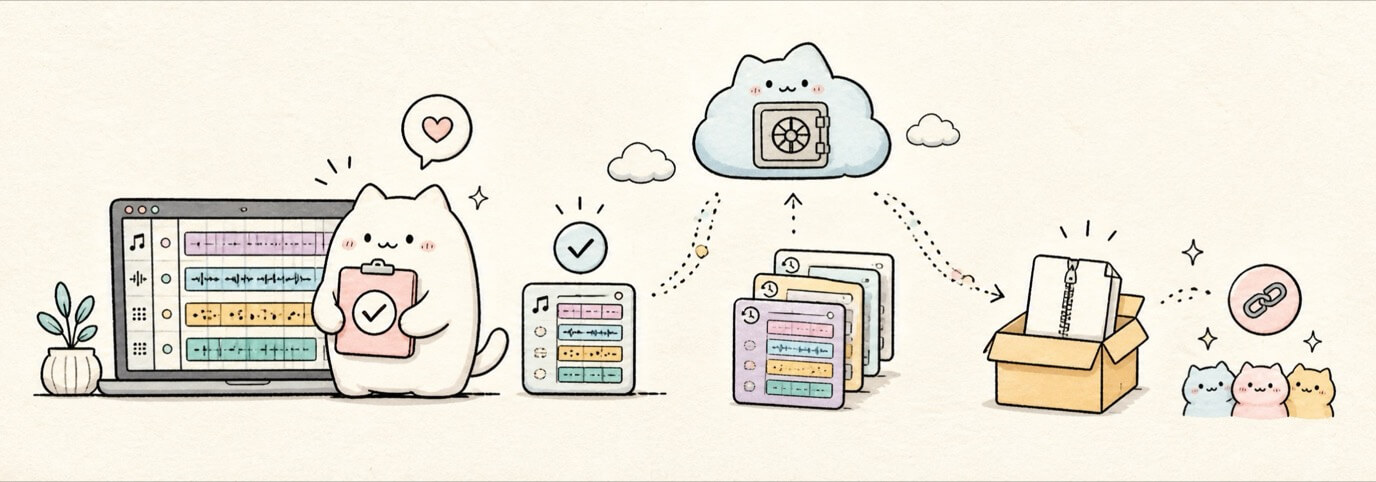
Use this workflow when you are ready to make a draft durable, send the project to someone else, or export files. Save or unlock first, confirm the project state, then share or export from the saved project.

Choose the Right Project Action
Use the top bar actions for different jobs:
| Action | Use it when... | Result |
|---|---|---|
| Save | You are in a clean draft or local sketch. | Creates a saved /p/... project link and password. |
Cmd+S / Save version | You are in an unlocked saved project and want a recovery point. | Adds a version to History without changing the project link. |
| Share | You want someone else to open the saved project. | Copies the project link. Send the password separately. |
| Export | You want downloadable files. | Opens ZIP export for the full mix, source media, project data, stems. |
| History | You want to inspect, restore, fork, or save a version. | Shows saved recovery points and read-only version views. |
| Download ZIP | Export status says the ZIP is ready. | Downloads the rendered project package. |
If the project status says saving, blocked, locked, or incomplete, fix that state before treating Share or Export as final.
Save a Draft
New sessions start as a clean, silent draft. A draft lives in the browser until you save it as a project.
- Click Save in the top bar.
- Enter a clear project title.
- Enter a project password with at least 8 characters.
- Click Save project.
- Keep the project link and password somewhere safe.
After the save succeeds, the browser URL should be a /p/... project link, the top bar should show the saved project title, and saved-project actions such as Share, Export, and History should be available. If the dialog stays open, read the field message, fix the title or password, and save again.
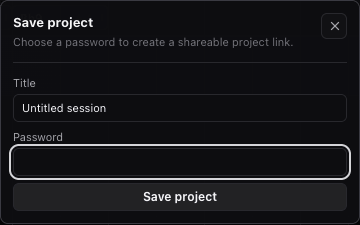
Miaou uses project links and passwords instead of accounts. The project link and password are the access keys, and Miaou cannot recover a lost project password.
Check Project State Before Sharing
Before sending a link, check:
| Check | Why it matters |
|---|---|
| Project is saved | Draft-only work cannot be opened from a share link. |
| Project is unlocked | The browser can save snapshots, restore audio, and export referenced media. |
| Audio is restored | Imported and recorded audio regions need their project media available. |
| Latest edits play | Press Space and confirm the current arrangement is what you expect. |
| Version exists | Use Save version before risky edits or before sharing. |
The footer/status area reports save, export, collaboration, history, and audio messages. If something says saving, blocked, missing, or failed, resolve that before treating the link or export as final.
Read the Project Status
Miaou keeps save, history, export, collaboration, and audio messages in fixed status areas instead of a running notification feed. Read those labels before you share, export, close the tab, or start a risky edit.
| Status you may see | What it means | What to do before sharing/exporting |
|---|---|---|
| Draft | The session has not been saved to a project link yet. | Click Save and set a title/password. |
| Unsaved draft | The draft has local edits that are not a saved project. | Save the draft before recording, sharing, exporting, or relying on media restore. |
| Saving | Miaou is writing the current project state. | Wait before copying a link, exporting, closing the tab, or reloading. |
| Saved | The latest project snapshot is written. | Good baseline; make a Save version for a named recovery point. |
| Sync pending | Collaboration edits are still being acknowledged. | Wait for project sync to settle before saving a version or sending a final link. |
| Sync blocked / Sync incomplete | Collaboration sync did not confirm the latest state cleanly. | Click save/version again, reload if needed, then confirm the project reopens with the expected edits. |
| Waiting for collaboration sync | History is waiting for shared edits to settle before creating a version. | Wait briefly; if it persists, save again or reload and verify the project. |
| Exporting, Queued, or Rendering | A ZIP export job is being prepared or rendered. | Keep the tab open and wait for Export ready. |
| Export ready | The ZIP is ready to download. | Click Download ZIP. |
| Unlock first | The browser has the link but has not unlocked it yet. | Enter the project password again. |
| Read-only version | You opened a history snapshot, not the live editable project. | Use Open project, Restore this version, or Fork version. |
If a status sounds wrong, treat the project as not ready. Play the project, make a recovery version, reload the link, and confirm the expected arrangement before sending it to someone else.
Before Closing or Reloading
Use this short check when you are done for the moment:
| State you are in | Do this first |
|---|---|
| Draft with work you care about | Click Save, set a title/password, and wait for the /p/... URL. |
| Unlocked saved project | Wait for Saved and any collaboration status to settle. |
| Imported or recorded audio exists | Confirm the project is unlocked so media can be restored later. |
| Big edit, regeneration, or comping | Click Save version so History has a recovery point. |
| Sending the project to someone | Reload the saved link, unlock it, press Space, then share. |
If you only need a quick local sketch, a draft is fine. If you need to reopen, collaborate, record media, or export reliably, turn the draft into a saved project before closing the tab.
Make a Recovery Version
Use Save version in History or press Cmd+S when you want a recovery point. In a draft, Cmd+S opens the Save dialog instead. In an unlocked project, it creates a recovery version.
If focus is inside an exact-value field when you save, Miaou first tries to commit that field. Valid values are saved with the version. Invalid values block save so you can correct or discard the draft instead of creating a misleading recovery point.
Good moments to save a version:
- before deleting or replacing several regions;
- before regenerating chord-based MIDI;
- before comping takes;
- before large import/export work;
- before sharing;
- before a collaborator starts editing.
Versions appear in History. You can open a version read-only, restore it to the live project, or fork it as a new editable project.
Share a Project
- Save or unlock the project.
- Click Share.
- Send the copied link and the project password to the collaborator.
Collaborators open the /p/... project link and unlock with the same password. Anyone with both the link and password can open the project, so treat the password like a project key.
Test a Shared Link
Before sending important work, test the link as if you were the collaborator:
- Save or unlock the project.
- Wait for save and collaboration status to settle.
- Open History and click Save version when the current state matters.
- Copy the link with Share.
- Open the copied link in a new tab or another browser window.
- Unlock with the same password.
- Press
Spaceand confirm the arrangement, audio files, instruments, and markers are present.
Use this quick decision table after the test:
| Test result | What to do before sending |
|---|---|
| Link opens the expected song and plays correctly | Send the link and password separately. |
| Link opens a clean draft | You copied or opened a draft URL. Return to the original tab and save. |
| Link asks for a password | Expected. Send the password separately from the link. |
| Audio regions are silent or show missing media | Unlock the original project, wait for media restore/save, then retest. |
| The arrangement is older than the visible source tab | Wait for save/sync to settle, save a version, reload, then retest. |
| A collaborator should only listen, not edit live work | Export ZIP and send project-mix.wav or the ZIP instead. |
Choose an Export
Choose the export based on what the other person or app needs:
| Need | Use | What they receive |
|---|---|---|
| A finished audio file | Export ZIP | project-mix.wav with routing, Track Effects, Master Effects, and final Master controls. |
| A portable project package | Export ZIP | project.json, referenced media, the full mix, and stems when the project fits the stem guard. |
| Separate track audio for another mix | Export ZIP | Per-track WAV stems when included. Stems do not include final Master Effects or Master controls. |
| Editable MIDI notes for another DAW | Bottom MIDI Tools | A Standard MIDI File with current MIDI clips and preserved MIDI events where available. |
| A recoverable saved state inside Miaou | History > Save version | A project version that can be opened read-only, restored, or forked later. |
| A live collaborative project, not a file | Share | The project link. Send the password separately; collaborators unlock and work in the live project. |
If you are not sure, export ZIP first. It gives you the rendered full mix plus the project data and media needed to inspect the exported state later.
Export a Project ZIP
- Save or unlock the project.
- Press
Spaceand listen to the section you care about. - Confirm imported and recorded audio has restored.
- Click Export.
- Click Export ZIP.
- Wait for export to finish.
- Click Download ZIP.
The ZIP contains:
project.json;- referenced source audio files in
media/; - the rendered full mix as
project-mix.wav; - per-track WAV stems when the project is small enough to include them;
- loop-recorded take media needed to reopen or continue comping.
The full mix includes Master Effects and Master track-head mute, volume, and balance. Stems are source-track based and do not include final Master Effects or final Master track-head controls.
Check the Downloaded ZIP
Before sending the ZIP to someone else, open it and check the files you actually need:
| Check | What good looks like |
|---|---|
Listen to project-mix.wav | It matches the saved project playback, including Master Effects and final volume. |
Open project.json exists | The ZIP includes the project structure Miaou needs to inspect or restore the export. |
Check media/ | Imported, recorded, and take audio referenced by the project is present. |
Check stems/ only if needed | Per-track WAV stems are present when the project fits the stem export guard. |
| Keep the downloaded file name | The ZIP name helps you distinguish this export from earlier drafts. |
If the full mix is missing, media is missing, or the ZIP does not match what you heard before export, return to Miaou, unlock the project, wait for project status to settle, confirm playback, and export again.
Export MIDI
Use bottom MIDI Tools, then Export MIDI, when you want note data for another DAW, notation app, or MIDI player. MIDI export is not audio; the receiving app needs its own instruments.
MIDI export includes the current MIDI clips and preserved MIDI data such as note channels, controller changes, pitch bend, program changes, text events, key signature, tempo, and time signature where available.
What to Do When Something Looks Wrong
| Problem | Try |
|---|---|
| Share link opens an empty draft | Save the draft first, then share the saved /p/... project link. |
| Unlock fails | Check the exact password. There is no account recovery or password reset. |
| Audio is missing after reload | Unlock the project so Miaou can restore saved media, or reimport a file that was never saved. |
| Export sounds different from playback | Save/unlock the project, confirm media is restored, then export again. |
| Stems do not match the full mix | Remember that stems are source-track based; the full mix includes final Master processing. |
| A collaborator cannot hear your edit | Confirm both browsers are unlocked and the project state has synced before playback. |
Related Pages
- Projects and Storage explains project links, passwords, history, versions, and media storage.
- Collaboration explains shared editing, presence, temporary edit locks, and what syncs.
- Import and Export explains audio/MIDI import, tempo-following audio, ZIP export contents, stems, and MIDI export.
- Troubleshooting has focused fixes for save, audio restore, export, and collaboration problems.