Appearance
Analyze and Generate
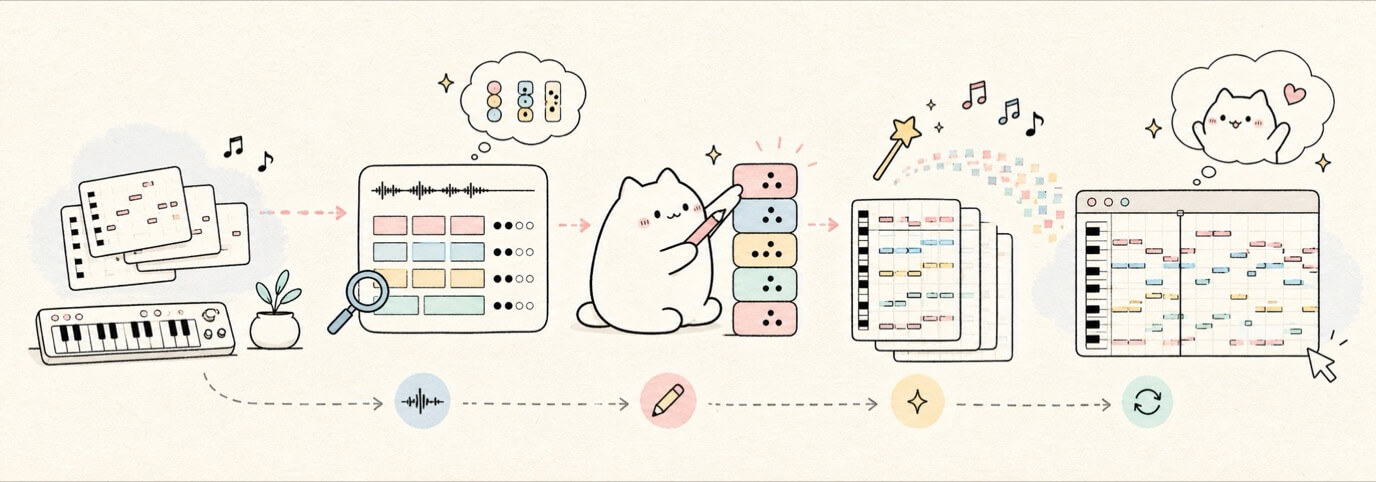
Use this workflow when you already have a musical idea and want Miaou to turn it into editable song structure. Analyzed chords become normal Chord Track blocks, and generated parts become normal MIDI regions.
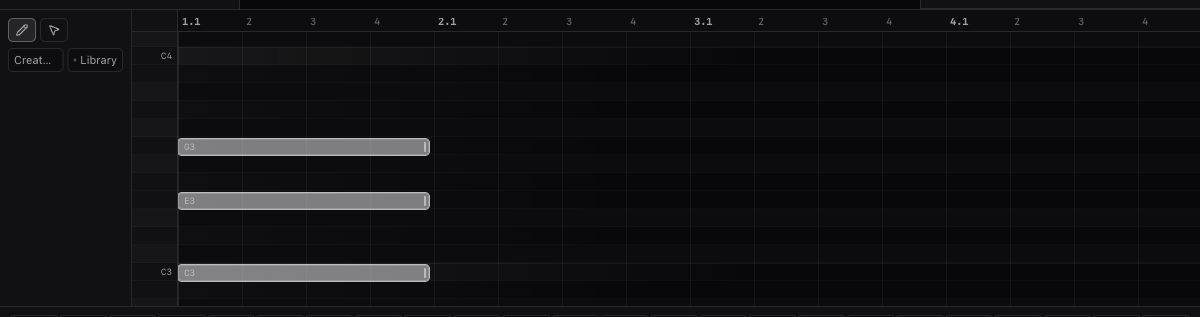
Fast Path
Use this when you have a MIDI idea and want a quick chord-driven arrangement sketch:
- Save or unlock the project.
- Select one melodic MIDI region.
- Choose the Analysis grid that matches the chord rhythm.
- Click Create chords.
- Review any Review or Check chord blocks.
- Correct chord symbols, slash bass, inversion, or timing where needed.
- Select the chord blocks, timeline range, or marker section you want to generate from.
- Check the Generate summary so the source and bar span are what you intend.
- Click Pad, Bass, Arp, Lead, Drums, or Build arrangement.
- Edit the created MIDI in the Piano Roll like normal notes.
Do not skip the review pass. Generated bass, lead, and pad parts follow the Chord Track, so one wrong analyzed chord can make several generated regions feel wrong.
The Mental Model
| Step | What Miaou creates | What you can edit |
|---|---|---|
| Analyze | Chord Track blocks with review details. | Chord symbol, slash bass, inversion, timing, reviewed state. |
| Generate | MIDI regions and MIDI clips. | Notes, velocity, timing, instrument, effects, routing. |
| Regenerate | Replacement notes from saved chord source. | Undo, create a new variation, or edit the regenerated notes. |
Miaou keeps the workflow DAW-native. Chords, markers, MIDI clips, tracks, and regions remain visible project objects.
Before You Click
Use this checklist whenever analysis or generation changes more music than expected. It catches the common wrong-source mistakes before they create several tracks of MIDI to clean up.
| Action | Check first | Safe sign |
|---|---|---|
| Create chords | One melodic MIDI region is selected; drum-kit regions are not selected. | The Selection inspector names the intended MIDI region and shows an analysis grid. |
| Generate MIDI | The chord blocks, marker section, or timeline range you want is selected. | The Generate summary names the expected source and bar span. |
| Build arrangement | The Chord Track has the progression you want, or the selected marker/range is the right one. | Created regions appear as normal editable MIDI on named tracks. |
| Regenerate | The generated MIDI region source chip is Chords, Changed, or Saved. | The From chords disclosure explains the source and Regenerate is enabled. |
| New variation | You want an alternate editable take, not a replacement of the current region. | Miaou creates a new generated take/region and keeps the source relationship visible. |
| Section actions | The selected marker-to-next-marker span is the intended section. | The Markers panel reports the section bar range, chord count, and generated-MIDI statuses. |
If a generated result is wrong, undo immediately and fix the source selection or chord review before trying another generator.
Start With a Short Range
For the first pass, work on 4-8 bars instead of the whole song. A short range makes review, correction, generation, and undo easier to understand.
| Step | What to do | Why it helps |
|---|---|---|
| 1 | Save a version before analysis or generation. | You can return to the pre-analysis project state. |
| 2 | Select one clear melodic MIDI region or one marker section. | Miaou analyzes/generates from a source you can inspect. |
| 3 | Choose the coarsest Analysis grid that still follows the chord rhythm. | Fewer, longer chords are easier to review than noisy fragments. |
| 4 | Review every Review and Check chord before generating. | Generated parts inherit these harmonic decisions. |
| 5 | Generate one part first, usually Pad, Bass, or Make MIDI. | One layer makes wrong chords, register, or density obvious. |
| 6 | Play the result, then add Arp, Lead, Drums, or arrangement. | More layers are easier to judge after the source is trusted. |
Once that range works, repeat the same process for the next section or use marker-section generation.
Analyze MIDI into Chords
- Create or import a melodic MIDI region.
- Select the MIDI region.
- In Selection, choose an Analysis grid:
- 1/2 bar for faster harmonic rhythm.
- 1 bar for the normal chord-per-bar pass.
- 2 bars for slower changes.
- Click Create chords.
- Miaou writes editable Chord Track blocks over the analyzed range.
Drum-kit MIDI is skipped because drum notes are kit-piece addresses, not pitches.
Choose the grid by how often the harmony actually changes, not by how dense the notes are:
| Analysis grid | Use it when... | Avoid it when... |
|---|---|---|
| 1/2 bar | Chords change quickly, or the part has clear two-beat harmonic moves. | Passing notes make every half-bar look like a different idea. |
| 1 bar | Most bars have one main chord. | The part holds one chord for several bars. |
| 2 bars | Chords hold longer, or the MIDI is sparse. | There are obvious chord changes inside each two-bar span. |
If the result looks fragmented, undo and try a longer grid. If the result misses changes, undo and try a shorter grid.
Review the Result
Analyzed chords can show review badges:
| Badge | Meaning |
|---|---|
| Review | Low confidence. Check it before trusting generated parts. |
| Check | Medium confidence. Usually usable, but worth listening to. |
| Reviewed | You accepted or checked this chord. |
| Corrected | You chose one of Miaou's alternate candidates. |
| Manual | You typed a correction that was not one of the analyzer candidates. |
Use Next review, Previous review, Mark reviewed, and Reviewed + next to move through the queue. Use Accept high-confidence when you want to approve clear matches and focus on uncertain segments.
Use this review loop:
| You see... | Do this |
|---|---|
| Review | Preview the chord, compare it to the MIDI, then choose a candidate or type a correction. |
| Check | Listen once; mark reviewed if it matches the musical intent. |
| A good chord, wrong bass | Add or change slash Bass, such as C/E or Bb/F. |
| Correct harmony, jumpy motion | Adjust Inv before generating smoother chord stacks or bass movement. |
| Empty analyzed space | Leave it empty if the source was silent or unclear, or add a chord manually. |
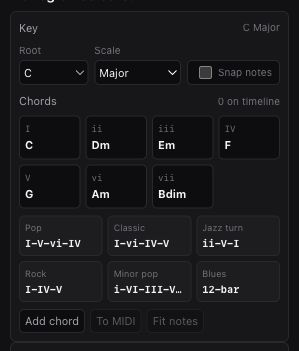
Correct a Chord
Select the chord block and use one of these:
- Type a symbol such as Cm7, F#maj7, Bb/D, or Gsus4.
- Choose a candidate button when Miaou shows alternates.
- Adjust Root, Type, Ext, Bass, Inv, Start, or Beats.
- Drag the chord block or either edge in the Chord Track.
Slash bass matters. A chord like C/E keeps C as the harmony while telling bass generation to treat E as the low target.
Generate Editable MIDI
Before generating, make the source explicit. Miaou uses the active selection to decide which chords become MIDI:
| Active source | What Miaou uses |
|---|---|
| Selected chord block(s) | Only those Chord Track blocks. |
| Selected marker section | Chords from that marker to the next marker. |
| Selected timeline regions | Chords that overlap the selected region range. |
| No active source | The full Chord Track lane. |
Check the Generate summary before clicking a generation action. It names the source and bar span so you can catch a wrong selected marker, stale region selection, or unintended full-lane generation.
Then choose a generation action:
| Action | Result |
|---|---|
| Make MIDI | Block chords. |
| Pad | Held harmony with smoother voice-leading. |
| Arp | Repeating chord-tone motion. |
| Bass | Rhythmic low notes that follow roots and slash bass. |
| Lead | Short top-line phrases from scale and chord tones. |
| Drums | Editable kit hits on a drum-kit MIDI track. |
| Build arrangement | Several coordinated MIDI layers from the same source. |
Generation controls are deterministic:
| Control | Use it for |
|---|---|
| Voicing | Close, open, or spread chord shapes. |
| Variation | Main, alternate variation, or fill behavior. |
| Density | Sparse, normal, or denser note grouping. |
| Energy | Softer, balanced, or more accented notes. |
| Rhythm | Straight, syncopated, or offbeat timing choices. |
| Register | Lower, middle, or higher generated pitch range. |
| Seed | Repeatable alternate phrase choices from the same source. |
The same source and settings create the same generated MIDI, so regeneration is predictable.
Generated notes are editable immediately. If you manually change the notes, save a version before using Regenerate, because regeneration replaces the generated note material from its saved source.
Choose the Right Generator
Start with one or two parts, then add more layers after the first pass plays correctly:
| Need | Start with | Check afterward |
|---|---|---|
| Hear the chord progression | Make MIDI or Pad. | Chord quality, inversion, register, and sustain. |
| Add low-end direction | Bass. | Slash bass, octave, lead-in notes, and rhythm. |
| Add motion without a melody | Arp. | Density, rhythmic feel, and note range. |
| Add a sketch melody | Lead. | Whether phrases land on useful chord/scale tones. |
| Add beat support | Drums or Build arrangement. | Kit lanes, density, section energy, and accents. |
| Build a multi-track sketch | Build arrangement. | Track targets, generated region labels, and balance. |
If the generated MIDI is close but not perfect, edit the notes directly. Use regeneration when you want to rebuild from changed chords, not for small manual note fixes.
Check the Generated Parts
Before adding more layers or regenerating, make sure the first result is useful:
| Check | What good looks like |
|---|---|
| Source range | Generated regions start and end inside the chord range, marker section, or timeline range you chose. |
| Track targets | Pads, bass, lead, arp, and drums landed on the intended MIDI tracks or newly created named tracks. |
| Drum lanes | Drum parts use a kit-backed track with named lanes, not melodic pitch rows. |
| Instrument choice | Each generated MIDI track has a loaded instrument or drum kit, and preview/playback is audible. |
| Musical density | Notes support the section instead of crowding it. Lower Density or Energy if it feels too busy. |
| Source disclosure | The generated region's From chords disclosure names the expected source and can regenerate safely. |
| Manual edit safety | Save a version or duplicate the region before heavy note edits if you may want to regenerate later. |
If the generated part is wrong because the source was wrong, undo, correct the chord range or marker selection, then generate again. If the source was right but the part only needs musical cleanup, edit the MIDI notes directly in the Piano Roll.
Generate for Sections
Markers make generation more song-shaped.
- Add markers such as Intro, Verse, Pre-Chorus, Chorus, Bridge, and Outro.
- Select a marker.
- Choose Build arrangement, Build fill, Regenerate section, New section take, Duplicate section, or Duplicate variation.
Miaou reads the marker-to-next-marker range as the section. It uses the marker name as a light musical role hint: intros and outros are sparser, choruses are fuller, bridges and pre-choruses use alternate motion, and fills become denser transition material.
For the complete marker workflow, including marker editing, section duplication, fills, and section regeneration, see Markers and Sections.
Regenerate Safely
Generated MIDI regions remember:
- generation mode and settings;
- the chord blocks or source range they came from;
- marker section label and role when applicable;
- a saved copy of the source chords for safe regeneration when the current chord lane no longer contains that range;
- seed, take, density, energy, rhythm, register, and voicing.
The region source chip explains whether regeneration is safe:
| Chip | Meaning |
|---|---|
| Chords | The generated region still matches current Chord Track source blocks. |
| Changed | Current Chord Track blocks fully cover the saved source range, but changed. |
| Saved | Current chords are gone, so Miaou can regenerate from the saved snapshot. |
| Missing | Source material is partial or absent; regeneration is disabled. |
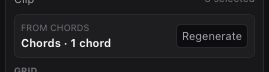
Miaou does not silently regenerate from partial sources. If only part of a saved source range has replacement chords, regeneration stays disabled instead of dropping bars.
Use regeneration deliberately:
| Situation | Better action |
|---|---|
| You changed the Chord Track and want the part updated | Use Regenerate or Regenerate changed when the source chip allows it. |
| You like the current take but want another option | Use New variation or duplicate the region before regenerating. |
| You manually edited many notes | Save a version first, or duplicate the region and regenerate the duplicate. |
| Source chip says Missing | Restore or recreate the missing chord range, or keep editing the MIDI by hand. |
Common Checks
- If generated MIDI sounds wrong, select the source chord range and preview the chords first.
- If Regenerate is disabled, open the From chords disclosure and read the source status.
- If drums generate on unexpected lanes, load a full drum kit and use the named drum lanes.
- If analyzed chords look sparse, try a shorter analysis grid or remove passing notes from the source MIDI.
- If the generated part is too busy, lower Density or use Main instead of Fill.
Related Pages
- Chords and Scales explains the full Chord Track reference.
- MIDI Editor explains how to edit the generated notes.
- Markers and Sections explains marker-section generation, fills, duplicate section, and section regeneration.
- Workflow Recipes gives a short task walkthrough.