Appearance
Takes and Comping
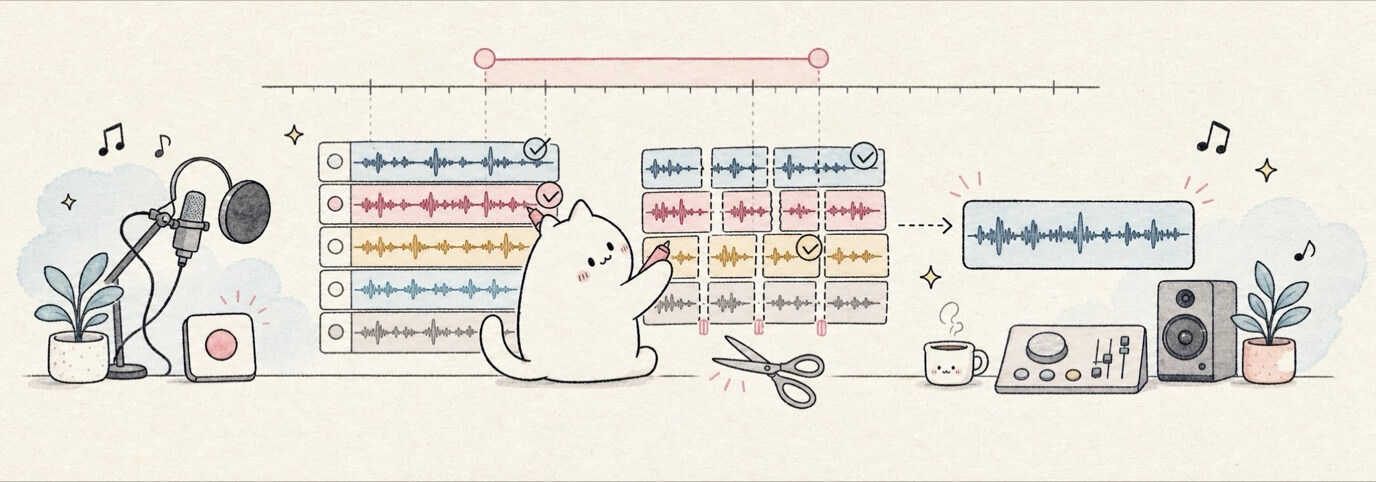
Use takes when you want to record several passes over the same phrase, then build one best performance from the useful pieces. Miaou keeps take recording tied to normal audio regions so the result stays editable and exportable.
Fast Path
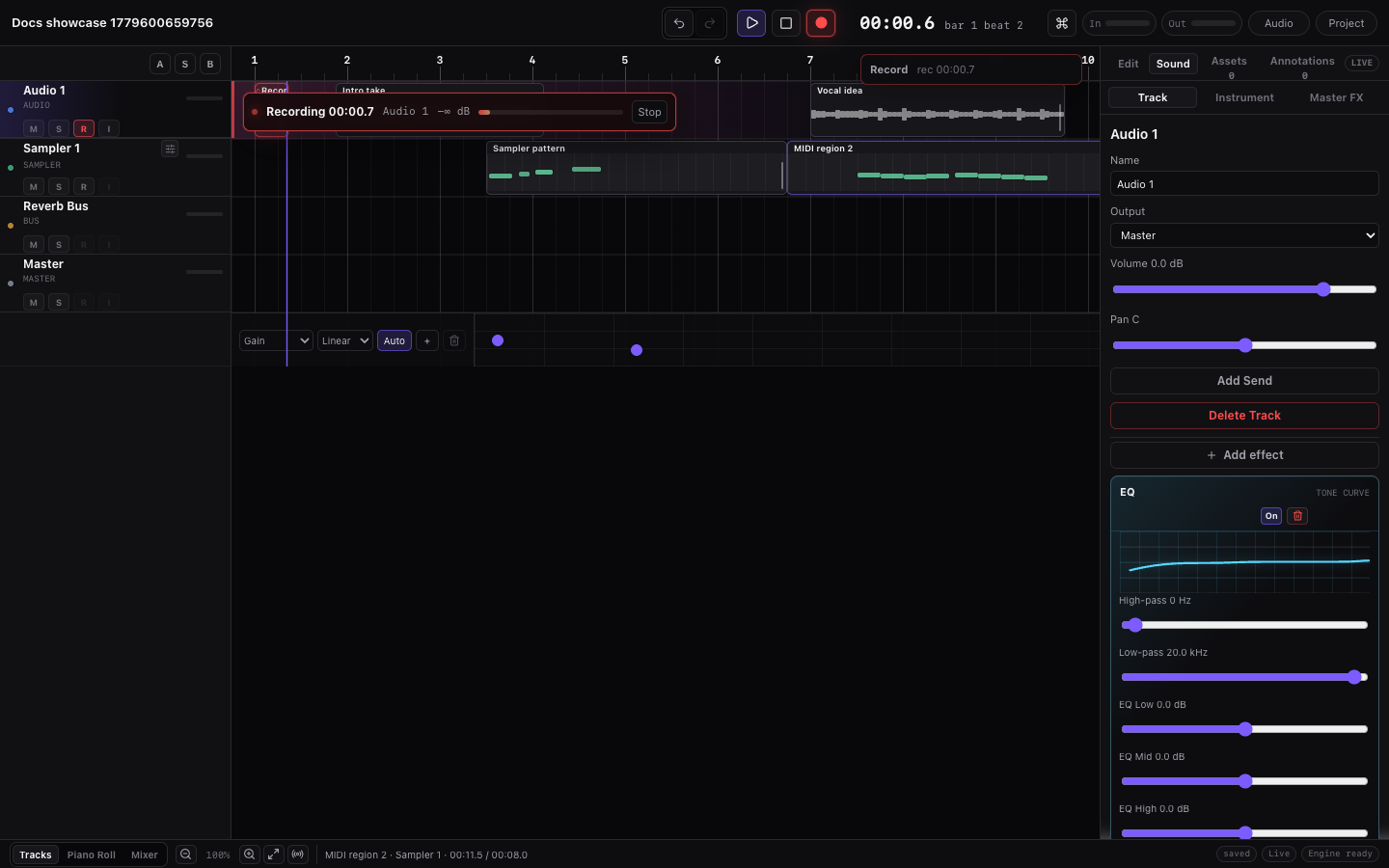
Use this when you already know you want several audio passes over one phrase:
- Save or unlock the project.
- Select and arm the audio track that should receive the recording.
- Draw or set the transport loop range over the phrase.
- Seek to the loop start.
- Confirm the transport says Audio · {track} and Loop takes ready.
- Record several passes, then stop.
- Select the new region, open Inspector > Selection, and audition the take choices.
- Split the region at phrase boundaries.
- Choose the best take for each slice.
- Play the whole section once, then save a version when the comp feels right.
The key is to set the transport loop before recording, then edit the finished result as normal timeline regions.
Takes vs Regions vs Transport Loop
| Word | Meaning in Miaou |
|---|---|
| Loop | Transport loop range. Playback wraps inside it while enabled. |
| Take | One recorded pass through the loop range. |
| Region | Timeline block that can point to one take or hold several take choices. |
| Comp | The active take choice for a region or split region slice. |
Transport loop recording is different from region looping. The transport loop controls where playback wraps during recording. Region looping repeats a region's own source during playback/export.
When to Use Takes
Takes are useful when each pass is a real performance and you may want different pieces from different passes.
| Need | Better choice |
|---|---|
| Several vocal, guitar, percussion, or input passes | Loop-record audio takes, then comp the best slices. |
| Repeat one good loop for longer | Use region loop duration or duplicate the region. |
| Try a different MIDI rhythm or melody | Duplicate the MIDI region or use chord-generated New variation instead of audio take comping. |
| Keep a before/after safety point | Save a version in History before recording or comping. |
| Fix one timing edge | Split or trim the region; you do not need takes unless another pass has a better performance there. |
If you only need to repeat material, use region looping. If you need to choose between performances, use takes.
Set Up Loop Recording
- Save or unlock the project first.
- Select an audio track.
- Arm that track with the record-arm icon.
- Enable the transport loop brace over the phrase you want to repeat.
- Move the playhead to the loop start.
- Set metronome and count-in if needed.
- Check the transport target chip before pressing Record.
The recording preflight should say Loop takes ready. If it says Loop on · seek to ... for takes, click or drag the ruler to the loop start first.
Create Takes
- Click Record.
- Perform several passes while playback wraps through the loop range.
- Click Record again to stop.
- Miaou processes the captured audio and creates one loop-recorded region.
The newest pass is selected first. Earlier passes are still available as take choices.
What Appears After Recording
Loop recording creates one timeline region with take choices attached to it. It does not create several visible regions stacked on the timeline.
| What you see | What it means |
|---|---|
| One loop-recorded audio region | The region is the editable container for the recorded passes. Move, split, trim, or fade it normally. |
| Take choices in Selection | Each take is one completed pass through the transport loop range. |
| The newest take selected first | The latest pass plays until you choose another take. |
| Comp / active-take row | Shows which take plays for the selected region or split slice. |
| Take name, mute, and remove controls | Rename useful passes, hide takes you do not want to pick, or remove obvious mistakes. |
If you expected several visible lanes, remember that Miaou uses compact take choices inside the selected audio region. Split the region when you want different takes for different words, notes, or phrases.
Read the Take Panel
When a loop-recorded region is selected, the Selection inspector is the control surface for take choices:
| Control or label | Meaning |
|---|---|
| Active comp row | The take playing for the selected region or split slice. |
| Take row | One recorded pass through the loop range. Click it to audition and choose it. |
| Take name | A label you can edit when a pass is worth keeping, such as best verse or tight ending. |
| Mute | Keeps a take visible but prevents accidental choice while you are comparing better passes. |
| Remove | Removes an unwanted pass from the selected region. Use this after you are sure it is useless. |
If the inspector does not show take choices, select the loop-recorded audio region or one of its split slices again.
Choose a Take
- Select the loop-recorded region.
- Open Inspector, then Selection in the right dock.
- Find the take lanes.
- Click a take to audition it.
- Rename useful takes when labels help.
- Mute takes you do not want to choose accidentally.
- Remove obvious mistakes if they are no longer useful.
Take choices are non-destructive. Choosing a take changes which saved audio file the region plays, but it does not delete other takes.
Plan the Comp
Split only where you need a different performance choice. Too many slices make the comp harder to trust.
| Situation | Good edit |
|---|---|
| One take is best for the phrase | Select that take once; do not split the region. |
| One word, note, or hit is better | Split around that small moment, then choose a different take only for that slice. |
| The timing edge feels late/early | Adjust the split or trim point before choosing more takes. |
| The selected take clicks at a cut | Add a short fade, move the split slightly, or choose a take with a cleaner boundary. |
| You want a second comp idea | Duplicate the region or save a version before changing many take choices. |
Build a Simple Comp
- Select the loop-recorded region.
- Move the playhead to the first phrase, word, or note boundary.
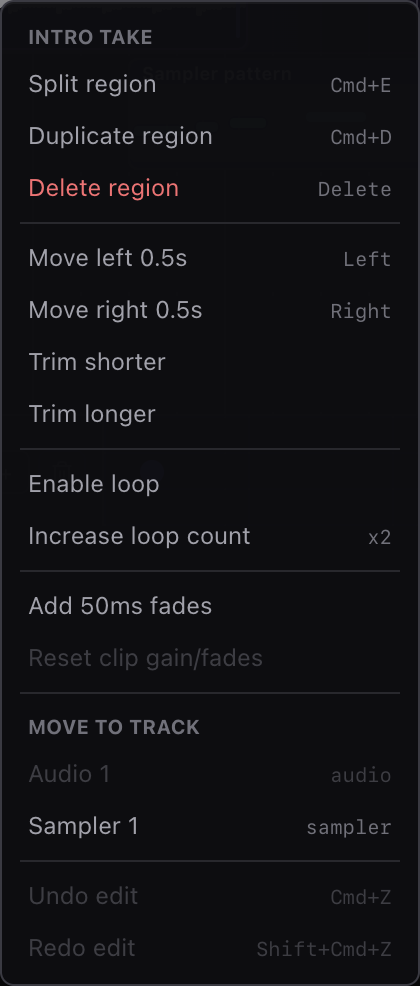
- Split the region.
- Repeat until the performance is divided into useful slices.
- Select each slice and choose the best take for that slice.
- Play the section back and adjust split points if needed.
Each slice keeps the same musical timing and source offset when you switch takes, so the performance stays aligned to the loop range.
Undo, Save, and Export
Miaou treats take edits as project edits:
- active comp choices are undoable;
- take names, muted state, and removals are undoable;
- splits and take choices save with the project;
- reloading restores the active take per slice;
- export uses the active take for each region slice.
If you want a recovery point before comping, click History and create a version.
Check Before Export
Before exporting a comped recording:
- Play across every split, not only inside one slice.
- Watch for clicks or level jumps at split points.
- Confirm each slice shows the intended active take in Selection.
- Save a version if you want to keep this comp before more edits.
- Export the ZIP and listen to
project-mix.wav.
Export uses the active take for each slice. Muted or unused take choices stay in the project for recovery, but they are not what the full mix plays.
Common Mistakes
| Problem | Fix |
|---|---|
| Only one take was created | Make sure the loop brace is enabled and recording lasts longer than one loop pass. |
| Recording started outside the loop range | Seek to the loop start before recording. |
| Record captured audio when you expected MIDI | Select or arm the MIDI track and confirm the transport target says MIDI. |
| The wrong slice changed takes | Select the intended split region slice before choosing a take. |
| A muted take will not play | Unmute that take in the take lane before selecting it. |
| Export does not use the take you expected | Check the selected comp take on each split slice before exporting. |
Related Pages
- Recording covers track arming, monitoring, count-in, and normal audio/MIDI recording.
- Timeline Editing covers split, trim, duplicate, loop, and region movement.
- Workflow Recipes gives the shortest step-by-step comp recipe.