Appearance
Signal Flow and Export Paths
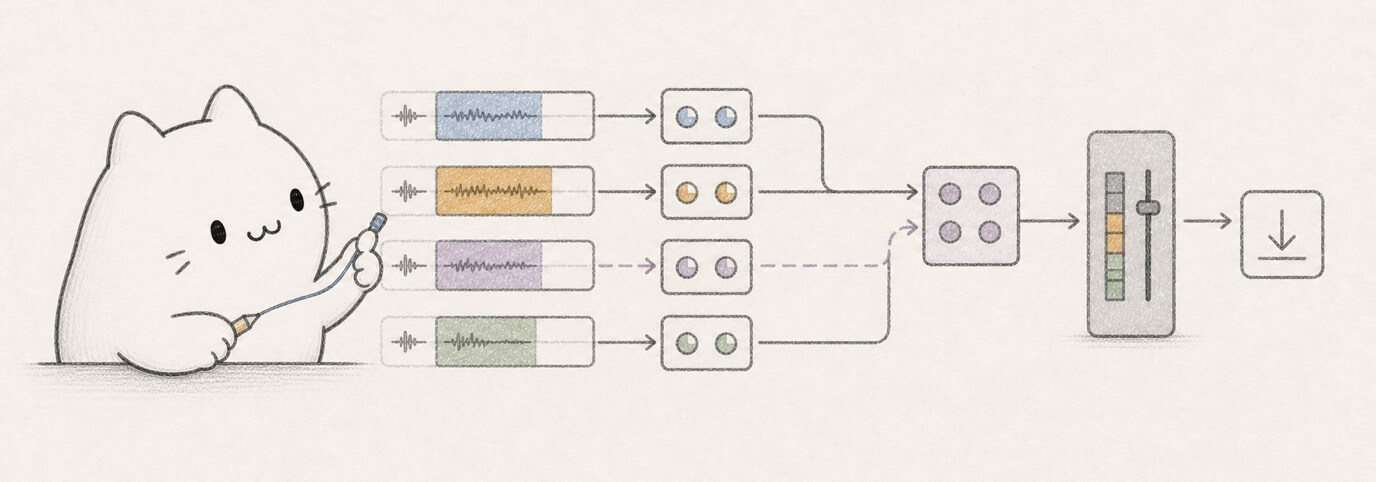
When a track is silent, an effect seems to do nothing, stems do not match the full mix, or a sidechain is not reacting, follow the signal path from source to export.

Choose What You Need
Start with the job, then use the matching export or check:
| You need... | Use | Remember |
|---|---|---|
| A finished song file | project-mix.wav from Export ZIP. | This includes source tracks, buses, Master Effects, and final Master output controls. |
| Separate files for another DAW | Per-track stems from Export ZIP. | Stems are source-track files; they do not include final Master processing. |
| A portable project archive | The full exported ZIP. | It includes project data, referenced media, the full mix, and stems when size allows. |
| Note data for another MIDI tool | Export MIDI from bottom MIDI Tools. | MIDI export does not include audio, effects, buses, or Master processing. |
| To fix silence | Walk the Signal Path by Stage. | Most silence comes from source, mute/solo, routing, missing media, or Master output state. |
| To fix sidechain ducking | Check the Sidechain Path. | Put Compressor on the target track and keep the key source producing signal. |
| To understand a full-mix/stem difference | Compare Full Mix vs Stems. | Differences are expected when buses, Master Effects, limiter, or output controls matter. |
| To make a final confidence check | Use the Fast Signal Check before export. | Save/unlock first, then listen to the downloaded full mix before sending it. |
The Short Version
Miaou's finished full mix follows this path:
- Audio region, recorded take, or MIDI instrument creates sound.
- Track Effects process that source track in serial order.
- Track volume and pan/balance shape the source track.
- Sends copy signal to bus tracks.
- The track's main output routes to Master, a bus, or None.
- Bus returns feed Master.
- Master Effects process the summed mix.
- Master track-head mute, volume, and balance apply at the end.
- Realtime playback and
project-mix.wavexport use that final path.
Per-track stems are different: they are source-track files, so they do not include final Master Effects or final Master track-head controls. This is useful when you want to keep parts separate, but it means stems are not supposed to sound identical to the finished full mix.
SourceAudio regions, takes, MIDI instruments
Track EffectsSerial effects on the source track
Track controlsFader, pan, mute, solo
Sends / busShared reverb, delay, groups, sidechains
MasterMaster Effects, output mute, volume, balance
Full mix
project-mix.wavStem exportSource-track stems include the source track path, but not final Master Effects or final Master output controls.
Signal Path by Stage
| Stage | What happens | Where to check |
|---|---|---|
| Source | Audio regions, comp takes, or MIDI instruments produce sound. | Timeline, Piano Roll, Instrument, Selection. |
| Track Effects | Effects process one audio/MIDI track from top to bottom. | Mix > Track Effects. |
| Track controls | Track fader, pan/balance, mute, and solo affect that source track. | Track header and Mix. |
| Sends | A copy of the source feeds one or more bus tracks. | Mix > Sends. |
| Main output | The track routes to Master, a bus, or None. | Mix > Output. |
| Bus return | A bus collects direct routes and sends, then feeds Master. | Select the bus, then Mix > Receives. |
| Master Effects | Final tone, dynamics, metering, limiter, and creative output processing. | Master. |
| Master output | Final mute, volume, and balance after Master Effects. | Master track head and Master Output strip. |
| Playback / export | Browser playback and full-mix export use the final output path. | Transport, meters, Export. |
When a mix problem appears, walk down this table in order. Most “broken effect” problems are actually source, mute/solo, routing, bus, or Master output problems.
Track Effects
Track Effects belong to audio and MIDI source tracks. Bus tracks use routing, receives, level, pan, mute, solo, and output controls instead.
Important rules:
- Effects process in the order shown.
- Duplicate effects are real separate effects.
- Bypass keeps settings, automation identity, and rack position.
- Remove deletes the effect.
- Automation targets a specific effect instance, not only an effect type.
Example: EQ > Compressor > Saturation > Meter means the compressor reacts to the EQ-filtered sound, saturation colors the compressed result, and the meter shows the final track output from that chain.
Sends and Buses
Sends copy signal to a bus. Use them when several audio or MIDI tracks should feed one grouped return, alternate route, or sidechain path.
Good bus checks:
| Question | Where to look |
|---|---|
| Is anything feeding this bus? | Select the bus and check Receives. |
| Is the send amount above zero? | Select the source track and check Sends. |
| Is the bus muted or hidden by solo? | Check the bus track header and mix warnings. |
| Does the bus reach the Master? | Check the bus output routing. |
| Is the source only a trigger? | Route the source output to None instead of muting it. |
Routing a source track to None silences its direct output but can still let it act as a sidechain key. Muting the source can prevent the key from triggering the compressor.
Master Path
The Master is the final output. It has two layers:
| Layer | Use it for |
|---|---|
| Master Effects | Metering, EQ, utility, compressor, limiter, saturation, reverb, and tone. |
| Master track head | Final output mute, volume, and balance after Master Effects. |
Master solo is absent because soloing the final output is not meaningful. Master mute silences the full final output.
Use the Master Output strip when a mix seems quiet, clipped, one-sided, or silent. It shows the final fader, balance, mute/live state, and output level after Master Effects.
Realtime vs Export
Miaou expects realtime playback and full-mix export to make the same signal-flow decisions:
- audio regions and selected comp takes;
- MIDI clips and instruments;
- Track Effects;
- routing and buses;
- sidechain key routing;
- enabled automation lanes;
- Master Effects;
- Master output mute, volume, and balance.
Browser CPU load can make realtime playback stutter in a heavy project, but it should not change the intended routing. Use export as the final check when realtime playback is under load.
Full Mix vs Stems
Choose the output based on what the next person or tool needs:
| Need | Use | Why |
|---|---|---|
| Send someone the finished song | project-mix.wav from the ZIP. | It includes the final bus and Master path. |
| Move parts into another DAW | Per-track stems and project.json / media/. | Stems keep source tracks separate for remixing or further mixing. |
| Archive the session | Full project ZIP. | It includes project structure, referenced media, mix, and stems when available. |
| Check whether Master processing matters | Compare a stem against project-mix.wav. | The difference usually comes from buses, Master Effects, limiter, or output controls. |
| Exchange notes with a notation/MIDI tool | Export MIDI from bottom MIDI Tools. | MIDI export carries note data and preserved MIDI metadata, not audio. |
| Export file | Includes | Does not include |
|---|---|---|
project-mix.wav | Source tracks, Track Effects, sends, buses, Master Effects, Master output controls. | Nothing outside the current saved project path. |
| Per-track stems | Individual non-master source tracks and their Track Effects. | Final Master Effects, Master output controls, and finished bus/master glue. |
project.json | Project structure, clips, regions, chords, markers, automation, routing, instruments, effects. | Raw browser session state such as temporary remote edit locks. |
media/ | Referenced imported, recorded, and take audio. | Files never saved or restored into the unlocked project. |
Stems are useful for moving parts to another DAW, remixing, or archiving sources. The full mix is the finished song render.
If stems sound different from the full mix, that is usually expected when the full mix depends on bus returns, Master Effects, final limiter, or Master output controls.
Stem Handoff Checklist
When you send stems to another DAW or mixer, include the full mix as the reference:
| Send or tell them | Why it matters |
|---|---|
project-mix.wav | This is the finished Miaou balance through buses, Master Effects, limiter, and output controls. |
The stems/ folder | These are separated source-track renders for remixing or rebuilding a mix elsewhere. |
| Whether stems are missing | Large projects can omit stems when the ZIP would exceed the stem guard. |
| That stems are not mastered | Stems do not include final Master Effects or Master track-head mute, volume, and balance. |
| Any bus or sidechain notes that matter | A receiving DAW may need re-created bus effects, sidechain routing, or final limiter choices. |
| The project BPM and important markers | This helps align imported stems and MIDI with the intended song structure. |
If the receiver only needs to listen, send project-mix.wav. If they need to remix, send the ZIP and tell them to use project-mix.wav as the reference while rebuilding any final bus or Master treatment they want.
Sidechain Path
Sidechain compression has two tracks:
| Role | Meaning |
|---|---|
| Key source | The track that triggers compression, often a kick or vocal. |
| Target track | The audio or MIDI source track that gets quieter, often bass, pad, or a sustained layer. |
Put the Compressor on the target track, not on the key source. Set Sidechain Source to the key source. If the key source should not be heard directly, route the key source output to None instead of muting it.
Use the Compressor card's key level and gain-reduction readouts:
- Key level at
-∞ dB: the key source is not producing signal at that moment. - Gain reduction at
0.0 dB: lower threshold, raise key/source level, or check the effect is enabled.
Automation in the Path
Automation is read during realtime playback and full-mix export when the lane is enabled.
Current automation lanes target Track Effect and Master Effects parameters. Track-head faders, pans, sends, mute, and solo are saved controls, but they are not the same as lane automation.
Use automation when the value should move during the song, such as:
- a filter opening into a chorus;
- delay mix increasing at the end of a phrase;
- reverb blooming before a transition;
- Master output gain fading out.
Fast Signal Check
When something is silent or different from export:
- Confirm the source region or MIDI clip exists and plays.
- Confirm imported/recorded audio is restored after unlock.
- Check track mute, solo, fader, and pan.
- Check Track Effects are enabled and Mix/wet values are not zero.
- Check the track output is Master or an audible bus.
- Check sends and bus Receives.
- Check sidechain key source routing if ducking is involved.
- Check automation enabled/muted state.
- Check Master Effects and Master output.
- Save/unlock, export, and compare
project-mix.wavbefore sending.
Related Pages
- Mix and Automate is the task-first mixing workflow.
- Tracks, Routing, and Track Controls explains track headers, sends, buses, receives, mute, solo, and meters.
- Effects and Automation explains Track Effects, Master Effects, automation targets, and effect controls.
- Automation Lanes is the focused automation editing guide.
- Import and Export explains ZIP contents, full mix, stems, and media files.
- Troubleshooting gives symptom-specific fixes for silence, sidechain, automation, and export differences.