Appearance
DAW Basics
If Miaou is your first DAW, start here. If you already know music tools, use these definitions to map familiar ideas to Miaou.
How the App Fits Together
Miaou is easiest to understand as one working surface with a few stable jobs. You do not need to memorize every control before making music; select the thing you want to change, then use the panel that matches that object.
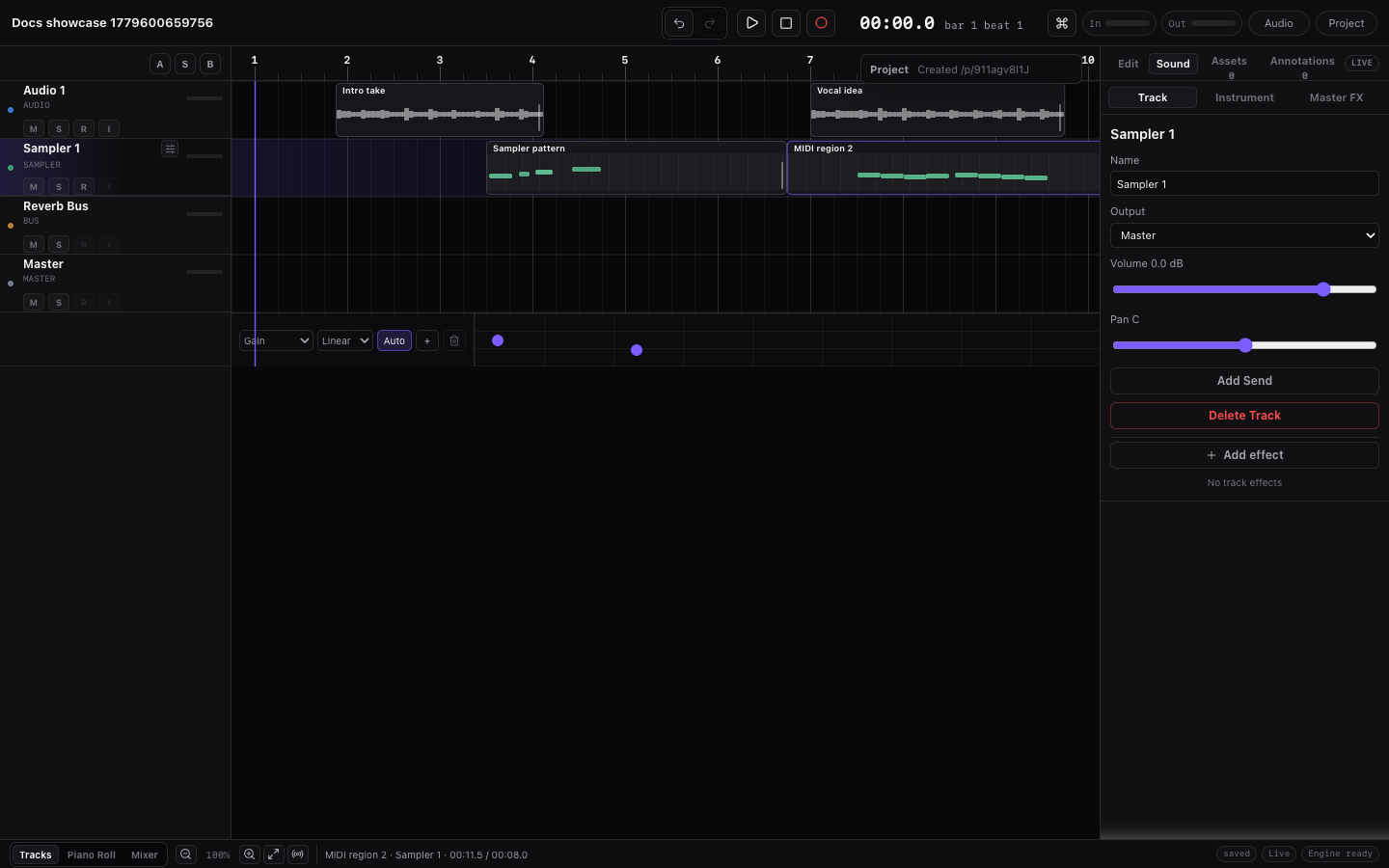
| Area | Beginner meaning |
|---|---|
| Top transport bar | Start/stop playback, record, set BPM, watch project state, save/share/export. |
| Track headers | Choose the track you are working on and control mute, solo, record, level, pan. |
| Timeline lanes | Arrange regions, chord blocks, markers, automation, and the playhead over time. |
| Right dock | Inspect the selection, mix the selected track, choose sounds, edit Master output, add notes. |
| Bottom editor | Edit MIDI notes, play computer keyboard, import MIDI, edit audio, show automation. |
| Status/grid bar | Change grid/snap, zoom, follow playhead, and read recent save/edit/audio status. |
The practical rule is: select first, then edit. If the wrong thing changes or previews, select the intended region, track, note, chord, or marker again and check that the right dock and bottom editor name the same target.
Three Rules That Prevent Most Mistakes
If the rest of the app feels dense, keep these rules in mind:
| Rule | What it means in Miaou |
|---|---|
| Save before depending on it | A clean draft is temporary. Click Save before recording important audio, sharing a link, collaborating, or exporting. |
| Select the target first | Instrument changes the selected MIDI track, Inspector > Mix changes the selected track/bus, and the Piano Roll edits the selected MIDI region. |
| Regions are not sources | Moving, trimming, looping, fading, or tempo-fitting a region changes the timeline block. It does not overwrite the original audio file or MIDI clip source. |
When a result surprises you, undo once, reselect the target, and check the right dock before changing more settings.
Pick the Right Starting Action
Most beginner confusion comes from choosing the wrong object first. Use this table before you start a task.
| I want to... | Start by choosing... | Then use... |
|---|---|---|
| Record a microphone, guitar, or voice | An audio track, then Record arm | Recording |
| Import a song, loop, or sample | A timeline lane and playhead position | Import and Export |
| Speed up or slow down imported audio | The audio region | Tempo and Follow Project Tempo |
| Write a melody, bass, pad, or keys | A MIDI track or MIDI region | MIDI Editor |
| Make drums | A MIDI track loaded with a full drum kit | Drum Kits and Beatmaking |
| Change an instrument sound | The MIDI track or MIDI region you want to hear differently | Instruments |
| Sketch a chord progression | The Chord Track lane under the ruler | Chords and Scales |
| Generate MIDI from chords | Chord blocks, a marker section, or the Chord Track range | Analyze and Generate |
| Add reverb, delay, EQ, or compression | The track, bus, or Master path you want to process | Mix and Automate |
| Make a parameter move over time | The track/effect parameter, then its automation lane | Automation Lanes |
| Organize a song into sections | Marker positions on the timeline | Markers and Sections |
| Share or export safely | The saved project state | Save, Share, and Export |
If the wrong thing changes
Undo, then click the object you actually want to edit. Miaou keeps multiple selections visible, but shortcuts follow the active editor: timeline, Piano Roll, Chord Track, markers, automation, or track headers.
Miaou Words at a Glance
Use this table when the UI shows a DAW word and you need the quick meaning before reading the longer sections. For a searchable reference you can keep open beside the app, use the Glossary.
| Word | Plain meaning | Where you use it |
|---|---|---|
| Project | The full song session: tracks, regions, media, chords, automation, effects, and versions. | Save, Share, History, Export. |
| Draft | A project that is still local to the current browser session until you save it. | First open, quick sketches, experiments before sharing. |
| Version | A named recovery point for a saved project. | History, recovery, comparing changes. |
| Track | A horizontal lane that owns sound, regions, routing, instruments, effects, and automation. | Arranging, recording, mixing. |
| Region | A block on the timeline that points to audio or MIDI material. | Moving, trimming, looping, copying, splitting. |
| Clip | The underlying MIDI note data used by one or more MIDI regions. | Piano Roll editing, MIDI generation, duplicate safety. |
| Chord block | A chord segment in the Chord Track. | Harmonic guide, chord preview, MIDI analysis, generation. |
| Marker | A timeline label for structure or navigation. | Intro, Verse, Chorus, reminders, export/review points. |
| Automation | Time-based movement of a Track Effect or Master Effects parameter. | Filter movement, delay throws, reverb blooms, fades, effect changes. |
| Effect chain | The ordered Track Effects or Master Effects path. | EQ, compression, saturation, delay, reverb, utility. |
| Send | A copy of an audio or MIDI track signal routed to a bus. | Alternate routing, grouped returns, sidechain organization. |
| Bus | A track-like destination that receives routed or sent signal. | Group routing, bus solo/mute, receives, sidechain sources. |
| Master | The final output path for the full mix. | Final level, master effects, full mix export. |
| Project BPM | The visible song tempo at the top of the app. | Grid, metronome, MIDI, chords, synced effects. |
| Source BPM | The original tempo of an imported audio file or loop. | Making imported audio follow project tempo. |
| Follow project tempo | A per-audio-region switch that stretches imported audio to the current project BPM. | Speeding up or slowing down audio non-destructively. |
| Transport loop range | The playback loop range controlled by the transport/ruler. | Repeating a section while listening, editing, or recording takes. |
| Region loop | A region setting that repeats the region content for a longer visible duration. | Extending a drum loop, bass loop, or MIDI phrase. |
| Take | One recorded pass, often captured during loop recording. | Recording several performances before choosing the best parts. |
| Comp | The chosen active performance assembled from take slices. | Building a final vocal, guitar, or instrument recording from takes. |
| Stem | A per-track export file. | Moving parts to another DAW or mixing later. |
| Full mix | The rendered final song output through the Master path. | Sharing, listening, final WAV export. |
The Project
A project is the whole song session. It contains the timeline, tracks, regions, MIDI notes, audio files, chords, instruments, effects, automation, markers, and saved versions.
The top bar shows the project title, save state, transport, project BPM, metronome, count-in, Export, and History.
Common mistake: an unsaved draft is editable, but it is not a shareable saved project until you click Save and set a title/password.
How Project Objects Relate
Miaou separates the visible arrangement from the underlying source material. That is why many edits are non-destructive.
| Level | Contains | Why it matters while editing |
|---|---|---|
| Project | Tracks, chords, markers, media, versions, exports. | Saving, sharing, History, and ZIP export operate on the whole project. |
| Track | Regions, instrument, routing, effects, sends, meters. | Track selection decides sound, mix, recording, routing, and where pasted regions land. |
| Region | Timeline start, duration, trims, fades, loop state. | This is the visible block you move, trim, split, duplicate, or loop. |
| Audio media | The saved source audio file. | Audio regions reference this media; normal trim and tempo-follow edits keep it intact. |
| MIDI clip | Notes, controllers, generated-source metadata. | MIDI regions reference clips; duplicates get independent clips so note edits stay safe. |
| Notes/MIDI data | Pitch, time, length, velocity, controller changes. | Piano Roll edits change this musical data while the region controls placement. |
| Effects/automation | Track, bus, or Master processing and movement. | Mix decisions live on the sound path, not inside the raw audio file or MIDI notes. |
Read the model this way:
- A project owns tracks, timeline objects, project media, instruments, effects, markers, chords, and versions.
- A track owns its sound path: instrument, routing, sends, Track Effects, automation, and regions on that lane.
- A region is the visible block you move, trim, split, loop, copy, or duplicate.
- An audio region points to saved audio media. Trim, fades, clip gain, and tempo-follow settings do not overwrite the original file.
- A MIDI region points to a MIDI clip. The clip stores notes and MIDI metadata. Duplicated MIDI regions get independent clip IDs so note edits do not unexpectedly change the original.
This is the reason a region can be trimmed without deleting the source, a MIDI part can change instruments without changing notes, and an exported ZIP can include both project structure and referenced media.
Sound Path at a Glance
When you press Play, Miaou turns timeline material into audio through the same broad path you use when exporting a full mix:
RegionAudio file or MIDI clip on the timeline
→
TrackInstrument, track effects, volume, pan
→
Bus / SendsOptional shared routing and returns
→
MasterFinal effects, output level, full mix
If a sound is missing, start at the region and move right: does the region have source media or MIDI notes, does the track have an instrument or audio, is the track muted or routed away, is the bus receiving signal, and is the Master output audible?
Tracks
A track is a horizontal lane in the timeline.
| Track type | Use it for |
|---|---|
| Audio track | Imported audio, recorded audio, loops, vocals, samples, stems. |
| MIDI track | Notes that play an instrument, drum kit, or custom sample. |
| Bus track | A shared destination for sends, grouped routing, receives, and bus solo/mute checks. |
| Master | The final output you hear and export as the full mix. |
Track headers contain practical controls: mute, solo, record arm, input monitor, volume, pan/balance, routing, instruments, and Track Effects.
Common mistake: selecting a region and selecting a track are different. If the wrong instrument previews, select the intended MIDI region or MIDI track again.
Regions and Clips
A region is a block on the timeline. Drag it to move the musical material in time.
An audio region points to an audio file and stores where that file plays, how long it is visible, fades, gain, tempo-follow settings, and loop settings.
A MIDI region points to a MIDI clip. The clip contains notes, controller data, and source metadata. The region decides where that clip appears on the timeline.
Common mistake: trimming a region is not the same as deleting the source. Miaou’s trim and tempo-follow workflows are non-destructive where the source model supports it.
Audio vs MIDI
Audio is recorded sound: a vocal, guitar take, drum loop, song file, or sample.
MIDI is note/control data. MIDI needs an instrument or drum kit to make sound. You can change the instrument later without rewriting the notes.
| Task | Usually use | Why |
|---|---|---|
| Import a song, loop, vocal, or printed stem | Audio | You already have a recorded sound or waveform. |
| Record a microphone, guitar, synth, or mixer | Audio | The browser captures the sound as a take on an audio track. |
| Write notes in the Piano Roll | MIDI | Notes stay editable for pitch, length, velocity, and timing. |
| Play with the computer keyboard | MIDI | The keyboard triggers the selected instrument or drum kit. |
| Program an 808/909 beat | MIDI with a drum kit | Drum lanes show named kit pieces while staying normal MIDI notes. |
| Change a piano part into a synth part | MIDI | Change the loaded instrument while keeping the same notes. |
| Trigger a riser, impact, or tape stop | MIDI FX instrument | One MIDI note can trigger the one-shot at the exact timeline beat. |
| Trim a visible waveform or set Source BPM | Audio region | Audio-region tools work on waveform-backed timeline material. |
What Stays Editable Later
| If you use... | You can still change later | You cannot change as easily |
|---|---|---|
| Audio | Region start, duration, trims, fades, clip gain, Source BPM, Follow project tempo, stretch mode, loop length, Track Effects. | Individual notes inside a recorded performance, unless you slice, sample, or re-record the source. |
| MIDI | Notes, timing, length, velocity, instrument, drum kit, transposition, quantize/humanize, Follow Chord Track for melodic material. | The exact sound of a real recorded performance, unless you choose or import an instrument that matches it. |
| Custom sample | MIDI trigger notes, sample root, gain, tuning, envelope, sample start/end, loop, reverse. | The original audio recording itself; keep the source audio region if you still need waveform editing. |
If You Picked the Wrong One
| Situation | Best recovery |
|---|---|
| You imported audio but wanted to play it from MIDI | Select the audio region, select a MIDI track, then use Use in {track name} or Create instrument from region. |
| You wrote MIDI but need a waveform file | Export the mix or track stem, then reimport the rendered audio if you need waveform-style editing. |
| You recorded audio when you expected MIDI | Undo or delete the audio region, select/arm the intended MIDI track, confirm the transport target, and record again. |
| You loaded a drum kit but see pitch-note behavior | Select the MIDI track/region that owns the drum part and confirm the loaded instrument is a full kit. |
| You loaded an FX one-shot but need fades/waveforms | Use a rendered/exported audio version or import the FX audio as an audio region when waveform editing matters. |
Project BPM, Source BPM, and Follow Project Tempo
Project BPM is the main tempo at the top of the app. It drives the grid, metronome, MIDI timing, chord blocks, synced effects, and tempo-following audio.
Source BPM is the original tempo of an imported audio region. Miaou needs this when you want audio to stretch to the project tempo.
Follow project tempo is a per-audio-region switch. When it is off, changing project BPM does not stretch that audio region. When it is on, Miaou plays the region against the current project BPM using the chosen stretch mode.
Stretch modes:
| Mode | Good first use |
|---|---|
| Default | General-purpose stretching. |
| Beats | Drums, loops, rhythmic material. |
| Tones | Sustained or melodic material. |
| Tape | Speed changes with pitch movement. |
Common mistake: changing BPM alone does not speed up every imported audio file. Enable Follow project tempo on the audio region and set Source BPM if needed.
Piano Roll and Drum Lanes
The Piano Roll edits MIDI notes. Melodic instruments show pitch rows such as C3, D3, E3.
Drum-kit instruments show drum lanes instead. Drum lanes are named kit pieces such as Kick, Snare, Closed Hat, Open Hat, Clap, Cowbell, Ride, Crash, and Tom. Internally these are still normal MIDI note numbers, but the editor shows names because drum notes are trigger addresses, not melodies.
Common mistake: if you are looking for cowbell, load a full drum-kit instrument such as 808/909 Kit or Studio Drum Kit instead of a melodic instrument.
Chord Track
The Chord Track is the chord lane under the ruler. It is a global harmonic guide.
You can:
- Add or edit chord blocks.
- Preview chords.
- Generate editable MIDI from chords.
- Analyze selected MIDI into chord blocks.
- Make melodic MIDI follow the Chord Track during playback/export.
Chord Track output stays DAW-native. Generated parts become normal MIDI regions and notes. Analyzed chords become normal chord blocks that you can correct.
Common mistake: drum kits do not follow chords. Drum MIDI notes trigger kit pieces, so Follow Chord Track is disabled/ignored for drum-kit regions.
Effects, Sends, Buses, and Master
An effect sits directly on a track or on the Master path. Track audio/MIDI-instrument sound passes through Track Effects in order from top to bottom.
A send copies some signal from an audio or MIDI track to a bus. This is useful for grouped returns, alternate routing, and sidechain organization.
A bus receives routed or sent signal. Use it to collect sources, check receives, adjust bus level/pan/mute/solo, and route the return onward. Track Effects belong to audio and MIDI source tracks, not bus tracks.
The Master is the final output. Full mix export includes the final master path. Stems are source-track based and do not include final Master output controls.
Common mistake: if an effect is not audible, check that it is enabled, on the expected Track Effects or Master Effects path, and not hidden by mute, solo, routing, or a disabled automation lane.
Full Mix, Stems, and Project Files
The full mix is the main rendered WAV you hear as the final song output.
Stems are per-track files for moving parts to another DAW or mixing later. Stems do not include final Master output processing.
The exported ZIP also includes project data and referenced source media so the export can be inspected later.
Related Pages
Use these next, depending on what you are trying to do:
- Quick Start makes the first saved project.
- Workflow Recipes gives task-first paths for beats, recording, imported audio, chords, effects, sharing, and export.
- MIDI Editor explains note editing, drum lanes, velocity, Web MIDI, and computer-keyboard input.
- Audio Regions explains imported/recorded audio blocks, trims, fades, loops, Source BPM, and Follow project tempo.
- Tempo and Follow Project Tempo explains project BPM, Source BPM, stretch modes, and tempo markers.
- Tracks, Routing, and Track Controls explains track headers, buses, sends, routing, Master, and meters.
- Glossary is the quick lookup when a DAW term appears while you work.