Appearance
Drum Kits and Beatmaking
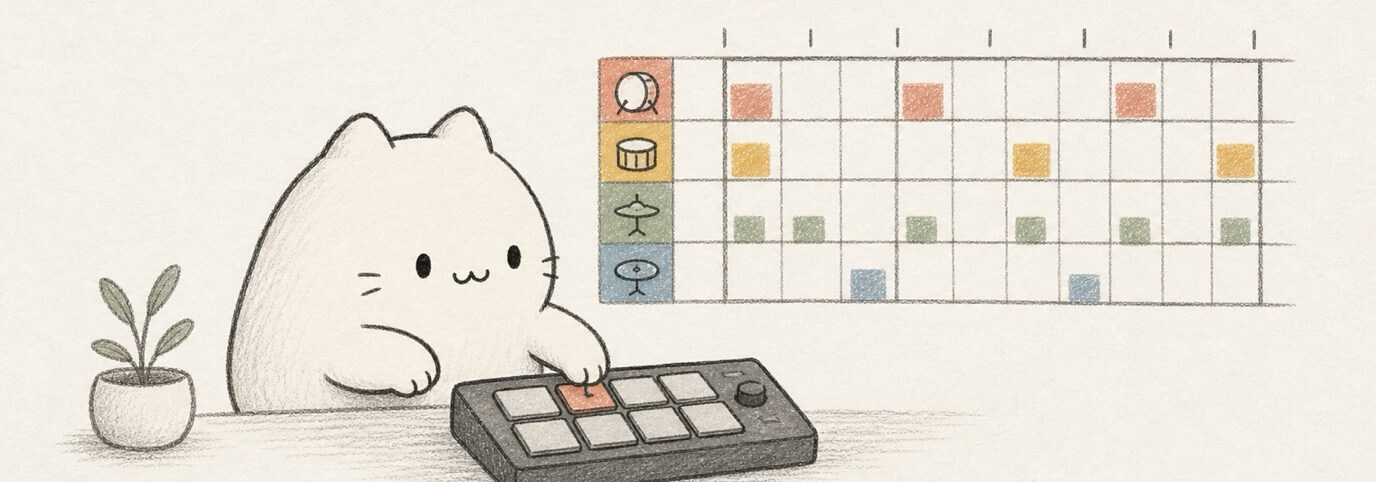
Make beats with Miaou's built-in kits. Drum parts are MIDI, but drum notes are trigger addresses for kit pieces, so Miaou shows named lanes instead of treating the part like a melody.
The Drum Model
Miaou is kit-first:
- A drum track is a normal MIDI track with a full kit instrument loaded.
- Each lane maps to a MIDI note and named kit piece, such as Kick, Snare, Closed Hat, Open Hat, Clap, Cowbell, Tom, Ride, Crash, Shaker, Conga, or Gong.
- Individual drum samples live inside kit mappings. They are not separate top-level instruments.
- Saved projects, MIDI export, and imported MIDI still store normal MIDI note numbers for compatibility.
This means you can switch kits, duplicate drum regions, export MIDI, and edit hits like any other MIDI clip while seeing musical drum names in the editor.
Choose a Kit
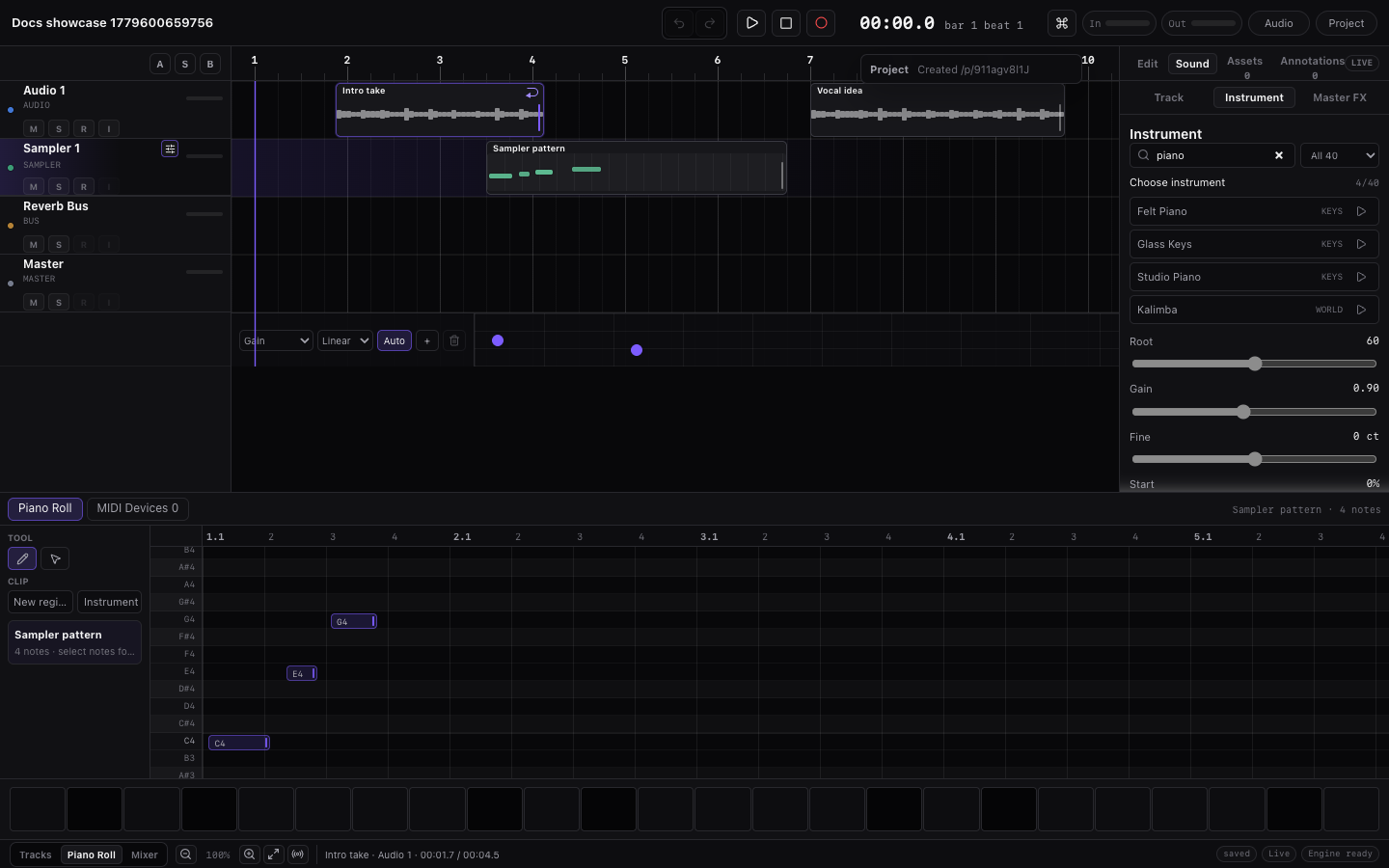
Select a MIDI track, open Instrument, then choose Drum Kits or search for kit.
| Kit family | Use it for |
|---|---|
| 808/909 Kit | Electronic drum machine beats, cowbell, classic kicks and hats. |
| Studio Drum Kit | Acoustic song sketches and natural drum patterns. |
| House, Techno, Trap, Lo-fi, Breakbeat, Garage, Electro | Genre-specific electronic colors and alternate machine kits. |
| Latin Percussion, Latin Accent, Hand Drum, Cajon | Hand percussion, acoustic grooves, fills, and accents. |
| Shaker & Tambourine, Wood & Bells | Layers, top-end motion, cowbell/agogo, triangle, and bell parts. |
| Orchestral Percussion, Orchestral Cymbals & Gongs, Cinematic Kit | Rolls, hits, swells, impacts, and cinematic percussion. |
For source and license details, see Instrument Sources and Licenses.
Create the First Pattern
- Select a MIDI track.
- Open Instrument and load 808/909 Kit or Studio Drum Kit.
- Open Piano Roll in the bottom editor.
- Click Create MIDI if the track has no MIDI region yet.
- Set Grid to
1/16. - Choose the draw tool.
- Place kicks on beats 1 and 3.
- Place snares or claps on beats 2 and 4.
- Add closed hats on eighth or sixteenth notes.
- Press
Spaceto play.
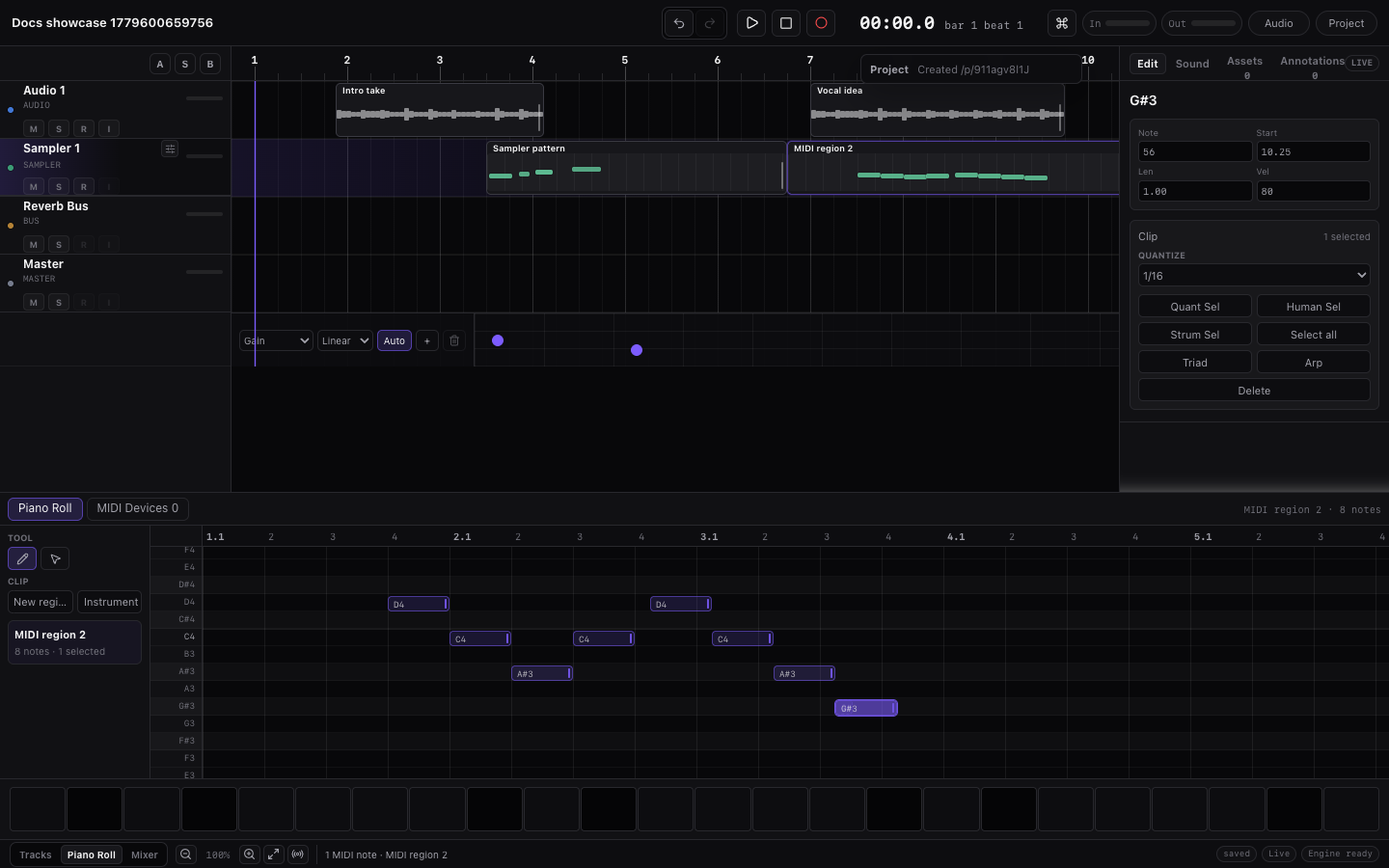
The Piano Roll switches to named drum lanes as soon as the selected MIDI track uses a kit. If you still see pitch names such as C3 or D3, load a kit on the selected track or select the correct drum track.
Start with Common Lane Roles
Use these lane roles when you are building a pattern from silence:
| Lane type | First pattern idea |
|---|---|
| Kick | Beats 1 and 3 for a basic pattern; add offbeat kicks for bounce. |
| Snare or clap | Beats 2 and 4 for backbeat. |
| Closed hat | Eighth notes for a steady groove; sixteenth notes for more energy. |
| Open hat | Offbeats or phrase endings. Keep it sparser than closed hats. |
| Cowbell, shaker, agogo | Small syncopated accents. Lower velocity when the part starts to dominate the beat. |
| Tom or percussion hit | End-of-bar fills, transitions, and call-and-response with the kick/snare. |
| Crash, ride, gong | Section starts, bigger transitions, and arrangement accents. |
| Riser, downlifter, FX | One note near a section transition. Use a separate FX MIDI track when useful. |
Start sparse, then duplicate the region and add variation. A beat with too many full-velocity hits is harder to mix than a simpler pattern with clear accents.
Starter Pattern Shapes
Use these as first-pass grids before adding fills or swing. Set Grid to 1/16, create a one-bar or two-bar MIDI region, then place the hits by beat position.
| Pattern | Kick | Snare / clap | Hats and accents |
|---|---|---|---|
| Four-on-the-floor | Beats 1, 2, 3, 4. | Clap on 2 and 4. | Closed hats on offbeat eighths; open hat before section changes. |
| Simple backbeat | Beats 1 and 3. | Snare on 2 and 4. | Closed hats on eighths; lower every other hat velocity. |
| Trap sketch | Beat 1 plus a few offbeat kicks. | Snare or clap on beat 3 | Sixteenth hats with a few lower-velocity doubles. |
| Breakbeat sketch | Beat 1, the & of 2, and beat 3. | Snare on 2 and 4. | Closed hats or rides on eighths; add ghost snares quietly. |
| House percussion layer | Keep kick simple or muted. | Clap on 2 and 4. | Shaker on sixteenths, cowbell/agogo as sparse syncopation. |
| Cinematic transition bar | Low hit on beat 1. | Roll into beat 4. | Cymbal swell, gong, riser, or impact near the next section. |
After the first bar works, duplicate the region and change only one or two details: a missing kick, an extra open hat, a tom fill, a crash, or a quieter ghost note. Small changes are easier to mix than a completely new pattern every bar.
Build a Four-Bar Beat
Use this when a one-bar loop works but feels too static:
- Make a one-bar foundation with kick, snare/clap, and hats.
- Select the region and press
Cmd+Dthree times to create four bars. - In bar 2, change one small detail, such as an extra offbeat kick or quieter hat.
- In bar 4, add a fill: toms, ghost snare, open hat, crash, riser, or percussion hit into the next section.
- Select repeated hats or percussion hits and lower alternating velocities.
- Play all four bars. If the fill distracts from the groove, undo or remove half of it.
- Save a version when the beat becomes the arrangement foundation.
| Bar | Keep stable | Good variation |
|---|---|---|
| 1 | Main kick/snare/hats. | None; make this the reference groove. |
| 2 | Same backbeat as bar 1. | One extra kick, shaker hit, cowbell, or open hat. |
| 3 | Return close to bar 1. | Small velocity changes only. |
| 4 | Snare/clap still marks the phrase. | Tom fill, crash, riser, snare roll, or quieter ghost-note fill. |
Do not switch kits until the rhythm works. Kit changes keep the MIDI note numbers, so the groove remains editable, but a different kit may expose or hide some mapped percussion lanes.
Paint Repeated Hits
Paint-drag is the fastest way to enter repeated drum hits:
- Select the draw tool.
- Choose the current Grid value.
- Drag across one drum lane.
Miaou places hits at the grid spacing as you drag. Dragging over existing hits does not create duplicates, so you can sweep across a lane without accidentally stacking the same hit several times.
Use the select tool when you mainly want to move, trim, copy, duplicate, or marquee-select existing notes. Use the draw tool when you are entering new hits or painting repeated lane patterns.
Velocity and Accents
Each hit has an in-note velocity handle. Drag it up or down to change the accent.
Use velocity like this:
- Make the first kick slightly stronger than the second.
- Lower every other closed hat for a less mechanical pattern.
- Select several hits, then drag one selected velocity handle to change the group while preserving relative differences.
- Hold Shift while dragging for finer velocity control.
Miaou does not require a separate velocity lane for common drum edits. The accent control is on the hit itself, which is easier when several notes start at the same time.
Pads and Computer Keyboard
Open Keyboard or use the on-screen pads when you want to play kit pieces instead of drawing them.
For drum kits:
- Pads show kit-piece names instead of only pitch names.
- Clicking a pad previews that exact kit piece.
- The computer keyboard switches to a drum-pad layout for the selected kit.
- The selected MIDI track or selected MIDI region decides which kit the pads play.
If a pad or key plays the wrong sound, select the intended drum track or MIDI region again before playing.
Imported Drum MIDI
Imported General MIDI drum parts stay as one kit-backed MIDI track. Miaou shows Kick, Snare, Hats, Cowbell, Ride, Crash, Toms, and percussion as named lanes when the loaded kit contains matching notes.
If an imported file uses notes outside the loaded kit map:
- Turn on Unmapped in the MIDI toolbar to reveal unknown notes.
- Switch to a kit with broader percussion coverage if needed.
- Keep the clip as MIDI if you want to export it back to another DAW.
MIDI export keeps the note numbers. The named lanes are Miaou's editing view, not a private format.
Generated Drums from Chords
Chord-based generation can create editable kit-backed drum regions. The generated notes are normal MIDI hits, and the selected kit decides how they sound.
Important distinctions:
- Drum kits do not Follow Chord Track because drum notes are kit-piece addresses.
- Drum-kit MIDI is skipped by MIDI-to-chord analysis.
- Generated drum regions can still be duplicated, edited, humanized, exported, and regenerated when their chord source is complete.
For source review and regeneration, see Analyze and Generate.
Transition FX and One-Shots
Transition FX such as Reverse Cymbal, Riser, Downlifter, Snare Roll, Tape Stop, Sub Drop, and Impact are playable MIDI instruments.
Use them like this:
- Add or select a MIDI track.
- Load the FX instrument from Instrument.
- Create a short MIDI region at the transition.
- Place one note where the one-shot should trigger.
- Move or trim the note to place the effect in time.
Use an audio region instead when you need visible waveform editing, audio fades, Source BPM, or Follow project tempo.
Limits to Know
- Miaou does not include per-lane drum routing or explode kit to tracks.
- Drum lanes are edited in the Piano Roll; there is no dedicated step sequencer view.
- Individual kit pieces are not top-level instruments.
- Drum notes are skipped by chord analysis and Follow Chord Track.
- MIDI note numbers remain the saved/exported format even when the editor shows named lanes.
Related Pages
- MIDI Editor covers note editing, paint-drag, velocity, MIDI import/export, and shortcuts.
- Instruments explains Instrument, preview, kit loading, pads, and catalog families.
- Workflow Recipes gives a shorter 808/909 beat walkthrough.
- Instrument Sources and Licenses lists bundled kit and percussion sources.
- Practical Limits explains kit-routing and sampler boundaries.