Appearance
Markers and Sections
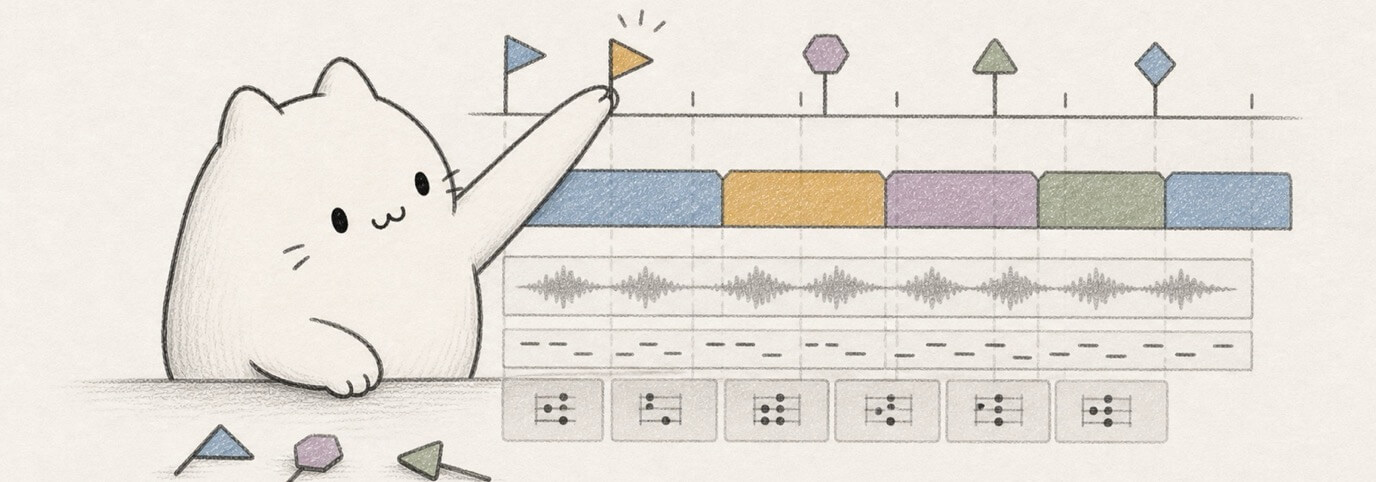
Use markers when the timeline needs song structure: Intro, Verse, Chorus, Bridge, Outro, review notes, or generation targets. Markers are normal editable project objects, not hidden generation state.

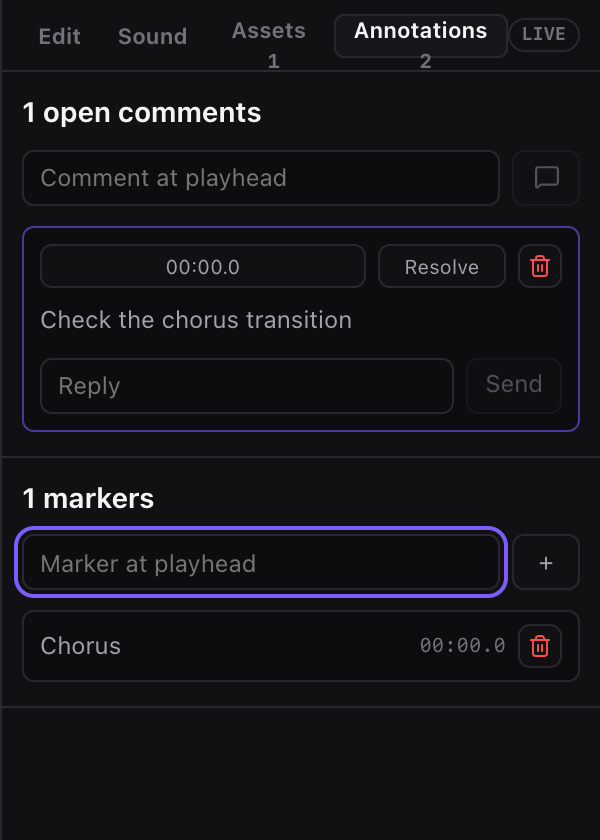
What Markers Do
Markers have three jobs in Miaou:
| Job | Use it for |
|---|---|
| Navigation | Jump around a longer project and see song structure in the arrangement. |
| Marker labels | Keep arrangement reminders, production reminders, or review points attached to timeline beats. |
| Section actions | Generate, regenerate, duplicate, or vary material from one marker to the next. |
A marker section runs from the selected marker to the next marker. The final marker runs to the end of the visible project or relevant chord/project range.
Choose the Right Structure Tool
Miaou has several timeline objects that look related but have different jobs. Use this table before building a song map:
| Need | Use | Why |
|---|---|---|
| Name a song part like Verse, Chorus, or Bridge | Marker | Markers define section ranges and drive section-scoped generation. |
| Write the harmony that generated MIDI follows | Chord block | Chords are the harmonic source for Follow Chord Track, analysis, and generation. |
| Keep an arrangement or production reminder | Marker label in Markers | Markers travel with the project without changing musical timing or generation. |
| Repeat or move actual audio/MIDI material | Region | Regions contain playable material and can be copied, trimmed, looped, or moved. |
| Change an effect, mix, or instrument over time | Automation point or lane | Automation stores parameter movement, not arrangement structure. |
| Sketch a temporary loop while listening/editing | Transport loop range from the timeline ruler | The loop range controls playback only; it does not create a marker section. |
The practical workflow is: make a rough marker map first, add or analyze chords, then generate or arrange material section by section.
Add Markers
Use one of these:
- Right-click empty timeline space and choose Add marker here.
- Right-click the ruler or marker area when available.
- Open Markers, type a marker label, and click + to add it at the playhead.
- Use Create markers when you already have a Chord Track progression and want a starter section map.
Good first marker names:
| Name family | Why it helps generation and navigation |
|---|---|
| Intro, Outro | Signals lower-density openings and endings. |
| Verse | Signals a more restrained section. |
| Pre-Chorus | Signals rising motion before a chorus. |
| Chorus | Signals a fuller, higher-energy section. |
| Bridge | Signals alternate motion or contrast. |
| Turnaround, Fill | Signals denser transition material into the next section. |
You can use other names for notes and navigation. Section generation only uses names as light musical role hints; generated MIDI remains editable either way.
Select and Edit Markers
Markers share the same editing model as regions, notes, chords, and automation points:
| Gesture or shortcut | Result |
|---|---|
| Click marker | Select one marker. |
Cmd / Ctrl-click | Add or remove a marker from the selection. |
Shift-click | Select a marker range. |
Cmd+A / Ctrl+A | Select every marker when marker editing is active. |
| Drag selected marker | Move the selected marker group while preserving spacing. |
Option / Alt drag | Leave originals in place and preview ghost marker copies. |
Cmd+C, Cmd+X, Cmd+V | Copy, cut, and paste selected markers at the playhead. |
Cmd+D / Ctrl+D | Duplicate selected markers by the active grid step. |
ArrowLeft / ArrowRight | Nudge selected markers by the active grid. |
Delete / Backspace | Delete selected markers. |
Right-click a marker or timeline position when you want the paste or duplicate target to be the clicked time instead of the playhead.
Use Markers as Sections
Select one marker when you want Miaou to treat the marker-to-next-marker range as a section.
That range can drive:
- Make MIDI, Pad, Arp, Bass, Drums, or Lead from the overlapping Chord Track blocks.
- Build arrangement for coordinated section layers.
- Build fill for transition material into the next marker.
- Regenerate section MIDI after chord edits.
- New section take / Create section takes for alternate generated versions.
- Duplicate section or Duplicate variation for copying song structure.
The generation summary names the active marker source and shows the bar span. Check that summary before building, especially in longer songs.
Create Markers from Chords
Use Create markers when you have chords but no section map.
Miaou places a starter outline across the chord range, snaps suggestions to chord or bar starts, and skips positions where markers already exist.
| Chord-lane size | Suggested marker shape |
|---|---|
| Short | Compact Intro / Verse / Chorus or Intro / Verse / Chorus / Bridge / Outro map. |
| Medium | Adds Pre-Chorus when the chord range can support it. |
| Full song | Drafts repeated Verse 1 / Pre-Chorus 1 / Chorus 1 / Verse 2 style sections. |
Treat these as editable suggestions. Rename, move, duplicate, or delete markers until the outline matches the song you want.
Read the Markers Panel
The Markers panel contains marker and section controls. For section generation, it reports:
- section role;
- bar range;
- chord count;
- generated MIDI count;
- changed source count;
- saved-source count;
- unresolved source count.
Those counts tell you whether a section is ready to regenerate after chord edits. If a section shows unresolved generated MIDI, inspect the source chords before rebuilding.
Duplicate or Vary a Section
Use Duplicate section when you want to copy song structure, not just copy a few selected blocks.
Miaou copies:
- the selected marker;
- Chord Track blocks in that marker-to-next-marker range;
- overlapping timeline regions;
- MIDI clips for copied MIDI regions.
The new marker is named like the next arrangement instance, such as Verse 2 or Chorus 3. Chord-generated MIDI in the copied section is retargeted to the copied chords, so Regenerate follows the duplicated progression instead of the original one.
Use Duplicate variation when you want the same copied section structure but fresh alternate chord-generated MIDI takes. Manual MIDI and audio regions copy as-is.
Build, Fill, and Regenerate Sections
| Need | Use |
|---|---|
| Generate one selected section | Select a marker, then use Build arrangement or an individual chord-generation action. |
| Generate every marked section | Use Build song. Miaou reuses layer tracks across sections. |
| Add a transition into the next part | Use Build fill. The result is labeled like Fill to Chorus when possible. |
| Rebuild after chord edits | Use Regenerate section MIDI. |
| Keep alternate generated takes | Use New section take or Create section takes. |
Generated section material is normal editable MIDI. Use the Piano Roll to change notes, instruments, velocities, timing, and effects after generation.
Markers and Timeline Reminders
Use markers for timeline structure and section actions. Use short marker labels in Markers for human-readable reminders.
Good marker/note habits:
- Put musical structure in marker names: Verse 1, Chorus 2, Bridge.
- Put production reminders in short marker labels: “try shorter fill,” “vocal enters here,” “export check.”
- Keep reminders tied to the timeline instead of treating the Markers panel like a chat or review workflow.
Common Mistakes
| Problem | Fix |
|---|---|
| Generation used the wrong section | Select the intended marker and check the generation summary bar range. |
| Duplicate copied too much or too little | Move neighboring markers first; a section is marker-to-next-marker. |
| Regenerate section is disabled | Check whether source chords are missing, partial, or only saved as incomplete source. |
| Fill has no clear destination | Add or select the next marker so Miaou can label the transition target. |
| Marker shortcuts edit regions instead | Click the marker or Markers panel first so marker editing is the active context. |
Related Pages
- Chords and Scales explains Chord Track generation, section-aware source details, and safe regeneration.
- Analyze and Generate gives the full Chord Track + Generate workflow.
- Timeline Editing covers low-level marker selection, drag, duplicate, nudge, and delete behavior.
- Editing Basics explains the active editor and shared shortcuts.
- Commands and Shortcuts lists marker and section commands.